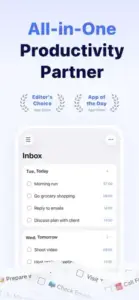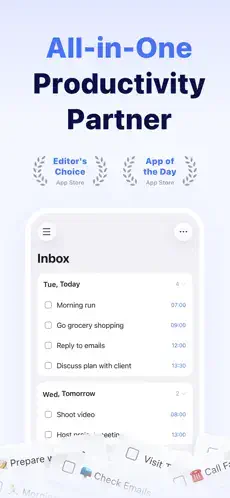
TickTick promises to fix your organization problem. You have tried to get organized before. Todoist. Microsoft To Do. Google Calendar. But you need more. Task lists for work projects. Calendar planning for meetings. Habit tracking for daily routines. Focus timer for deep work. That is four different apps.
TickTick puts everything in one place. The question is whether it actually helps you get things done or just adds another app to ignore on your home screen.
Productivity apps exploded as people tried to organize work and personal life on their phones. Todoist focused on tasks with natural language input that made entry fast. Microsoft To Do kept it simple for people who just needed a checklist. Google Calendar handled scheduling but had weak task management. TickTick combined tasks, calendar, habits, and focus tools into one app. No switching between four different apps to plan your day.
TickTick in 2026 is not just a to-do list. It is a full productivity system. You manage tasks with lists and subtasks. You plan your calendar by time-blocking. You track habits to build routines. You focus with a Pomodoro timer. Understanding all the features helps you actually get organized instead of juggling multiple apps that do not talk to each other.
TickTick app holds a 4.9 star rating on the App Store based on over 42,000 reviews. Size sits around 302 MB depending on cached data. Age range stretches from students managing assignments to professionals juggling work projects. If you prefer a simpler task manager without calendar and habit features, Todoist offers focused task management
What Is TickTick ?
A productivity app that combines tasks, calendar planning, reminders, habits, and focus tracking. One app for everything you need to stay organized. No switching between a task app, a calendar app, a habit tracker, and a timer. Everything is in one place.
Who It Is For
People who need more than a basic to-do list. Students managing assignments, exam dates, and study habits. Professionals juggling multiple work projects, meetings, and deadlines. Anyone who wants to build routines with habit tracking and focus sessions.
The Blend
Task management with lists and subtasks. Calendar scheduling with time-blocking. Habit tracking with streaks. Pomodoro focus timer with statistics. Notes and attachments for context. The app covers multiple productivity needs in one interface.
Download free. Basic features free. Premium subscription unlocks calendar view, habit tracking, focus timer, and advanced smart lists. The free tier is generous enough for basic task management.
TickTick 2026 : What’s New
Calendar View
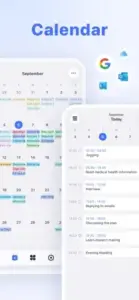
Time block your tasks on a calendar. See your day at a glance with tasks and events together. Drag and drop tasks to reschedule them. The calendar is the main reason people switch from Todoist to TickTick.
Habit Tracking
Build daily routines. Track habits like drinking water, exercising, or reading. See your streaks. The habit feature keeps you accountable with visual progress.
Focus Timer
Pomodoro-style timer for work sessions. Work in focused blocks. Take short breaks between sessions. Track your focus time over days and weeks to see your productivity trends.
Smart Lists
Filter tasks by tags, due dates, priorities, and lists. Create custom views for different contexts. Save them for quick access. A “Today” list. A “High Priority” list. A “Work” list.
Natural Language Input
Type “Call mom tomorrow at 5pm” and TickTick schedules it correctly. No clicking through menus. Fast entry means you do not forget tasks while entering them.
Cross Platform Sync
Works on iPhone, iPad, Android, Mac, Windows, and web. Everything syncs instantly across all your devices. Start a task on your phone. Finish it on your computer.
TickTick Core Features:
Task Lists
Create multiple lists for different areas of life. Work. Personal. Shopping. Projects. Each list holds tasks related to that area. Separate contexts keep you organized.
Subtasks
Break large tasks into smaller steps. Check them off one by one as you complete them. Subtasks make big projects feel less overwhelming. Progress feels visible.
Calendar View
See your tasks on a calendar alongside your events. Time-block your day by dragging tasks onto specific hours. Drag tasks to move them to different days. The calendar integrates tasks and events into one view.
Reminders
Set due dates and specific times for tasks. Get notifications on your phone. Never forget a task again. Recurring reminders for tasks that repeat weekly or monthly.
Habit Tracking
Build daily habits with simple checkmarks. Track streaks of consecutive days. The habit feature is separate from tasks. Habits are for routines. Tasks are for one-time items.
Focus Timer
Pomodoro technique built into the app. Work for 25 minutes. Rest for 5 minutes. Repeat. Track your total focus time. See which tasks take the most time.
Smart Lists
Create filtered views of your tasks. “Today” shows everything due today. “High Priority” shows urgent tasks. “Work & Due This Week” shows work tasks with upcoming deadlines.
Notes and Attachments
Add notes to any task for context. Attach files and images. Keep all relevant information with the task instead of scattered across different apps.
TickTick Task Management: Getting Things Done
Quick Capture
Open the app. Tap the plus button. Type your task. Natural language sets due dates automatically. Fast entry means you do not forget tasks while entering them.
Lists and Folders
Create lists for different contexts. Work. Home. Errands. Projects. Group lists into folders for larger categories. A “Work” folder containing “Marketing” and “Sales” lists.
Priorities
Set priority levels on tasks. High. Medium. Low. Sort your tasks by priority. Focus on what matters most first. Low priority tasks can wait.
Tags
Label tasks with tags for cross-list organization. “@home” for tasks at home. “@computer” for digital tasks. “@errand” for tasks outside. Filter by tags to see specific contexts across all lists.
Recurring Tasks
Set tasks to repeat automatically. Daily for habits. Weekly for meetings. Monthly for bills. Every weekday for work tasks. Every Monday and Wednesday for specific routines. The recurrence engine is flexible.
Due Dates and Reminders
Set a due date for when the task must be completed. Add a reminder time to get notified before it is due. One day before. One hour before. At the exact time.
TickTick Calendar View: Planning Your Time
Time-Blocking
Drag tasks from your task list onto the calendar. Assign start and end times. See your day visually laid out. Time-blocking helps you realize when you have too much planned.
Task vs Event
Tasks appear on the calendar. Events from synced calendars also appear. See everything in one view. No switching between a task list and a separate calendar app.
Drag and Drop
Move tasks to different days by dragging them on the calendar. Reschedule quickly when plans change. No need to edit the task details.
Week and Month Views
See your week at a glance for detailed planning. See your month for long-term project deadlines. Switch between views depending on your planning horizon.
Calendar Integration
Sync with Google Calendar and Outlook. See external events inside TickTick. See TickTick tasks inside Google Calendar. Two way sync keeps everything consistent.
If you prefer a simpler task manager without calendar and habit features, check out Todoist for focused task management.
TickTick Habit Tracking: Building Routines
Create Habits
Set a habit name. Drink water. Meditate. Exercise. Read for 30 minutes. Choose how often the habit should happen. Daily for everyday routines. Weekly for less frequent activities. Certain days of the week for specific schedules.
Track Streaks
See how many days in a row you completed the habit. Streaks motivate consistency. Once you have a 7 day streak, you will not want to break it. The visual feedback keeps you going.
Reminders
Set a specific time for habit reminders. Get notified to exercise at 7 AM. Drink water every 2 hours. Meditate before bed. The reminders show up on your phone like any other notification.
Habit Calendar
See which days you completed your habits on a calendar view. Spot patterns in your behavior. Identify when you skip certain habits. Tuesday is always a skip day? Adjust your schedule.
Positive Reinforcement
Check off habits when you complete them. The app celebrates your streak with animations. Small dopamine hits keep you going. The feedback loop makes habit tracking satisfying.
TickTick Focus Timer: Getting Work Done
Pomodoro Timer
Work for a set time. Take a short break. Repeat the cycle. After four work sessions, take a longer break. The technique prevents burnout by forcing breaks before you get exhausted.
Customizable Durations
Set your own work and break times. 25 minutes work with 5 minute break is standard. 50 minutes work with 10 minute break for deep work sessions. 15 minutes work with 5 minute break for quick tasks.
Focus Tracking
See total focus time per day in a chart. See focus time per week for long-term trends. Track your productivity over time. Identify your most focused hours of the day.
White Noise
Play ambient sounds while focusing. Rain sounds for relaxation. Waves for white noise. Coffee shop ambiance for background chatter. Fireplace crackling for warmth. The sounds block distracting environmental noise.
Task Association
Assign a specific task to each focus session. See which tasks take the most time. Track how many Pomodoro sessions a large project requires. The data helps with future planning.
TickTick Graphics and Design
Visual Style
Clean, minimal interface throughout the app. Prioritizes readability and speed over decoration. White space separates different sections. Simple icons are easy to understand. Consistent spacing creates visual harmony.
Layout
Tasks on the left or top of the screen. Calendar on the right or bottom depending on orientation. The layout adapts to different screen sizes. Easy to navigate without hunting for features.
Color Accents
Subtle color coding for priorities and different lists. High priority tasks in red. Medium in yellow. Low in gray. Not overwhelming. Just enough visual distinction to scan quickly.
Dark Mode
Full dark theme available for night planning. Easier on eyes when you are planning late. Saves battery on OLED screens. The dark mode is well implemented with good contrast.
Performance
Runs on most iPhones from iPhone 7 and newer. Syncs quickly across devices. No lag when switching between different views. The app is lightweight and responsive.
TickTick Similar Apps
| App | Main Similarity |
|---|---|
| Todoist | Task management and productivity organization |
| Microsoft To Do | Simple lists, reminders, and cross-device sync |
| Google Calendar | Scheduling and time based planning |
| Notion | Flexible notes, tasks, and personal organization |
| Things 3 | Clean task management with polished interface |
The Differentiation
Todoist focuses on tasks with natural language and powerful filters. Better for pure task management but has no calendar or habit features. Microsoft To Do is simple and free with Microsoft account integration. Google Calendar handles scheduling but has weak task management for to-dos. Notion is extremely flexible but requires setup and ongoing maintenance. Things 3 has beautiful design but is Mac only and requires a one-time purchase.
TickTick stands out for combining tasks, calendar, habits, and focus timer in one app. You do not need four separate apps. The free tier is generous. The premium tier unlocks everything.
If you search TickTick similar apps, these five appear most often. Each does something well. TickTick does all in one productivity better than most.
TickTick Free vs Premium: What You Get
Free Version
Task lists for organizing work. Subtasks for breaking down projects. Reminders for due dates. Recurring tasks for weekly chores. Basic calendar view for seeing due dates. Basic habit tracking with limited habits. Smart lists with basic filters. Focus timer with basic functionality. Enough for basic task management.
Premium Version
Full calendar view with drag and drop time-blocking. Unlimited habit tracking for multiple routines. Full focus timer with statistics and history. Smart lists and advanced filters. Calendar integration with Google and Outlook. Widgets for your home screen. Custom themes for visual preference. File attachments for task context. Collaboration features for team use.
What You Lose Without Premium
Calendar view is limited to a simple list, not a visual grid. Habits are limited to a small number. Focus timer has fewer statistics and no history. Smart lists are restricted in complexity. Collaboration features are locked entirely.
Value Proposition
Free version is good for basic task management. Premium is worth it for the calendar view, habit tracking, and focus timer. One subscription replaces multiple separate apps.
TickTick Tips and Tricks
Use Calendar View to Time-Block Important Work
Drag tasks from your list onto the calendar. Assign specific start and end times. Seeing your day laid out visually helps you realize when you have too much planned.
Turn Recurring Tasks into Habits
If you do something daily, make it a habit instead of a recurring task. Habits have their own section and track streaks. Tasks do not track streaks.
Keep One Inbox List for Quick Capture
Create an “Inbox” list as your default. Dump every task there without organizing. Process it later into other lists. Nothing gets forgotten.
Use Subtasks for Larger Goals
Break big projects into smaller steps. Subtasks make progress visible. Checking off subtasks feels good and motivates you to continue.
Combine Focus Timer with a Short Task List
Pick only 3 tasks for a focus session. Start the timer. Work until it rings. Do not switch tasks during the session.
Set Reminders for Time-Sensitive Items
Do not rely on your memory. Set a reminder for anything with a deadline. The notification will save you.
Use Tags or Smart Lists to Separate Work, Personal, and Long-Term Items
Create a smart list for “Work & High Priority.” Create another for “Personal & Due Today.” Filter by tags to see only what matters now.
Review Your Tasks Daily
Spend 5 minutes each morning with your coffee. Check what is due today. Reschedule what you cannot do. The app works best when you use it daily.
Use Natural Language for Fast Entry
Type “Submit report tomorrow at 3pm #work p1” instead of clicking through menus. TickTick parses it correctly. Fast entry means you do not forget tasks.
Try the Pomodoro Technique for Hard Tasks
Break difficult work into 25 minute chunks. The timer makes starting less intimidating. You can do anything for 25 minutes.
Conclusion: Should You Use TickTick ?
Yes, if you need more than a basic to-do list. TickTick combines tasks, calendar, habits, and focus timer in one app. The free version is generous for basic needs. Premium is worth it for the calendar view and focus tools. It is a strong alternative to Todoist for people who want calendar integration.
What works: Combines tasks, calendar, habits, and focus timer in one app. Clean, minimal interface that is easy to learn. Natural language quick entry saves time. Cross-platform sync across all your devices. Generous free tier for basic use. Premium is affordable compared to buying multiple separate apps.
What does not: Premium required for full calendar view and habit tracking. Learning curve for advanced features like smart lists and filters. Some users prefer simpler apps with fewer features. Collaboration features are limited compared to dedicated team tools like Asana.
What do you want from a productivity app? If you want tasks, calendar, habits, and focus timer in one place, TickTick delivers. If you want only tasks without extra features, Todoist or Microsoft To Do might fit better.
If you prefer a simpler task manager without calendar and habit features, check out Todoist for focused task management.
Frequently Asked Questions About TickTick
Is TickTick free to use, or do I need to pay?
TickTick is free to download and use. The free version includes task lists, subtasks, reminders, recurring tasks, basic calendar view, basic habit tracking, and a basic focus timer. Premium adds full calendar view with drag and drop, unlimited habit tracking, full focus timer statistics, smart lists, calendar integration, widgets, themes, file attachments, and collaboration features. Free is enough for basic task management. Premium is worth it if you want calendar and habit features. You can start your TickTick download from the App Store.
What is the difference between TickTick and Todoist?
Todoist focuses purely on task management with excellent natural language input and powerful filters. It does not have a built-in calendar view, habit tracker, or focus timer. TickTick combines tasks, calendar, habits, and focus timer in one app. If you only need tasks, Todoist is great. If you want tasks plus calendar and habits, TickTick is better.
How does the calendar view work in TickTick?
The calendar view lets you see your tasks alongside your events. You can drag tasks from your list onto the calendar to time-block them. Assign start and end times. Drag tasks to different days to reschedule. The calendar syncs with Google Calendar and Outlook for two-way integration. Premium is required for the full calendar experience.
What is the habit tracker and how is it different from recurring tasks?
Habits are for daily or weekly routines like drinking water, exercising, or meditating. They track streaks and show a calendar of your completion history. Recurring tasks are for one-time items that repeat, like paying bills or weekly reports. Habits focus on consistency and streaks. Tasks focus on completion.
Where can I find official information and get support if I have issues?
The official TickTick website has information about features, pricing, and updates. The TickTick Help Center answers common questions about setup, syncing, and troubleshooting. For account issues or technical problems, contact support through the website. Official website: https://ticktick.com