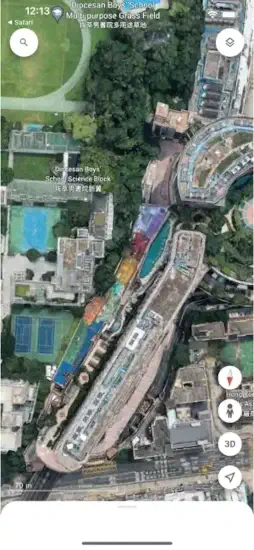
Google Earth is different from Google Maps. You have Google Maps for directions, for finding the nearest coffee shop, for getting from home to work.
Google Earth is something else entirely. You zoom from space down to your street. You see mountains in 3D with realistic elevation. You walk through cities in Street View at ground level. You explore the world without leaving your couch. The question is whether it is a useful tool for travel planning and education or just a toy you will open once, say “cool,” and forget about forever.
Google Earth is an exploration platform. You search for places anywhere on Earth. You zoom in for incredible detail. You measure distances between points. You create custom map projects with markers and lines. You travel the world virtually from your phone. Understanding the features helps you use it for travel planning, geography education, or pure curiosity.
Google Earth app holds a 4.0 star rating on the App Store based on over46,000 reviews. Size sits around 156 MB depending on cached imagery. Age range stretches from students learning geography to travelers planning trips to curious adults exploring the world. If you need turn by turn navigation instead of exploration, Google Maps offers driving directions
The App You Downloaded Years Ago Is Not the Same App Today
Why People Dismiss Google Earth Too Quickly
Most people assume Google Earth is just Google Maps with a 3D twist. That assumption made sense a decade ago. Today, it misses the point entirely.
Google Earth is not built for navigation. It is built for seeing. Seeing a city’s growth over forty years. Seeing the shape of a coastline. Seeing how a neighborhood connects to the terrain around it. These are not things Google Maps does well. Google Maps gets you somewhere. Google Earth shows you what is there.
The confusion creates a real problem. People download Google Earth expecting one thing and find another. They poke around for five minutes, feel lost and delete it. What they miss is the layer of tools underneath the surface that turns the app into a storytelling canvas, a research instrument and a window into environmental change.
What Changed and What Stayed
The core experience remains the same. You open to a globe. You search for a place. You zoom in. You tilt the view. You enter Street View. That foundation has not moved.
What changed is everything around it. The newest version lets you create and collaborate on maps from your phone. Add photos from your camera. Share projects through Google Drive. Co-author with other people the way you would edit a shared document.
Google Earth also now includes historical imagery going back to 1984 globally, with some city aerial imagery reaching the 1930s. 3D buildings cover more than 2,500 cities across 49 countries. Street View contains over 280 billion images across 100+ countries and territories.
Does that sound like a one time novelty?
What Google Earth Actually Offers Now
The Features That Make It Worth Opening Again
The foundation is satellite imagery covering the planet, layered with 3D terrain that renders mountains, valleys and coastlines with real depth. Tilt the view in a mountainous region and you feel the elevation. Rotate around a city and the buildings have dimension.
Historical imagery is where the app becomes genuinely powerful. A timeline slider lets you move through decades of satellite data. You can watch a city expand, a glacier retreat, a shoreline shift, a forest disappear. Google’s own guidance notes that average imagery age runs one to three years, with wide variation by region. That delay is not ideal for tracking breaking events, but for understanding long term change, it is more than enough.
Voyager offers guided stories, quizzes, and 360 degree media for education and casual curiosity. Think of it as a curated tour of the planet, built by people who know what makes a place interesting.
Creating Maps Without Needing GIS Software
Projects turn Google Earth into a lightweight storytelling tool. You can add placemarks, draw routes, mark boundaries, attach photos from your camera and save specific 3D viewpoints. Share the result through Google Drive. Invite others to collaborate.
This is useful for travel planning, classroom assignments, field research, community documentation and personal archives. A family can build a map of a road trip. A teacher can create a visual timeline of a historical event. A researcher can mark field sites and attach notes.
The learning curve exists, but it is shallow compared to professional mapping tools. You do not need to understand coordinate systems or GIS formats. You need curiosity and a willingness to click around.
How It Works in Practice
Open Google Earth. You see the globe. Search for a place, address, landmark or coordinates.
Choose a viewing mode. Move between satellite imagery, 3D terrain, buildings, map layers and Street View.
Navigate in three dimensions. Zoom, rotate, tilt and pan. Switch between top down and orbiting 3D view.
Enter Street View for ground level context. Tap the screen where you want to go.
Use historical imagery to compare past and present. Access the timeline through the layers menu or toolbar.
Create a project with placemarks, shapes, text and media. Save it to Google Drive. Share with collaborators.
Use Voyager for guided learning and curated exploration.
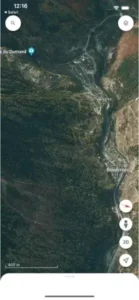
Google Earth Tips
You do not need a manual to enjoy the Google Earth app. You need a handful of habits that make the experience smoother and the results more useful. Here is what actually helps.
Switch to Satellite view immediately. The classic Google Earth experience lives in satellite mode. If the app opens in a map style view, adjust it before you start looking around. Historical imagery is unavailable when the Map basemap is active, so satellite view unlocks the features most people want.
Tilt the map in cities and mountainous regions. Flat views miss the point. Tilting reveals building height, valley depth and terrain shape in ways a top down view cannot match. Drag two fingers upward on mobile or use the tilt control on desktop.
Move from satellite to Street View for neighborhood context. Start from above to understand the larger area. Then drop to ground level to see what the street actually looks like. Tap the screen where you want to go and Street View places you there.
Check the imagery date before assuming what you see is current. Google’s guidance says typical imagery runs one to three years old, with wide variation by region. If you need to know when a specific image was captured, open the imagery date settings and confirm. Do not guess.
Use historical imagery for before-and-after comparisons. Construction projects, coastline changes, forest loss, urban sprawl. The timeline slider makes change visible across decades. Switch to Satellite view, open Historical imagery and move through the available dates.
Name projects clearly by topic, region, or purpose. “Istanbul Travel Research 2026” beats “Untitled Map” when you return six months later. A clear name saves time and reduces the urge to recreate work you already did.
Add descriptions to markers so future you understands what mattered. A pin without context becomes a mystery. One sentence explaining why a location earned a place on your map pays off later.
Keep projects separated by purpose to reduce clutter. Travel, research, classwork, and personal places belong in different files. Mixing them makes everything harder to find and slower to load.
Attach photos and videos to turn locations into stories. Use camera uploads and media attachments to build travel journals, field documentation, class assignments, or local history records. A map with images tells a richer story than pins alone.
Save a strong 3D viewpoint before sharing. Frame your map the way you want others to see it. Tilt, rotate, and zoom into position, then save that view so collaborators open to the intended geographic story.
Use Voyager for ready-made lessons before building your own. Voyager offers curated stories, quizzes and 360 degree media that can introduce a topic or spark ideas for your own projects.
Request imagery updates through the Help menu when needed. Google Earth accepts imagery update requests from the Help menu on web and mobile, but requests are suggestions and do not guarantee a near term update.
Google Earth Similar Apps
Google Earth similar apps cover a wide range. Some are built for navigation. Some are built for professional mapping. Some are built for environmental monitoring. Here is how the major alternatives compare.
| App | Best For | Main Difference from Google Earth |
|---|---|---|
| Google Maps | Navigation, live traffic, local businesses | Built for getting somewhere; Google Earth is built for seeing and storytelling |
| Apple Maps | Apple device navigation and city views | Better integrated with iPhone and Mac; Google Earth has broader satellite and historical tools |
| ArcGIS Earth | Professional GIS visualization | Handles technical layers, offline workflows and geospatial analysis; steeper learning curve |
| Google Earth Pro | Desktop research and advanced workflows | Better for desktop heavy users who need imports, exports, and detailed geospatial work |
| NASA Worldview | Recent Earth observation imagery | Better for scientific and near current environmental satellite data; less focused on 3D city views |
| Zoom Earth | Live weather, storms, radar | Better for weather monitoring; not designed for 3D globe storytelling |
| Bing Maps | Bird’s Eye imagery and map browsing | Alternative consumer imagery; coverage and tools vary by country |
| OpenStreetMap | Open geographic data and community mapping | Better for editable map data; less immersive for satellite imagery |
| CesiumJS | Developers building custom 3D globes | Requires coding and infrastructure; not built for casual users |
Google Earth occupies a specific space. It offers more depth than daily navigation apps. It remains more accessible than professional GIS software. It is stronger for storytelling than most alternatives. That middle ground is the reason it still matters.
Conclusion
The app most people dismissed as a one time novelty has changed. It is no longer just a globe you spin once and forget. It is a tool for seeing change, building maps, and understanding places in ways flat maps cannot match.
Google Earth rewards curiosity, patience, and a willingness to poke around. It punishes anyone expecting real time imagery or a perfectly consistent cross device workflow. The imagery lags. The interfaces differ. The project tools have quirks.
But if you want to see how a city changed over forty years, plan a trip with visual context or build a map that tells a story, this remains the most accessible tool for the job. If you need current imagery or professional GIS analysis, look elsewhere.
Open it. Search for your hometown. Tilt the view. Check the timeline. The question is not whether Google Earth is impressive. It is whether you will use it for more than five minutes this time.
Video by KnowledgeBase
Frequently Asked Questions About Google Earth
Is Google Earth free to use?
Yes. Google Earth is completely free to download and use. No subscription. No ads. No hidden costs. You get full access to satellite imagery, 3D terrain, 3D buildings, Street View, historical imagery, Voyager tours, and custom map projects. You can Download Google Earth from the Official App Store.
What is the difference between Google Earth and Google Maps?
Google Maps is for navigation and getting directions from one place to another. Google Earth is for exploration and visualization. Maps shows you the route. Earth shows you what the world actually looks like from above and at street level. Earth has 3D terrain, 3D buildings, historical imagery, and a global view that Maps does not have.
Does Google Earth work without internet?
You need an internet connection to stream satellite imagery and 3D data. The app does not have full offline mode. However, you can cache imagery for specific areas if you pan around them while online. The cached imagery remains available offline for a limited time.
Can I see my house on Google Earth?
Yes. Most residential areas in developed countries have high-resolution satellite imagery. Zoom in on your address. You should see your house, yard, and neighborhood. In major cities, you may also see 3D buildings. In some rural or remote areas, the imagery may be lower resolution.
Where can I find official information and get support if I have issues?
The official Google Earth Help Center has documentation, video tutorials, and troubleshooting guides. The Google Earth community forum offers peer-to-peer support. For technical problems, visit the Google Help page. Official website: https://earth.google.com