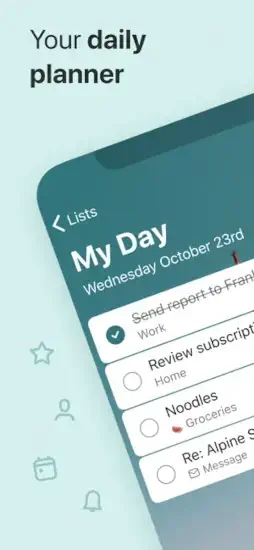
Microsoft To Do keep your life organized without the complexity of other task managers. You have tried other apps before. Todoist felt too complicated with its labels and filters and natural language commands you never used. TickTick had too many features like habit tracking and focus timers that just added noise. You just want a simple list.
Microsoft To Do promises exactly that. Clean lists that are easy to read. Daily focus called My Day that helps you prioritize. Due dates and reminders so nothing slips through the cracks. Shared tasks for family or small teams. The question is whether this free, cross-platform app is finally the simple task manager that actually helps you get things done or just another digital to-do list you will ignore after a week of good intentions.
Task management apps exploded as people looked to organize both work and personal life in one place. Todoist led with natural language input that let you type “Call mom tomorrow at 5pm” and automatically set the due date. TickTick added calendar views, habit tracking, and a focus timer for productivity enthusiasts. Google Tasks stayed extremely simple inside the Google ecosystem with no frills. Microsoft To Do focused on clean design, cross-platform sync across iOS, Android, Mac, Windows, and web, and deep integration with Microsoft 365 and Outlook.
Microsoft To Do is not a complex project management tool for power users. It is a simple, lightweight task manager for regular people. You create lists for different areas of your life like work, home, shopping, and travel. You use My Day to focus on what needs to be done today. You add due dates and reminders to important tasks. You break large tasks into smaller steps using the Steps feature. You share lists with family or small teams for grocery shopping or chore tracking. Understanding the features helps you actually finish tasks instead of just writing them down and feeling overwhelmed.
Microsoft To Do app holds a 4.7 star rating on the App Store based on over 260,000 reviews. Size sits around 165 MB depending on cached data. Age range stretches from students managing assignments to professionals organizing work projects. If you prefer a more powerful task manager with natural language input and advanced filters, Todoist offers advanced features.
What Is Microsoft To Do, Actually?
A simple, cross-platform task manager that helps you organize daily work, personal errands, and shared lists in one place. Create unlimited lists for different areas of your life. Use My Day to focus on today’s priorities. Add due dates and reminders. Break large tasks into smaller steps using the Steps feature. All for free.
People who want a clean, lightweight to-do app without unnecessary complexity. Microsoft 365 and Outlook users who want seamless integration between their email and tasks. Anyone who needs shared lists for family coordination or small team projects. Students managing assignments and study tasks.
Microsoft To Do connects directly with Microsoft 365 and Outlook tasks. Tasks you create in Outlook appear automatically in To Do. Tasks you create in To Do appear automatically in Outlook. The sync is automatic and seamless across all your devices.
Completely free. No subscription required. No premium tier with locked features. Microsoft includes To Do as part of their free productivity suite alongside Microsoft Word, Excel, and PowerPoint for mobile.
Microsoft To Do 2026: What’s New
My Day
The daily focus feature sits at the heart of the app. Each morning, you choose the tasks you want to accomplish today. The app suggests tasks based on due dates from your lists. My Day resets every evening at midnight.
Steps
Break large tasks into smaller, manageable steps. Similar to subtasks in other apps. Check off steps as you complete them one by one. The feature makes big projects feel less overwhelming.
Starred Tasks
Mark important tasks with a star icon. Starred tasks appear in a separate list for quick access. Good for highlighting urgent items that cannot wait.
Shared Lists
Share lists with family, roommates, or small teams. Everyone with access can add tasks and complete them. Assign tasks to specific people within shared lists.
List Groups
Organize related lists into groups. Work group containing all your project lists. Home group containing your shopping and chore lists. The groups keep your sidebar clean.
Custom Backgrounds
Personalize each list with solid colors or images from your library. Make your work lists blue and your personal lists green. The customization adds visual distinction.
File Attachments
Attach files to tasks in personal lists. PDFs, images, documents, anything. Keep relevant information right with the task instead of scattered across your device.
Microsoft To Do Core Features: What You Actually Use
Task Lists
Create unlimited lists for different areas of your life. Work projects. Personal errands. Shopping lists. Travel planning. Home renovation. Each list holds related tasks for that context.
My Day
The daily planning tool helps you focus. Add tasks from any list to today’s focus area. The app suggests what to work on based on due dates. My Day resets every 24 hours.
Steps
Breakdown of large tasks into smaller pieces. “Write quarterly report” becomes Outline sections, Draft introduction, Add financial data, Review with manager. Steps make visible progress.
Due Dates and Reminders
Set a deadline for each task so you know when it needs to be done. Add a reminder time to get a notification. Get notified before the task is due.
Starred Tasks
Mark tasks as important with a star icon. Starred tasks appear in a separate view from your lists. Good for urgent items that need attention today.
Notes
Add extra details to any task. Meeting notes. Shopping list details with brand preferences. Project context that does not fit in the task title.
File Attachments
Attach files to tasks in personal lists. A photo of a product you need to buy. A PDF of a document you need to review. Keep everything together.
Microsoft To Do Lists and Organization
Creating Lists
Tap the plus button in the sidebar. Name your list something clear like Work, Home, Groceries, Vacation Planning. The list appears in your sidebar for easy access.
List Groups
Group related lists together for better organization. Create a Work group. Put Project Alpha, Project Beta, and Meeting Notes lists inside. Create a Home group. Put Chores, Shopping, and Renovation lists inside.
Customizing Lists
Change the background color of any list. Add a background image from your photo library. The customization makes lists visually distinct at a glance.
Reorder Lists
Drag and drop to reorder your lists and groups. Put your most used lists at the top of the sidebar. Archive old lists when projects finish.
Deleting Lists
Remove completed project lists when you are done. Clean up your sidebar regularly. Deleted lists go to a trash folder for 30 days.
Microsoft To Do My Day: Daily Focus
What Is My Day
A special list that resets every day at midnight. Each morning, you choose which tasks to focus on for the day. The app suggests tasks based on due dates from your other lists.
Adding Tasks to My Day
Drag tasks from other lists directly into My Day. Tap the calendar icon on a task and select Today. The task appears in My Day automatically.
Suggestions
The app looks at tasks with due dates set. Tasks due today appear as suggestions. Overdue tasks from previous days appear as suggestions. The algorithm learns your behavior over time.
Completing My Day
Check off tasks as you finish them throughout the day. The goal is an empty My Day list by evening. The satisfaction of clearing your daily list is genuinely motivating.
My Day Does Not Sync
My Day is personal to you only. Shared list tasks added to My Day only appear for you. Other people on the shared list do not see your daily focus.
Microsoft To Do Steps and Subtasks
Creating Steps
Open any task. Tap Add Step below the task details. Type the first step and press enter. Add more steps the same way. Each step becomes a checkbox.
Completing Steps
Check off steps as you finish them one by one. The parent task shows progress. 2 of 5 steps completed. The progress bar fills as you go.
Indentation
Steps can have their own steps for complex projects. Nested subtasks work like an outline. The indentation is clear and easy to follow.
Deleting Steps
Remove steps that are no longer relevant to the task. Edit the task and delete unwanted steps. The task stays but the steps disappear.
Steps vs Separate Tasks
Steps keep related items together in one place. Separate tasks clutter your list with many items. Use steps for project subtasks, not separate tasks.
If you prefer a more powerful task manager with natural language input and advanced filters for complex projects, check out Todoist for advanced features.
Microsoft To Do Graphics and Design
Visual Style
Clean, minimal interface defines Microsoft To Do. White background on light mode. Simple icons that are easy to understand. The focus is on tasks, not visual flair or decoration.
Typography
Clear, readable fonts throughout the app. Task titles are bold and prominent. Due dates appear smaller below the title. The hierarchy is clear and easy to scan.
List View
Tasks appear in a vertical list format. Checkboxes on the left side. Task names in the middle. Due dates on the right side. The layout is clean and efficient.
Dark Mode
Full support for iOS dark mode. White text on black background. Easier on your eyes at night. The dark mode is well implemented with good contrast.
Backgrounds
Custom backgrounds for each list. Solid colors you can choose from a palette. Images from your photo library. The personalization is subtle but nice.
Performance
Runs on most iPhones from iPhone 8 and newer. Syncs instantly across all your devices. The app is lightweight and does not drain battery.
Microsoft To Do Similar Apps
| App | Main Similarity |
|---|---|
| Todoist | Task lists, reminders, and productivity planning |
| Google Tasks | Simple list based task management |
| TickTick | To-do lists with scheduling and reminders |
| Any.do | Lightweight productivity and task organization |
| Notion | Flexible planning and task organization |
The Differentiation
Todoist has natural language input and powerful filters. More features overall. Can feel complex for new users. Google Tasks is extremely simple but lacks features like steps and file attachments. TickTick adds calendar, habit tracking, and a focus timer. Many more features than Microsoft To Do. Any.do has a clean interface with calendar integration. Notion is a flexible workspace for notes and projects, not a dedicated task manager.
Microsoft To Do stands out for its Microsoft ecosystem integration. Tasks sync automatically with Outlook. The app is completely free with no premium tier. The design is clean and simple for everyday use.
If you search Microsoft To Do similar apps, these five appear most often. Each does something well. Microsoft To Do does simple, free task management with Outlook integration better than anyone.
Microsoft To Do Collaboration and Sharing
Shared Lists
Create a list as usual. Tap the share icon in the list settings. Add email addresses of people you want to share with. They receive an email invitation to join the shared list.
Permissions
Everyone with access can add new tasks to the list. Everyone can complete tasks. Everyone can edit existing tasks. No permission levels for different roles.
Task Assignment
Assign tasks to specific people within shared lists. The assigned person sees the task in their “Assigned to Me” view. Good for dividing up chores or project work.
Real Time Sync
Changes appear instantly for everyone on the shared list. You add a grocery item. Your partner sees it immediately on their phone. No refresh needed.
Use Cases
Family grocery list that everyone can add to. Roommate chore list with assignments. Small team project tasks. Wedding planning checklist.
Limitations
Not designed for large teams. No permission levels for different roles. No comment threads on tasks. Best for small groups like families or small teams.
Microsoft To Do Tips and Tricks for 2026
Use My Day Every Morning to Choose the Day’s Top Priorities
Spend two minutes each morning with your coffee. Review the suggested tasks from your lists. Add the most important ones to My Day. The daily focus keeps you on track.
Break Bigger Jobs into Steps so Tasks Feel Easier to Finish
Write a quarterly report feels overwhelming. Write outline, Draft introduction, Add financial data, Review with manager feels doable. Steps make your progress visible.
Use Starred Tasks to Highlight Urgent Items
Star time sensitive tasks that cannot wait. Check your starred list first thing each day. Do not let urgent tasks hide in long lists.
Create Separate Lists for Work, Home, Shopping, and Travel
Keep different contexts separate from each other. Do not mix work tasks with shopping lists. The separation reduces mental stress.
Turn on Reminders and Due Dates so Nothing Gets Lost
Set a due date for every important task. Add a reminder time. The app will notify you before the task is due.
Use List Groups to Keep Related Lists Together
Group all your work lists together in one group. Group all your home lists together in another group. The sidebar stays organized and clean.
Share Lists When You Need to Coordinate with Family or Small Team
Create a shared grocery list. Add items as you run out during the week. Whoever goes shopping has the list ready.
Add Notes and File Attachments to Tasks That Need Extra Context
Attach a photo of the product you need to buy. Add notes about where to find it. Keep all relevant information with the task itself.
Review Completed Tasks Weekly
Look at what you finished during the week. Celebrate your progress. Adjust your system if something is not working.
Archive Old Lists
When a project finishes, archive the list instead of deleting it. Keep your active lists clean and focused.
Microsoft To Do Common Issues and Fixes
Sync Not Working
Check your Microsoft account sign in. Ensure you are signed in on all devices. Restart the app completely.
Notifications Not Showing
Check notification permissions in iPhone settings. Check notification settings inside the app. Restart the app.
Shared List Not Appearing
Confirm the other person accepted the email invitation. Ask them to refresh the app. Resend the invitation.
Steps Not Saving
Ensure you pressed enter after typing each step. Update the app to the latest version. Restart the app.
File Attachments Failing
Check the file size limit for attachments. Try a smaller file. Update the app to the latest version.
Calendar Integration Not Working
Check your Outlook settings. Ensure tasks sync is enabled. Sign out and sign back into your account.
Conclusion:
if you want a simple, free task manager that works across all your devices without complexity. Microsoft To Do is not for power users who need advanced features like natural language input or calendar views. It is for regular people who want clean lists, daily focus, and basic collaboration with family or small teams. The Microsoft integration is a bonus for Outlook users.
What works: Completely free with no subscription needed. Clean, minimal interface that is easy to learn. My Day for daily focus on priorities. Steps for breaking down large tasks. Shared lists for small team collaboration. Outlook integration for Microsoft users. Cross-platform sync across all your devices.
What does not: Fewer features than Todoist or TickTick for power users. No natural language input for quick task entry. No calendar view to see tasks by date. No habit tracking or focus timer. Shared lists lack permission levels for different roles.
What do you want from a task manager? If you want a simple, free, cross-platform app that integrates with Outlook, Microsoft To Do delivers. If you need advanced features like natural language input or calendar views, Todoist or TickTick may fit your needs better.
Frequently Asked Questions About Microsoft To Do
Is Microsoft To Do really free?
Yes. Microsoft To Do is completely free to download and use. No subscription. No premium tier. No ads. You get unlimited tasks, unlimited lists, steps, due dates, reminders, file attachments, shared lists, and cross-platform sync across all your devices. Microsoft includes To Do as part of their free productivity suite. You can start your Microsoft To Do download from the Official App Store.
How does Microsoft To Do sync with Outlook?
Microsoft To Do syncs automatically with Outlook tasks. Tasks you create in Outlook appear in To Do. Tasks you create in To Do appear in Outlook. The sync works both ways. You need to be signed into the same Microsoft account on both apps. The sync works across Outlook desktop, Outlook web, and Outlook mobile.
What is the difference between My Day and regular task lists?
My Day is a special list that resets every day at midnight. Each morning, you choose which tasks to focus on for the day. The app suggests tasks based on due dates from your other lists. Regular task lists are permanent and hold all your tasks by category like Work, Home, or Shopping. My Day helps you focus on today. Regular lists organize everything.
Can I share lists with other people?
Yes. Create a list, tap the share icon, and add email addresses of the people you want to share with. They receive an invitation. Everyone with access can add tasks, complete tasks, and edit tasks. You can assign specific tasks to specific people in shared lists. Good for family grocery lists, roommate chores, or small team projects.
Where can I find official information and get support if I have issues?
The official Microsoft To Do website has information about features and updates. The Microsoft Support Center answers common questions about sync, accounts, and troubleshooting. For account problems or technical support, contact Microsoft support through their website. Official website: https://todo.microsoft.com