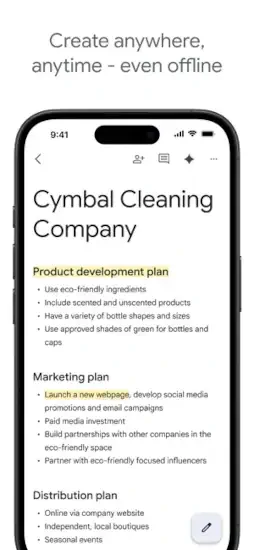
Google Docs is Google’s cloud based word processor that lets you create, edit, share and collaborate on documents in real time from any device.
Google Docs app holds a 4.8 out of 5 rating from over 3.3 million reviews. It sits in the top ten for Productivity and supports 68 languages. The app size is around 367 MB on iOS and the age rating is 4+. Anyone with a Google account can use the core features for free. No subscription required. No installation on desktop. Just a browser and a connection.
So why does this tool generate so much conversation? And more importantly, is it actually right for the way you write?
Why Google Docs Keeps Showing Up Everywhere
The answer is not complicated. Google Docs solved a problem that Microsoft Word ignored for years. Sharing a document used to mean emailing attachments back and forth. Every revision created a new file. Version confusion was inevitable. Google Docs removed that friction entirely.
You share a link. You set permissions. Multiple people type in the same document at once. Changes save automatically to Google Drive. No manual saving. No lost work. No wondering which file is the latest version.
That single shift changed how teams, students and writers approach collaboration. And it happened without asking users to pay for the privilege.
What Google Docs Gets Right
Real Time Collaboration That Actually Works
Multiple people can edit the same document simultaneously. You see their cursors move. You see their changes appear instantly. Comments and suggestions stay attached to the relevant text, so feedback does not get buried in email threads. You can assign action items directly inside the document. This feature alone explains why so many remote teams default to Google Docs.
Automatic Cloud Backup
Every change saves automatically to Google Drive. Crashes, accidental closes and device switches stop being disasters. One reviewer put it simply: the automatic save feature “has saved me multiple times”. For writers who have lost work before, this alone justifies the switch.
Offline Access When You Need It
Google Docs works offline on desktop through a Chrome or Microsoft Edge extension. You enable offline access, select which files to store locally and keep working without a connection. Changes sync when you reconnect. It is not perfect, and setup takes a few clicks, but it works. On mobile, the app handles offline viewing and editing more naturally.
Word File Compatibility
You can open Microsoft Word files directly in Google Docs without converting them first. For teams working with mixed tools, this removes a major barrier. The formatting does not always survive the round trip, especially with complex layouts. But for everyday documents, the compatibility is solid.
Free for Personal Use
The core product costs nothing. You need a Google account. That is it. No credit card. No trial period. No feature gates on collaboration or cloud storage for basic documents. For individuals, students, and small teams, the value is difficult to argue with.
Where Google Docs Falls Short
Advanced Formatting Limitations
Google Docs was not built for desktop publishing, legal document formatting or complex academic papers. Page numbering, indentation control, headers, footers and citation management all exist, but they lack the precision of Microsoft Word. A long term user described struggling with MLA and APA formatting requirements. If your work demands exact page layout and citation standards, Google Docs will frustrate you.
Mobile Interface Gaps
The mobile app is functional, but it is not as discoverable as the desktop version. Reviewers note that features feel hidden. One user wanted a beginner tour for sharing and formatting. Another described accidentally opening menus and struggling to exit without restarting. The mobile app works for quick edits and reading. For heavy formatting, the desktop remains the better choice.
Syncing and Performance on Weak Connections
Unreliable internet causes syncing problems. Some users report app restarts or potential work disruption during sync conflicts. Large documents can lag or freeze, especially when multiple collaborators are active at once. These issues are not constant, but they show up often enough in reviews to matter.
Spell Check Reliability
Users report spell check mistakes, where everyday words get flagged incorrectly or intended words get replaced with unrelated suggestions. It is not a dealbreaker, but it means you should not rely on spell check as your only proofreading layer.
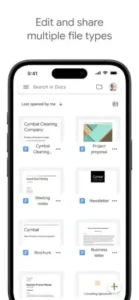
Google Docs Tips That Save You Hours
You do not need to be a power user to get more out of the Google Docs app. A handful of habits separate casual users from people who move through documents without friction. Here are the ones that actually matter.
Start with templates instead of a blank page. Blank pages stall momentum. Open the template gallery and grab a format for meeting notes, project briefs, resumes or proposals. You can also save your own documents as templates for recurring work.
Write offline before you travel. Turn on offline access in Google Drive settings before a flight, commute or trip to a spotty signal zone. Your edits sync when you reconnect. This beats staring at a loading screen at 30,000 feet.
Comment instead of editing someone else’s words. When reviewing a draft, leave a comment rather than rewriting the sentence directly. It keeps a record of what changed, preserves the author’s voice and prevents quiet resentment.
Turn comments into action items. Mention a teammate with the @ symbol and assign the follow-up right there in the comment. Document discussions become tasks instead of getting buried in email threads.
Pick the right sharing level. Viewer means read only. Commenter means feedback without edits. Editor means full control. Most collaboration problems start with someone handing out editor access too freely.
Use headings consistently. Headings make long documents scannable. They also help with navigation, accessibility and structure. Pick a hierarchy and stick to it from the first page.
Build a master document for recurring work. Invoices, briefs, agendas and content outlines do not need to start from zero every time. Keep a clean master copy in Drive, duplicate it, then fill in the new details.
Test Word compatibility before you deliver. If the final file needs to be a Word document, open it in Word or check the export before sending it to a client, professor or employer. Complex layouts, citations and page numbers can shift during conversion.
Name documents with a consistent system. A format like Client – Project – Draft – Date saves everyone time when folders start piling up. Future you will appreciate the clarity.
Designate one person for final formatting. When multiple writers collaborate, one person should handle the last pass on page layout, spacing and style cleanup. Group formatting edits create chaos.
Check permissions before hitting send. Confirm that the right people have access and that the link is not set to anyone with the URL. Public links on confidential documents are a mistake you only make once.
Duplicate before big rewrites. Google Docs saves everything, but major restructuring can leave a document messy. Duplicate the draft first so you always have a fallback.
Use Gemini for first drafts, not final accuracy. AI can speed up outlines and rough drafts. It cannot verify facts, citations or sensitive claims. Treat the output as a starting point, not a finished product.
Give AI clear context. Audience, tone, length, format, purpose. The more specific the instruction, the closer the first draft lands. Vague prompts produce vague output.
Keep private data out of broad AI prompts. Client information, personal data, passwords and proprietary strategy do not belong in a general-purpose AI prompt unless your organization has approved the workflow. When in doubt, leave it out.
Google Docs Formatting and Tools
Basic Formatting
Bold, italic, and underline for emphasis. Font selection from Google Fonts library. Font size from 8 to 96. Text color and highlight color. Align left, center, right, or justify. Line spacing options. Indentation controls. Numbered and bulleted lists.
Headers and Styles
Heading 1, 2, 3, and 4 for document structure. Normal text for body content. Title and Subtitle for document headers. Consistent formatting across documents with styles.
Tables
Insert tables with any number of rows and columns. Merge cells together. Adjust column width and row height. Add table borders and background colors.
Images and Drawings
Insert images from your computer, Google Drive, or the web. Insert drawings made in Google Drawings. Crop images to different shapes. Wrap text around images in several layouts.
Links
Link to web pages by pasting URLs. Link to other Google Docs files stored in your Drive. Link to headings within the same document for internal navigation.
Page Setup
Page orientation between portrait and landscape. Page size from letter to legal to A4. Page color for colored backgrounds. Margins for print layout.
Google Docs Similar Apps Worth Knowing
If you are shopping for Google Docs similar apps, the field is wider than it used to be. Each option has a specific strength that may fit your workflow better.
Microsoft Word remains the standard for advanced formatting, academic papers, legal documents and desktop publishing. If exact page layout and citation standards matter, Word is still the safer choice.
Microsoft 365 Copilot suits Microsoft-first workplaces already using Word, OneDrive, Teams and Outlook. It integrates AI assistance across the suite rather than inside a single app.
Apple Pages appeals to Mac and iPad users who want visually attractive document design without wrestling with complex menus.
Notion works better for notes, project wikis, databases and team knowledge bases. It is not a traditional word processor, but it handles structured information with more flexibility.
Dropbox Paper keeps things light for team writing and meeting notes. It is simple on purpose and works well for quick collaborative drafts.
Zoho Writer serves businesses that want collaboration outside the Google and Microsoft ecosystems. It integrates with the broader Zoho suite of tools.
ONLYOFFICE Documents targets teams that need strong Office file compatibility or self hosted workflows. It is a practical option for organizations with strict data requirements.
Craft focuses on beautiful notes, documents, and personal knowledge management. It is less conventional for formal reports but excellent for visually organized work.
Obsidian suits writers who want a local first markdown knowledge base with linked notes. It is not built for live multi user editing.
Google Docs remains strongest for fast, browser friendly and mobile friendly collaborative writing. Microsoft Word still wins when exact formatting and advanced publishing features are non negotiable.
Google Docs Community and Workspace Integration
Google Docs is not a public social network, but collaboration sits at the center of its design. The Google Docs app connects to the wider Google Workspace ecosystem in ways that make it more useful than a standalone word processor.
Google Drive handles storage, sharing, organization and permission management. Every document lives there by default.
Google Meet links video meetings to shared documents and team discussions, so agendas and notes stay in one place.
Google Calendar supports meeting planning and agenda documents tied to scheduled events.
Gmail handles sharing notifications and email based document delivery.
Google Sheets and Slides connect spreadsheets and presentations to the same cloud ecosystem, which helps when a project needs more than text.
The collaboration layer extends beyond the tools themselves. Teams can use Docs for project briefs, agendas, feedback rounds, content calendars and shared knowledge documents without leaving the browser.
Safety and privacy considerations deserve attention. Review sharing permissions before sending a link. Avoid public “anyone with the link” settings for confidential material. Use organization managed Google Workspace accounts where possible. Apply your organization’s retention, access control, and AI use policies. Remove collaborators who no longer need access.
Apple’s App Store privacy disclosure notes that Google Docs may collect and link a broad range of data to users, including coarse location, contact information, contacts, user content, search history, identifiers, usage data and diagnostics. Understanding what the app collects helps you decide what belongs in a shared document and what does not.
Conclusion
Google Docs sits on millions of devices. Most people use it without thinking about why. The real question is whether it deserves that default status.
The answer depends on what you need. Google Docs rewards users who value collaboration, cloud backup, cross device access and fast drafting. It frustrates those who need precise academic formatting, advanced page layout, or flawless offline first editing.
If your work involves shared documents, real time feedback and writing from anywhere, Google Docs remains one of the best free tools available. If your work involves citations, complex layouts, or legal formatting, Microsoft Word still earns its place next to it.
Open a document. Share it with someone. Watch how quickly the collaboration happens. That speed is the point. The question is not whether Google Docs is good. It is whether your workflow can afford to ignore what it does well.
Frequently Asked Questions About Google Docs
Is Google Docs really free?
Yes. Google Docs is completely free for personal use. You get access to all core features including real-time collaboration, voice typing, version history, and add-ons. No subscription required. Storage counts toward your Google Drive free tier of 15 GB shared across Gmail, Drive, and Photos. Businesses can upgrade to Google Workspace for more storage and custom email domains. You can start your Google Docs download from the Official App Store.
Can I use Google Docs without internet?
Yes, but you need to set up offline access first. Install the Google Docs offline extension for Chrome browser. Turn on offline access in Google Drive settings. Recent files sync to your device. You can view, edit, and create documents without internet. Changes sync automatically when you reconnect.
How do I recover a deleted document or an older version?
Deleted documents go to Google Drive Trash. Open Drive, click Trash, find your document, and restore it. For older versions of a document you still have, go to File > Version history > See version history. You can see every change made and restore any previous version.
Can people without Google accounts edit my documents?
Yes. When you share a document, change the sharing settings to “Anyone with the link.” Set permission to “Editor.” Anyone with the link can edit, even without signing into a Google account. They will appear as anonymous animals in the document.
Where can I find official information and get support if I have issues?
The official Google Docs Help Center has documentation, video tutorials, and troubleshooting guides. The Google Workspace community forum offers peer-to-peer support. For account issues or technical problems, visit the Google Help page. Official website: https://docs.google.com