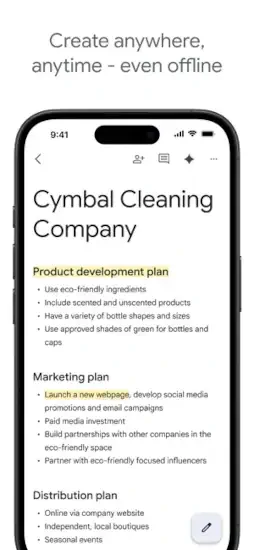
Google Docs sits in your Google Drive right now. It came with your Gmail account. You have used it to write a few documents, maybe a resume or a school paper. But are you using it well? Real time collaboration where you see others type. Voice typing that writes as you speak.
Google Docs it is a collaboration tool first and a word processor second. You write alone when you need to. You share when you want feedback. You edit together in real time with teammates. You see changes as they happen, character by character. Understanding the features helps you work faster, especially when collaborating with others.
Word processing apps exploded as people needed to create documents on any device, not just desktop computers. Microsoft Word remained the desktop standard with advanced formatting. Zoho Writer offered cloud alternatives with similar features. Notion combined writing with databases and project management. Google Docs stayed simple, free, and deeply connected to Google Drive and the rest of the ecosystem.
The app holds a 4.8 star rating on the App Store based on over 3 million reviews. Size sits around 320 MB depending on cached data. Age range stretches from students writing papers to professionals editing documents. If you prefer a desktop word processor with advanced formatting, Microsoft Word offers offline editing
What Is Google Docs?
A cloud based word processor for creating, editing, sharing, and collaborating on documents. Works in a web browser on any computer. Works in the mobile app on phones and tablets. Documents save automatically to Google Drive. Access from any device with internet connection.
Who It Is For
Writers who want cloud access to their documents from anywhere. Students collaborating on group projects without emailing files back and forth. Teams who need to edit the same document together in real time. Anyone who wants a free alternative to Microsoft Word without paying for a subscription.
The Google Ecosystem
Google Docs connects with Google Drive for file storage. Connects with Sheets for inserting charts. Connects with Slides for presentations. Connects with Gmail for attaching documents. Connects with Calendar for meeting notes. The ecosystem is seamless when you use multiple Google products.
Free to Use
Completely free for personal use. No subscription required. Storage limited to Google Drive free tier of 15 GB shared across Gmail, Drive, and Photos. Paid Google Workspace plans available for businesses needing more storage and custom email domains.
Google Docs 2026: What’s New
Pageless Mode
Switch from traditional paginated view to endless scroll. Good for web-first content like blog posts and articles. No page breaks to interrupt reading. Better for viewing on screens rather than printing.
Smart Chips
Mention people, files, and calendar events with @ mentions. Type @ followed by a name to insert a contact chip. Shows contact info and email. Type @ followed by a file name to insert a file preview. Type @ followed by a date to insert a calendar event.
Voice Typing
Dictate your document instead of typing on a keyboard. Good for long writing sessions when your hands get tired. Available in multiple languages. Accuracy improves with clear speech.
Explore Tool
Research and insert content without leaving your document. Search the web from within Docs. Find images to insert. Cite sources in proper format. The tool pulls information into your doc without switching tabs.
Add-ons
Third-party extensions for extra functionality not built into Docs. Grammar checkers like Grammarly. Citation tools like EasyBib. Mail merge for personalized documents. The add-on library keeps growing.
Offline Mode
Edit documents without internet connection. Changes sync automatically when you reconnect. Good for flights, commutes, or areas with poor reception.
Google Docs Core Features: What You Actually Use
Real Time Collaboration
Multiple people can edit the same document at the same time. See other cursors as they type in different colors. Changes appear instantly on every screen. No need to send files back and forth.
Automatic Saving
Documents save to Google Drive automatically with every keystroke. No Ctrl+S needed. Never lose work to a crash or forgotten save. Every change is saved instantly.
Version History
See every change made to a document over its entire lifetime. Restore old versions from any point. See who changed what and when. Good for tracking edits and recovering from mistakes.
Comments and Suggestions
Add comments to specific words or paragraphs. Tag people with @ mentions to notify them. Suggest edits without changing the original text. Document owner approves or rejects each suggestion. Good for feedback and review workflows.
Voice Typing
Dictate your document using your device microphone. Google converts speech to text in real time. Good for drafting long content quickly when typing is slow.
Explore Tool
Research within your document sidebar. Search the web without leaving Docs. Insert images with one click. Cite sources in MLA, APA, or Chicago format. The tool helps you find information without switching tabs.
Add-ons
Install third party extensions from the Google Workspace Marketplace. Grammar checkers for proofreading. Citation tools for academic writing. Document merging for mail merge campaigns.
Google Docs Collaboration: Working Together
Real Time Editing
Multiple editors see each other’s changes instantly as they type. Each person has a colored cursor with their name. See who is editing what part of the document. No file locking or check-out needed.
Comments
Add comments to specific words or paragraphs. Tag people with @ mentions to send them notifications. They receive email alerts. Reply to comments in threaded conversations.
Suggestions Mode
Edit in suggestion mode instead of direct editing. Changes appear as suggestions with strike-through and highlighting. The document owner approves or rejects each suggestion individually. Good for feedback and review.
Sharing
Share documents with specific people by email address. Share with anyone who has a link. Set permission levels: view only, comment only, or edit. Share via email or copy the link.
Chat
Built-in chat for real time discussion between collaborators. Discuss changes without leaving the document. The chat is temporary and not saved. Good for quick coordination.
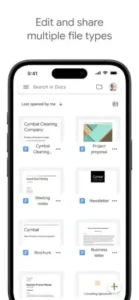
Google Docs Formatting and Tools
Basic Formatting
Bold, italic, and underline for emphasis. Font selection from Google Fonts library. Font size from 8 to 96. Text color and highlight color. Align left, center, right, or justify. Line spacing options. Indentation controls. Numbered and bulleted lists.
Headers and Styles
Heading 1, 2, 3, and 4 for document structure. Normal text for body content. Title and Subtitle for document headers. Consistent formatting across documents with styles.
Tables
Insert tables with any number of rows and columns. Merge cells together. Adjust column width and row height. Add table borders and background colors.
Images and Drawings
Insert images from your computer, Google Drive, or the web. Insert drawings made in Google Drawings. Crop images to different shapes. Wrap text around images in several layouts.
Links
Link to web pages by pasting URLs. Link to other Google Docs files stored in your Drive. Link to headings within the same document for internal navigation.
Page Setup
Page orientation between portrait and landscape. Page size from letter to legal to A4. Page color for colored backgrounds. Margins for print layout.
If you prefer a desktop word processor with advanced formatting, check out Microsoft Word for offline editing.
Google Docs Graphics and Design
Visual Style
Minimal, clean interface that puts your writing first. Built around readability and productivity, not flashy graphics. Simple toolbars that show only what you need. Plenty of white space to reduce visual clutter. The design keeps distractions away from your writing so you can focus.
Menu Layout
Top menu bar with File, Edit, View, Insert, Format, Tools, Extensions, and Help. Toolbar below with common formatting buttons like bold, italic, underline, and alignment. The layout is familiar to anyone who has used Microsoft Word. No learning curve.
Document View
Document fills most of the screen while you write. Toolbars disappear when not needed to maximize space. Focus mode hides all menus for distraction-free writing. You see only your words and a blank background.
Dark Mode
Dark theme available for night writing. Easier on your eyes when working late. Reduces glare from bright white backgrounds. Saves battery on OLED screens. Toggle in settings.
Performance
Runs in any modern web browser on any computer. Mobile app runs on most iPhones from iPhone 7 and newer. Syncs quickly across devices. Documents open in seconds.
Google Docs Similar Apps
| App | Main Similarity |
|---|---|
| Microsoft Word | Word processing and document editing |
| Zoho Writer | Cloud based document creation and collaboration |
| Notion | Writing, notes, and team collaboration |
| Dropbox Paper | Shared document editing and team workflows |
| WPS Office Writer | Mobile friendly document editing |
The Differentiation
Microsoft Word is the desktop standard with advanced formatting and offline editing, but collaboration is less smooth than Docs. Zoho Writer is cloud based with similar features but a smaller user base and less integration. Notion combines writing with databases, wikis, and project management, but it is more complex.
Dropbox Paper focuses on team collaboration within the Dropbox ecosystem. WPS Office Writer is mobile-friendly with Microsoft compatibility.
Google Docs stands out for its real-time collaboration and Google ecosystem integration. It is free. It is simple. It works well for teams. No other word processor makes collaboration as seamless.
If you search Google Docs similar apps, these five appear most often. Each does something well. Google Docs does real time collaboration better than anyone.
Google Docs Tips and Tricks
Use Keyboard Shortcuts to Speed Up Formatting and Navigation
Ctrl+B for bold. Ctrl+I for italic. Ctrl+K for inserting links. Ctrl+Z for undo. Ctrl+Shift+C to copy formatting. Ctrl+Shift+V to paste formatting. Learn these and you will write much faster.
Turn on Voice Typing When Drafting Longer Text Quickly
Go to Tools > Voice typing. Click the microphone icon. Start speaking clearly. Google converts your speech to text in real time. Good for drafting when your hands are tired.
Use Explore for Research, Images, and Smart Suggestions
Go to Tools > Explore. Search the web from within your document. Find images to insert. Cite sources in proper format. The tool pulls information into your doc without switching tabs.
Switch to Pageless Mode When Working on Web-First Content
Go to File > Page setup > Pageless mode. No page breaks interrupt your writing. Endless scroll for long documents. Better for content that will be read on screens, not printed.
Set Your Default Font and Styles to Save Time on Every New Doc
Format your document how you like it. Go to Format > Paragraph styles > Options > Save as my default styles. New documents start with your preferences.
Use Comments and Suggestions Instead of Direct Edits When Reviewing Work
Select text. Add a comment for feedback. Or turn on Suggestions mode from the toolbar. Changes appear as suggestions. The document owner approves or rejects each one.
Check Version History to Recover Earlier Drafts or Compare Changes
Go to File > Version history > See version history. See every change made to the document. Restore old versions. Name important versions so you can find them later.
Export Files in the Format You Need
Go to File > Download. Choose Microsoft Word (.docx) for Word users. Choose PDF for printing. Choose plain text (.txt) for coding. Choose EPUB for e-readers.
Use Add-ons for Extra Functionality
Go to Extensions > Add-ons > Get add-ons. Grammar checkers like Grammarly. Citation tools like EasyBib. Mail merge for personalized documents. Explore the library to find what you need.
Master Smart Chips for Mentions
Type @ followed by a person’s name to insert a contact chip. Type @ followed by a file name to insert a file preview. Type @ followed by a date to insert a calendar event. Keeps everything connected.
Google Docs Offline Access
How to Enable
Install Google Docs offline extension for Chrome browser. Turn on offline access in Google Drive settings. The extension syncs your recent files for offline use.
What Works Offline
View and edit documents without internet. Create new documents from scratch. Format text with basic options. Add images from your device storage.
What Does Not Work Offline
Voice typing requires internet. Explore tool requires internet. Real-time collaboration requires internet. Inserting images from the web requires internet.
Sync When Reconnected
Changes save automatically when you reconnect to the internet. No manual sync needed. Conflicts between versions are rare.
Storage
Offline documents take local storage space on your device. Manage offline files in Google Drive settings. Remove old files to free space.
Google Docs Common Issues and Fixes
Formatting Breaks When Exporting to Word
Google Docs uses different rendering than Microsoft Word. Export as PDF for exact appearance. Accept minor differences in .docx format. Most formatting transfers fine.
Collaborators Cannot Edit
Check sharing permissions on the document. Ensure collaborators have edit access, not just view or comment. Resend the share link with correct permissions.
Voice Typing Not Working
Check microphone permissions in your browser or app settings. Ensure your microphone is not muted. Try a different browser if issues persist.
Document Not Syncing
Check your internet connection. Refresh the browser page. Restart the mobile app. Offline changes sync automatically when you reconnect.
Add-on Not Working
Check add-on permissions in Google Workspace Marketplace. Update the add-on to the latest version. Disable and re-enable the add-on.
Conclusion:
Google Docs is the best free word processor for most people. Real time collaboration is seamless and works across devices. Automatic saving prevents lost work from crashes or forgotten saves. Version history saves you from mistakes by letting you go back in time. The app is simple enough for beginners and powerful enough for teams.
What works: Real time collaboration with multiple editors. Automatic saving with no lost work. Version history to recover old drafts. Voice typing for hands-free writing. Free with any Google account. Cross-platform on browser and mobile.
What does not: Advanced formatting is less powerful than Microsoft Word. Offline mode requires setup and Chrome extension. Formatting can break when exporting to Word. Requires a Google account to use.
What do you want from a word processor? If you want free, cloud-based writing with real-time collaboration, Google Docs delivers. If you need advanced formatting or desktop-only features, Microsoft Word might fit better.
Frequently Asked Questions About Google Docs
Is Google Docs really free?
Yes. Google Docs is completely free for personal use. You get access to all core features including real-time collaboration, voice typing, version history, and add-ons. No subscription required. Storage counts toward your Google Drive free tier of 15 GB shared across Gmail, Drive, and Photos. Businesses can upgrade to Google Workspace for more storage and custom email domains. You can start your Google Docs download from the Official App Store.
Can I use Google Docs without internet?
Yes, but you need to set up offline access first. Install the Google Docs offline extension for Chrome browser. Turn on offline access in Google Drive settings. Recent files sync to your device. You can view, edit, and create documents without internet. Changes sync automatically when you reconnect.
How do I recover a deleted document or an older version?
Deleted documents go to Google Drive Trash. Open Drive, click Trash, find your document, and restore it. For older versions of a document you still have, go to File > Version history > See version history. You can see every change made and restore any previous version.
Can people without Google accounts edit my documents?
Yes. When you share a document, change the sharing settings to “Anyone with the link.” Set permission to “Editor.” Anyone with the link can edit, even without signing into a Google account. They will appear as anonymous animals in the document.
Where can I find official information and get support if I have issues?
The official Google Docs Help Center has documentation, video tutorials, and troubleshooting guides. The Google Workspace community forum offers peer-to-peer support. For account issues or technical problems, visit the Google Help page. Official website: https://docs.google.com