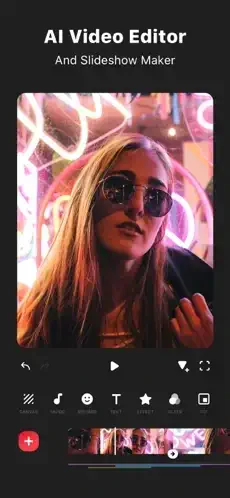
InShot promises to make video editing painless. You want to edit videos for social media. But desktop software like Premiere Pro is too complicated with its hundreds of buttons. DaVinci Resolve is too intimidating for beginners. Free apps often leave watermarks that ruin your content.
InShot promises something different. AI tools that do the work for you with one tap. Auto captions that transcribe your speech. Background removal that works without a green screen. 4K export that looks professional. The question is whether it is powerful enough for serious creators who want quality, or just for casual phone edits of pet videos.
Mobile video editing exploded as TikTok and Instagram Reels took over the social media landscape. CapCut led with free advanced features and became the default for TikTok creators. VN offered professional tools with no watermark for free. KineMaster had multi-layer editing for complex projects. InShot focused on simplicity, speed, and social media ready exports. It was built for creators who want results fast, not for filmmakers.
InShot in 2026 is not just a trimmer where you cut the ends off clips. It is a full AI powered editing suite that fits in your pocket. You cut clips precisely. You add music from your library or their sound effects. You apply filters and effects. You remove backgrounds with one tap. You export in 4K resolution. Understanding the features helps you create professional looking videos without owning a computer.
InShot app holds a 4.9 star rating on the App Store based on over 2.4M reviews. Size sits around 250 MB depending on downloaded assets. Age range stretches from teenagers making TikTok content to adults creating social media for businesses. If you prefer a more advanced free video editor without watermarks, CapCut offers professional features
What Is InShot ?
A mobile video and photo editing app built for fast, creative editing. AI tools for one tap enhancements that save time. Social media formats for Instagram, TikTok, and YouTube built in. Filters, music, text, and transitions. Export up to 4K at 60fps for high quality output.
Social media creators making Reels, TikToks, and YouTube Shorts every day. Anyone who wants to edit videos on their phone without learning complex software. People who find desktop applications too complicated. Casual users who want polished results quickly without a steep learning curve.
Video editing for your clips. Photo editing for your images. Collage creation for multiple photos. One app for multiple content types. No switching between different tools for different projects.
Free version includes basic editing with a watermark on exported videos. Pro removes the watermark, unlocks premium assets, and removes annoying ads.
InShot 2026: What’s New
AI Effects
One tap visual enhancements powered by artificial intelligence. The AI analyzes your video and applies improvements automatically. Good for quick fixes when you do not have time to adjust manually.
Auto Captions
Speech to text support that works automatically. Transcribe dialogue into captions that appear on screen. Edit timing and style after generation. Essential for social media accessibility and engagement.
Auto Remove Background
Video and photo cutouts in seconds. Remove background from any clip with one tap. Replace with solid color, image, or another video. No green screen needed.
Smart Tracking
Moving text and stickers follow objects in your video automatically. Add a label that stays on a person as they walk. The tracking works without manual keyframes.
Keyframe Editing
Custom animation control for advanced users. Animate position, scale, and rotation over time. Keyframes give you pro level control that you would expect from desktop software.
Chromakey
Green screen editing support for creators. Replace green background with any image or video. Good for creators who shoot against green screens.
Picture in Picture
Layered video layouts for complex compositions. Place one video over another. Good for reactions, commentary, or tutorials.
Speed Ramping
Smooth slow motion and fast motion transitions. Speed changes gradually over time instead of abruptly. Good for dramatic effects in action videos.
InShot Core Editing Features: What You Actually Use
Trimming and Cutting
Cut clips to desired length precisely. Remove unwanted sections from beginning, middle, or end. Split clips at any point in the timeline. The basics are done well.
Merging
Combine multiple clips into one seamless video. Arrange the order of clips. Add transitions between clips for smooth movement.
Speed Control
Change playback speed of your clips. Slow motion for dramatic moments. Fast motion for time lapse effects.
Reverse
Play clips backwards for creative effects. Good for transitions between scenes.
Filters and Effects
Color filters for setting the mood. Visual effects for artistic style. Vintage, cinematic, black and white, and more options.
Transitions
Smooth movement between clips in your timeline. Fade, slide, zoom, and many more. The transitions are fully customizable.
Text and Titles
Add text to your video anywhere. Choose from many fonts and colors. Animate text movement. Add captions and titles.
Stickers and Emojis
Add fun elements to your videos. Animate them with movement. Smart tracking keeps them on moving objects.
Music and Sound
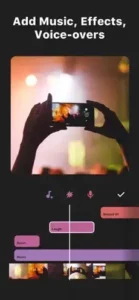
Add music from your personal library. Use built in InShot sound effects. Adjust volume levels. Fade in and out at the start and end.
Voice Effects
Change your voice recording with effects. Robot, alien, echo, and more options. Fun for voiceover commentary.
InShot AI Tools: Editing Made Easy
Auto Captions
Upload a video with dialogue or speech. InShot transcribes the speech to text automatically. Captions appear on screen at the correct times. Adjust font, color, size, and position. Essential for TikTok and Reels where many people watch without sound.
Auto Remove Background
Upload a video or photo to the editor. InShot removes the background automatically. Works best with clear contrast between subject and background. Replace with any image or video of your choice.
Auto Adjust
One tap enhancement for any clip. Fixes brightness, contrast, and color automatically. Good for quick improvements when you do not want to tweak manually.
Smart Tracking
Add a sticker or text to your video. Select a moving object in your video. The element follows the motion automatically. Good for labeling people or products.
AI Effects
Apply artistic effects to your videos. Turn your video into a painting, sketch, or cartoon. The AI generates the effect.
Background Blur
Blur the background of your video automatically. Keeps the subject in clear focus. Good for portrait style videos.
InShot Photo Editing and Collages
Photo Editing
Crop and rotate photos to fit your needs. Adjust brightness, contrast, and saturation. Apply filters for different moods. Add text and stickers. Basic photo editing is included.
Collage Maker
Combine multiple photos into one image. Choose from hundreds of layouts. Adjust borders and spacing between photos. Add background patterns. Good for Instagram carousel posts.
Screenshot Stitching
Combine multiple screenshots into one long scrolling image. Perfect for chat conversations or long articles. The stitching is automatic and seamless.
Canvas Tools
Change aspect ratio for different social platforms. Square format for Instagram feed. Vertical for TikTok and Reels. Horizontal for YouTube.
Borders and Effects
Add borders to photos for framing. Apply artistic effects. The photo tools are solid though not as advanced as dedicated photo editors.
Smart Collage
AI powered layout suggestions for your photos. Choose which photos to include. The AI arranges them in pleasing layouts.
InShot Export and Sharing
Resolution
Export up to 4K resolution for ultra high definition videos. Standard HD 1080p is also available. Higher resolution means larger file size and longer export times. Choose based on where you are posting.
Frame Rate
Up to 60fps for smoother motion in action videos. Standard 30fps is fine for most content. 60fps is better for sports, dance, and fast movement.
Format Specific
Export for Instagram, TikTok, YouTube, or WhatsApp directly from the app. The app optimizes resolution, aspect ratio, and compression for each platform. No manual guessing about settings.
No Quality Loss
Pro version exports without additional compression. Free version may have slight quality reduction to keep file sizes smaller. Pro users get the cleanest output.
Watermark
Free version adds the InShot watermark to exported videos in the corner. Pro removes the watermark completely for clean exports.
Direct Sharing
Share directly to social apps from within InShot. Instagram, TikTok, YouTube, WhatsApp, and more. No need to save to camera roll first.
InShot Graphics and Design
Visual Style
Bright, creator friendly interface that feels welcoming. Clear layout with recognizable icons and text labels. Easy to find editing tools without searching through menus.
Timeline
Video timeline sits at the bottom of the screen. Zoom in for frame level precision editing. Zoom out for project overview. Standard design familiar to video editors.
Preview Window
See your edits in real time on the main preview screen. Playback at any point in the timeline. The preview is responsive with no lag.
Tool Organization
Tools grouped by logical category. Music in one section. Text in another. Filters in another. Transitions between clips. The organization makes sense.
Performance
Runs on most iPhones from iPhone 8 and newer. 4K export may take a minute or two. The app is generally fast for basic edits.
Dark Mode
Support for iOS dark mode automatically. Easier on your eyes when editing at night.
InShot Similar Apps
| App | Main Similarity |
|---|---|
| CapCut | Short form video editing and social ready exports |
| VN Video Editor | Mobile editing with layered tools and ease of use |
| KineMaster | Multi layer editing and creator focused tools |
| Adobe Premiere Rush | Cross platform editing for social content |
| Canva | Simple visual content creation and layouts |
The Differentiation
CapCut has the largest user base and most advanced free features of any mobile editor. Owned by TikTok so it integrates seamlessly. VN offers professional tools with no watermark for free. KineMaster has multi-layer editing with more control over tracks. Adobe Premiere Rush syncs with desktop Premiere Pro for power users. Canva is simpler for graphics but much less powerful for video editing.
InShot stands out for its balance of simplicity and power. The AI tools are genuinely helpful for beginners. The social media focus is clear. It is the easiest to learn.
If you search InShot similar apps, these five appear most often. Each does something well. InShot does ease of use and social media exports better than most.
InShot Free vs Pro
Free Version
Basic editing tools like trimming, merging, and speed changes. Filters and effects are included. Watermark appears on exported videos. Ads appear in the app. Limited assets and fonts.
Pro Version
Remove watermark from all exports. No ads interrupting your workflow. Premium filters and effects unlocked. More fonts and stickers. 4K export at 60fps. Higher quality compression with less quality loss.
Pro Subscription
Monthly or yearly payment option. Access to all Pro features while subscribed. Cancel anytime.
Lifetime Purchase
One time payment for permanent Pro access. More expensive upfront than subscription. Cheaper over time if you use the app for years.
Value Proposition
Free version is good for casual editing of personal videos. Pro is worth it for creators who export videos frequently for social media.
InShot Tips and Tricks for 2026
Start with Auto Captions for Social Videos with Dialogue
The speech to text feature works surprisingly well. Edit timing and style after generation. Captions increase engagement significantly on platforms where people watch without sound.
Use Smart Tracking for Text or Stickers That Need to Follow Motion
Add a sticker or text label. Select the object to track in the video. The element moves with the object automatically. Good for hiding faces or labeling products.
Apply Background Removal Only after Checking Edge Quality on Your Clip
Clean backgrounds with high contrast work best. Messy hair or low contrast may cause rough edges. Check before exporting your final video.
Use Keyframes for Smoother Custom Animation Effects
Keyframes give you precise control over motion. Animate position, scale, and rotation over time. Good for zoom ins, pan outs, and smooth transitions.
Export in the Right Format for Your Platform to Avoid Cropping Issues
Square format for Instagram feed posts. Vertical 9:16 for TikTok and Reels. Horizontal 16:9 for YouTube. The wrong format gets cropped badly.
Use Square Borders and Canvas Tools for Instagram Feed
Resize your video without cropping anything important. Add blurred background borders to fill the empty space. The canvas tools make old videos fit new formats.
If You Want Cleaner Output, Consider Pro to Remove the Watermark
The free watermark is distracting for professional content. Pro removes it completely for clean exports.
Keep Projects Short on Older Phones to Reduce Processing Time
Long videos take longer to export on older devices. Edit in segments if your phone struggles. Older iPhones may heat up with 4K exports.
Use Speed Ramping for Dramatic Slow Motion
Gradual speed changes look much more professional than abrupt changes. Good for action moments like jumps or kicks.
Combine Keyframes with Speed Changes for More Dynamic Edits
Animate zoom during a slow motion section. The combination of keyframes and speed ramping creates professional looking results.
InShot Common Issues and Fixes
Watermark on Free Version
The watermark appears in the corner of all exported videos. Upgrade to Pro to remove it completely.
Export Quality Lower on Free
Free version compresses videos more aggressively to save bandwidth. Pro has higher quality exports with less noticeable compression.
Background Removal Imperfect
Clean, solid color backgrounds work best. Complex backgrounds may leave rough edges. Manual adjustment may be needed.
App Slows with Long Videos
Long videos take more processing power and memory. Edit in shorter segments. Combine them in a final project.
Auto Captions Not Perfect
Check the transcript and edit any errors. Accents, background noise, and fast speech may cause mistakes.
Smart Tracking May Drift
Complex motion with overlapping objects may confuse the tracking. Manual keyframes may be needed for precise tracking.
Conclusion: Should You Use InShot in 2026?
The honest answer is yes, if you make videos for social media. InShot is not for professional filmmakers or Hollywood productions. It is for creators who want fast, polished edits on their phone without learning complicated software. The AI tools save significant time. The social media formats are ready to use. The free version is good enough for many users. Pro is worth it for serious creators who post frequently.
What works: Easy to learn interface that beginners can master quickly. AI tools like auto captions and background removal save time. Social media ready formats for every platform. 4K export at 60fps for high quality output. Good selection of filters, effects, and transitions. Free version is actually usable without paying.
What does not: Free version has a watermark on all exports. Ads appear in the free version. Some advanced features require Pro subscription. Export times can be long for 4K videos on older phones.
What do you want from a mobile video editor? If you want fast, social media ready edits with AI help that saves time, InShot delivers. If you need professional multi-layer editing with advanced color grading, CapCut or KineMaster may fit your needs better.
Frequently Asked Questions About InShot
Is InShot free to use?
Yes. InShot is free to download and use. The free version includes basic editing tools like trimming, merging, speed control, filters, transitions, text, and stickers. A watermark appears on exported videos, and ads are shown. Pro removes the watermark, unlocks premium assets, and removes ads. You can start your InShot download from the Official App Store.
What AI features does InShot offer?
InShot includes auto captions that transcribe speech to text automatically, auto background removal for videos and photos, smart tracking that makes text and stickers follow moving objects, auto adjust for one tap enhancement, and AI effects that turn videos into paintings or sketches. These features save time compared to manual editing.
Does InShot leave a watermark on exported videos?
Yes, the free version adds the InShot watermark to the corner of exported videos. Upgrading to Pro removes the watermark completely. You can also pay to remove the watermark permanently.
What export options are available in InShot?
InShot exports up to 4K resolution at 60fps. You can export for specific platforms like Instagram, TikTok, YouTube, or WhatsApp. The app optimizes the settings for each platform. Pro version exports with higher quality compression.
Where can I find official information and get support if I have issues?
The official InShot website has information about features and updates. The InShot support center answers common questions about editing, export, and account issues. For technical problems, contact InShot support through the website. Official website: https://inshot.com