
Todoist come with something different: a clean place to capture tasks, organize projects and plan your time without feeling overwhelmed.

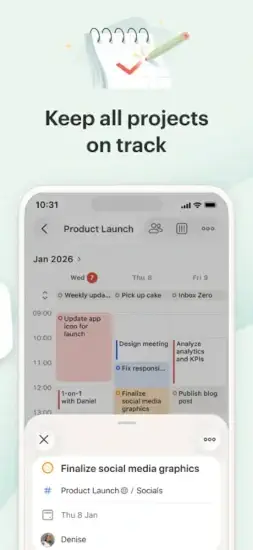
Todoist is a task manager that adapts to how you work. List view for quick capture. Board view for visual organization. Calendar view for time-blocking. Understanding how to set it up helps you actually get things done instead of just organizing your tasks.
What Is Todoist?
Todoist is a free to download task manager and reminders app developed by Todoist Inc. that helps users organize tasks, projects, and deadlines with natural language input, recurring due dates, reminders, templates, and integrations. It is one of the most popular productivity apps worldwide, with over 30 million users across iOS, Android, web, and desktop.
Think of it as a digital to-do list on steroids. Capture tasks quickly with natural language, organize them into projects, set due dates and reminders, and collaborate with others. It is simple enough for personal use and powerful enough for teams. Unlike basic to-do apps, Todoist offers recurring tasks, labels, filters, and integrations that make it a complete productivity system.
Professionals use it to manage work tasks. Students organize coursework and deadlines. Parents manage family schedules and routines. Teams collaborate on shared projects. Anyone who wants to stay organized and productive will find value.
How Todoist Works
Todoist operates through sixteen interconnected systems: natural language input, projects and sections, subtasks and checklists, recurring due dates, reminders, priority levels, labels and filters, templates, calendar integration, collaboration, Karma tracking, integrations, cross platform sync, voice input, board view, and calendar view. Natural language input captures tasks quickly. Projects and sections organize tasks. Subtasks break down complex work. Recurring due dates handle routines. Reminders alert for deadlines. Priority levels focus attention. Labels and filters create custom views. Templates save recurring workflows.
Calendar integration unifies tasks and events. Collaboration enables team work. Karma tracks productivity. Integrations connect with other apps. Sync keeps data current. Voice input enables hands free capture. Board and calendar views provide visual organization.
The basic flow is straightforward. Create a free account or sign in with existing credentials. Add tasks using natural language input (e.g., “submit report tomorrow at 3pm”). Organize tasks into projects and sections for better structure. Set due dates, priorities, and labels for tasks. Break down complex tasks into subtasks and checklists. Set reminders for time-sensitive tasks (premium feature). Sync tasks with your calendar for a unified view. Collaborate with team members by sharing projects and assigning tasks. Track productivity with Karma scores and productivity trends. Repeat daily to capture new tasks, complete existing ones, and review progress.
The platform’s strength is quick capture with natural language combined with powerful organization and integration features.
Todoist Key Features
Natural Language Input
Type tasks like “email the bank every second Tuesday of the month” and Todoist automatically sets the recurring due date. Saves time on manual date pickers.
Projects and Sections
Organize tasks into projects with sections (e.g., Work, Personal, School) for better structure. Keep different areas of your life separate and organized.
Subtasks and Checklists
Break down complex tasks into smaller subtasks with checklists. Make large projects manageable by dividing them into steps.
Recurring Due Dates
Set tasks to repeat daily, weekly, monthly, yearly, or on custom schedules (e.g., “every 3 days,” “every second Monday”). Perfect for habits and routines.
Reminders
Set time based or location-based reminders for tasks (premium feature). Never forget important deadlines again.
Priority Levels
Assign P1–P4 priority levels to tasks to focus on what matters most. Review P1 tasks first each day.
Labels and Filters
Tag tasks with labels (e.g., @work, @home) and create custom filters to view specific task sets (e.g., “today & @work”). Create custom views for different contexts.
Templates
Save and reuse project templates for recurring workflows (e.g., client onboarding, course syllabi). Save time on repetitive setups.
Calendar Integration
Sync tasks with Google Calendar, Apple Calendar, Outlook, and other calendar apps (two-way sync for premium). See tasks alongside events in one view.
Collaboration
Share projects, assign tasks, add comments, and attach files for team collaboration. Work together on shared projects.
Karma Productivity Tracking
Track completed tasks, productivity trends, and daily/weekly/monthly goals. Monitor your productivity and stay motivated.
Integrations
Connect with 80+ apps including Slack, Zapier, IFTTT, Gmail, Alexa, Siri, and more. Extend Todoist’s functionality with your favorite tools.
Cross Platform Sync
Access tasks on iOS, Android, web, Windows, Mac, Linux, Apple Watch, and browser extensions. Always have your tasks with you.
Voice Input
Use Siri, Google Assistant, or Alexa to add tasks by voice. Capture tasks hands-free.
Board View (Kanban)
Visualize tasks as cards on a Kanban board (premium feature). See your workflow visually.
Calendar View
View tasks in a calendar layout (premium feature). See your tasks distributed across dates.
Todoist Graphics and Design
Todoist uses a clean, minimalist interface with customizable themes, colors, and icons. The design prioritizes clarity and ease of use, with intuitive navigation for tasks, projects, and calendar views.
Visual Strengths
Clean, uncluttered interface reduces cognitive load. Customizable themes and colors personalize the experience. Intuitive task entry and organization make capturing tasks easy. Smooth animations and transitions create a polished feel. Consistent performance on most devices ensures reliability. Clear priority indicators (P1–P4 colors) help focus attention. Calendar and board views for visual organization (premium) provide flexibility.
The natural language input is a major design draw. Unlike other task apps that require manual date pickers, Todoist parses phrases like “every Monday at 9am” or “in 3 days” automatically, saving time and reducing friction.
Design Weaknesses
Mobile reordering bugs with drag-and-drop difficulties frustrate users. Sync delays up to 50 minutes on WiFi affect reliability. Reminder failures after iOS updates cause missed deadlines. Lack of start dates and task durations limits planning. Calendar sync issues with two-way Google Calendar sync create confusion. Limited free plan with 5 projects and no reminders restricts free users.
What Users Say About Todoist App
What Users Appreciate
Users value natural language input for quick task entry. Recurring due dates for habits and routines keep them on track. Projects and sections for organization provide structure. Subtasks and checklists for complex tasks make projects manageable. Priority levels (P1–P4) for focus help with prioritization. Labels and filters for custom views enable organization. Templates for recurring workflows save time.
Calendar integration (Google, Apple, Outlook) provides a unified view. Collaboration features (shared projects, task assignments) enable teamwork. Karma productivity tracking monitors progress. Integrations with 80+ apps extend functionality. Cross-platform sync keeps tasks accessible everywhere. Voice input enables hands-free capture. Board and calendar views (premium) provide visual organization.
What Users Complain About
Reminders locked behind premium paywall frustrates free users. Sync delays (up to 50 minutes on WiFi) affect reliability. Reminder failures after iOS updates cause missed deadlines. Lack of start dates and task durations limits planning. Calendar sync issues with two way Google Calendar sync create confusion. Mobile reordering bugs with drag and drop difficulties frustrate users. Recent price increase (40% from $5 to $7/month) angers long time users. Limited free plan (5 projects, 3 filters, no reminders) restricts free users.
Todoist Tips That Keep You Organized
Starting with Todoist feels simple. You add tasks, check them off, and stay organized. But most users miss the habits that make the app truly powerful. Here is how experienced users get the most out of Todoist.
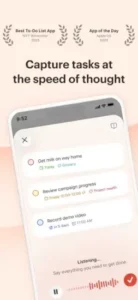
Use natural language input. Type tasks like “submit report tomorrow at 3pm” or “every Monday at 9am” to save time on manual date pickers. It is the fastest way to add tasks. The app understands phrases like “every second Tuesday” and “in 3 days” automatically.
Organize with projects and sections. Create projects for major areas of your life (Work, Personal, School) and use sections to group related tasks. Structure reduces overwhelm. A clear system means you always know where tasks belong.
Set recurring due dates. Use recurring tasks for habits, routines, and regular responsibilities (e.g., “pay rent every 1st of the month,” “gym every Monday, Wednesday, Friday”). Habits need repetition. Recurring tasks ensure you never forget routine obligations.
Prioritize with P1–P4. Assign priority levels to tasks to focus on what matters most. Review P1 tasks first each day. Priorities drive focus. P1 tasks are your most important work.
Use labels and filters. Tag tasks with labels (e.g., @work, @home, @errands) and create custom filters to view specific task sets. Labels enable custom views. A filter like “today & @work” shows only work tasks due today.
Break down complex tasks. Use subtasks and checklists to break down large projects into manageable steps. Steps make projects achievable. A large project becomes a series of small, doable actions.
Set reminders for time-sensitive tasks. Use time-based or location-based reminders for critical deadlines (premium feature). Reminders prevent forgetting. A reminder at the right time ensures you take action.
Sync with your calendar. Connect Todoist with Google Calendar, Apple Calendar, or Outlook for a unified view. Calendars provide context. Seeing tasks alongside events helps you plan your day effectively.
Use templates for recurring workflows. Save project templates for client onboarding, course syllabi, or any repeating workflow to save time. Templates eliminate repetition. Set up a workflow once, use it forever.
Track productivity with Karma. Review your Karma scores and productivity trends to identify patterns and improve your workflow. Data drives improvement. Seeing your trends helps you adjust your habits.
Collaborate with shared projects. Share projects with team members, assign tasks, and add comments for better collaboration. Teamwork gets things done. Shared projects keep everyone aligned.
Use voice input. Add tasks by voice with Siri, Google Assistant, or Alexa when your hands are full. Voice is the fastest input method. Capture tasks while driving, cooking, or walking.
Todoist Similar Apps
Todoist offers powerful task management, but it is not the only option. Here is how it compares to other popular productivity apps.
| App | Best For | Main Difference from Todoist |
|---|---|---|
| TickTick | All in one tasks + calendar + habits | Built-in calendar, habit tracker, Pomodoro timer for less money |
| Things 3 | Apple users wanting elegant design | One time purchase, Apple only, no collaboration |
| Microsoft To Do | Free option inside Microsoft/Outlook | Completely free, deep Outlook integration, no natural language |
| Any.do | Tasks + calendar + shared lists | Bundles calendar, shared lists, and voice input |
| Asana | Team project management | More robust team features, less personal task focus |
| Notion | All-in-one workspace | Combines tasks, notes, databases, wikis |
| Trello | Kanban boards | Visual board focused, less task detail |
| ClickUp | Comprehensive project management | More features but steeper learning curve |
| Google Tasks | Simple Google integration | Free, basic, deep Google Calendar/Gmail integration |
| Apple Reminders | Apple ecosystem users | Free, Siri integration, shared lists, no cross platform |
Which one wins? It depends on your needs. The Todoist app wins on natural language input, cross platform sync, and integrations. TickTick wins on all in one features for less money. Things 3 wins on Apple design and one time purchase. Microsoft To Do wins on being completely free. Asana wins on team project management. ClickUp offers comprehensive project management with more features but a steeper learning curve for users who need extensive customization.
Conclusion
Todoist is an outstanding task management platform that successfully combines natural language input, recurring tasks, templates, reminders, and collaboration. Its core strength is the quick capture of tasks with natural language, powerful organization with projects and labels, and seamless integrations with calendars and other apps. For users who want a flexible, cross platform task manager, it is one of the best options available.
Its greatest strength is natural language input and cross platform sync. Its main weakness is that power comes with a paywall and bugs. The premium paywall for reminders, sync bugs, lack of start dates and task durations, calendar sync issues, and recent price increases are common concerns. Many users report sync taking up to 50 minutes, reminders failing after iOS updates, and frustration that basic features like reminders require a subscription. Additionally, the 40% price increase from $5 to $7/month in December 2025 frustrates long-time users.
Todoist fits professionals managing work tasks, students organizing coursework, parents managing family schedules, teams collaborating on projects, and anyone who wants to stay organized and productive. It does not fit users who want free reminders. It does not fit users who dislike sync delays and bugs. It does not fit users who need start dates and task durations. It does not fit users who prefer all-in-one apps with built-in calendars and habit trackers.
Todoist gives you a powerful task management system with natural language input and seamless integrations. But the system comes with a paywall and bugs. You capture, organize, and complete. The result is a platform that rewards consistent use but tests your patience with sync issues and subscription costs.
You have probably tried to stay organized with scattered tools and forgotten deadlines. What if the solution was not more apps, but one reliable system that captures tasks instantly and keeps you on track? Todoist solves that by offering natural language input and powerful organization. But the solution only works if you can tolerate the paywall and sync bugs. The question is not whether Todoist works. The question is whether you are ready to commit to a task management system.

Frequently Asked Questions About Todoist
Is Todoist free, or do I need to pay to get useful features?
Todoist is free to download and use. The free version includes tasks, projects, sections, recurring tasks, and list/board views. You can manage personal tasks comfortably without paying. Pro adds reminders, calendar view, labels, filters, and team collaboration. For most people starting out, the free version is enough. You can start your Todoist download from the App Store.
What is the difference between list, board, and calendar views?
List view shows your tasks in a simple vertical list, best for quick capture and daily planning. Board view organizes tasks into columns like “To Do,” “In Progress,” and “Done,” good for visual project tracking. Calendar view lets you drag tasks onto a timeline for time blocking and scheduling. You can switch between views without losing your data, so you use the right view for how you are working today.
How do recurring tasks work in Todoist?
Type tasks like “Pay rent every 1st” or “Weekly review every Monday at 9am” and Todoist schedules them automatically. The system understands natural language. When you complete a task, the next instance appears. Skip a day and the task stays until you complete it. Good for habits, bills, and regular check-ins.
Can I connect Todoist with Google Calendar?
Yes. Todoist integrates with Google Calendar for two way sync. Tasks with due dates appear in your calendar. Calendar events appear in Todoist. You can drag tasks onto your calendar to time-block. The integration is available with the Pro plan and helps you see your day alongside your tasks.
Where can I find official information and get support if I have issues?
The official Todoist website has documentation, productivity guides, and support articles. The help center answers common questions about setup, integrations, and troubleshooting. For account issues or technical problems, contact support through the website. Official website: https://todoist.com.