

Microsoft OneNote has earned a 4.7 star rating from over 1.1M reviews on the App Store . The app requires approximately 411MB of storage space and carries a 4+ age rating, making it accessible to most users.


Microsoft OneNote gives you a digital binder with unlimited flexibility. And that raises a question: Can a single app handle everything from lecture notes to family recipes to team project planning, or is it too complex for everyday use?
What Is Microsoft OneNote?
Microsoft OneNote is a flexible digital notebook for capturing, organizing, searching, annotating, and sharing information across devices . It supports typed notes, handwriting, drawings, images, files, audio, checklists, web research, PDF annotation, and collaborative notebooks.
The developer behind OneNote is Microsoft, one of the world’s largest software companies. The app positions itself as more than a simple note taker. It is a digital binder that changes how you organize information.
The app places itself in the growing market of productivity tools. It competes with apps like Apple Notes, Notion, and Evernote by offering a flexible canvas, cross platform access, and deep integration with the Microsoft ecosystem . For users who want to organize everything in one place without being locked into a rigid structure, OneNote offers a compelling solution.
Microsoft OneNote Unique Main Features
Notebook Organization
OneNote’s signature feature is its hierarchical structure. Each notebook contains sections, and each section contains pages. Microsoft describes this as a single place for notes, research, plans, and information used at home, work, or school .
For example, you can have a notebook for University with a section for Biology and a page for Week 1 lecture. You can also create separate notebooks for work, personal planning, recipes, travel, research, or creative projects. This structure makes it easy to keep different areas of your life organized without mixing everything together.
Flexible Canvas
OneNote pages are not restricted to a traditional top to bottom document layout. Microsoft describes each page as an infinite canvas where users can click or tap and place content in different areas . This is particularly useful for brainstorming, mind maps, visual planning, handwritten annotations, mood boards, diagrams, annotating screenshots, and organizing mixed media.
You are not forced into a linear document structure. You can place text, images, and drawings anywhere on the page. This flexibility is what sets OneNote apart from most other note-taking apps.
Typed Notes and Rich Formatting
OneNote supports standard text formatting, including headings, bold and italic text, lists, numbering, indentation, tables, links, highlighting, to-do checkboxes, and tags . Tables can be created quickly while typing, and text can be moved around in containers on the page.
The formatting options are comprehensive enough for most note-taking needs without being overwhelming. You can create clean, organized notes that are easy to read and navigate.
Handwriting and Drawing
On iPad and compatible devices, users can write and draw with a stylus such as Apple Pencil. OneNote includes drawing tools, pen styles, colors, highlighters, erasers, lasso selection, and ruler-related functions depending on the device and version .
Handwriting makes OneNote useful for mathematics, diagrams, class notes, annotating PDFs, sketching, digital journaling, and signing or marking documents. The App Store listing includes user feedback from students and iPad users who use OneNote to write around images, annotate transcripts, and take handwritten notes with Apple Pencil .
Images, Documents, and Attachments
Users can insert photos, screenshots, PDFs, Office files, scanned documents, links, audio recordings, and other attachments . This allows a page to become a complete project record rather than a simple text note. Microsoft specifically highlights the ability to insert pictures, attach files, and capture voice recordings.
Audio Notes
OneNote supports audio recording, which is useful for meetings, lectures, interviews, and personal reminders. Microsoft’s support materials identify recording audio notes as a core OneNote capability . Depending on the platform and feature, users may be able to record audio while writing notes, although advanced linking between notes and audio may be more limited on iOS than on desktop.
Tags and Checklists
Tags help users categorize important content. Common examples include To-do, Important, Question, Definition, Contact, Idea, and Highlight . Microsoft explains that users can use tags to prioritize notes and track action items.
Checklists are useful for shopping, daily tasks, project actions, study revision, travel preparation, and meeting follow-ups. The tag system helps you find important information quickly across multiple notebooks.
Search
OneNote’s search feature lets users locate text and information across notebooks and pages. Microsoft emphasizes that search can help retrieve content even when the user does not remember where it was originally captured . Search quality may vary depending on the content type. Typed text is generally easier to search than handwriting, images, or scanned documents, and feature availability can differ by platform.
PDF Annotation
OneNote can be used to insert and annotate PDFs. Students commonly use it to write directly on lecture slides, reading materials, and presentations . Potential uses include highlighting passages, adding handwritten explanations, drawing diagrams, adding questions beside paragraphs, marking presentation slides, and combining PDF pages with typed notes.
The iOS App Store reviews also mention issues with PDF rotation and inconsistent display across devices, so users should verify important documents after syncing .
Cross Device Synchronization
OneNote synchronizes notebooks through Microsoft’s cloud services, allowing users to access notes on supported computers, phones, tablets, and web browsers. Microsoft says notebooks can be accessed across mobile devices and through a browser . This is one of OneNote’s biggest practical benefits. A note created on an iPad can be opened on a Windows PC, Mac, iPhone, Android device, or browser, subject to account access and synchronization.
Collaboration
Shared notebooks allow friends, family, classmates, and coworkers to collaborate. Microsoft says invited users can add text, images, files, and other content to a shared notebook . Collaboration is useful for team meeting notes, group assignments, project planning, family events, shared recipes, travel planning, and home improvement projects.
Copilot and AI Features
Microsoft’s OneNote support page advertises Microsoft 365 Copilot features, including summarizing notes, creating to-do lists, generating project plans, and supporting productivity workflows . AI availability depends on the user’s Microsoft 365 plan, account type, region, platform, and current product rollout.
Microsoft OneNote Graphics and Visual Design
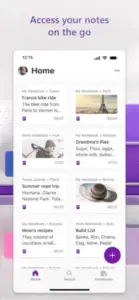
OneNote uses a practical productivity-focused interface rather than a highly decorative design. The visual system centers on notebooks, sections, pages, tabs, toolbars, and editing canvases.
Design strengths include a familiar notebook metaphor, clear separation between notebooks, sections, and pages, a flexible canvas for mixed content, strong support for handwriting and visual notes, useful navigation across devices, dark interface and accessibility options, and strong performance for both structured and free-form notes .
OneNote’s design is especially effective for people who think visually or want digital notes to resemble paper binders. The infinite canvas means users do not have to organize every item into a rigid linear document.
Design weaknesses relate to complexity. The same flexibility can make OneNote feel cluttered. New users may not immediately understand the difference between notebooks, sections, pages, page containers, tags, and shared notebooks.
The iOS App Store reviews also identify several usability and reliability concerns: images not always loading or updating across devices, PDF rotation inconsistencies, undo sometimes jumping to another position on the page, limited access to some desktop features on iPad, autocorrect behavior that some users find difficult to disable, and offline use becoming difficult when the app cannot connect to Microsoft’s online services .
Microsoft OneNote User Reviews and Community Feedback
OneNote receives generally positive user feedback. Reviewers praise OneNote as versatile, organized, cross-platform, and useful for school, work, recipes, research, and handwritten notes.
What users like: The free access to core note taking features receives consistent praise. Users appreciate the easy organization through notebooks and sections, cross device access, strong combination of typing, drawing, handwriting, and attachments, useful PDF annotation, good fit for students and professionals, flexible page layout, Microsoft ecosystem integration, and collaboration and sharing .
One App Store reviewer describes OneNote as a versatile combination of typed and handwritten notes with a nearly limitless canvas. Another praises the ability to move between iPad, iPhone, and computer while keeping notes available .
Common complaints: Syncing can be inconsistent for images or PDFs. Some desktop features are missing or limited on iPad. Handwriting search and handwriting to text may not be equally available across platforms. Offline use can be confusing. Navigation may feel complicated. Some users dislike autocorrect and keyboard behavior. PDF annotation can create orientation or display problems. Microsoft account and cloud requirements may not suit privacy focused users .
A fair evaluation is that OneNote provides exceptional breadth, but the experience depends heavily on platform, account, document type, and synchronization quality.
Microsoft OneNote Note-Taking Workflow and Mechanics
OneNote’s workflow is different from conventional document editors. The notebook-section-page structure is established before content creation. The flexible canvas allows content placement anywhere.
The basic workflow: Create or open a notebook. Add a section for a subject or project. Create a page. Add typed text, handwriting, images, files, audio, or links. Apply tags or checklists. Search, organize, share, or review the content. Continue working from another device.
Capture first workflow: OneNote is designed to let users capture information in whatever form is fastest: type a paragraph, write with a stylus, paste a website, photograph a document, record audio, insert a PDF, draw a diagram, or add a checklist. This makes it more flexible than apps that focus exclusively on text or Markdown.
Organization workflow: The notebook-section-page system creates a hierarchy without forcing users to use folders on every page. Microsoft describes organization as optional but easy, meaning users can create as much or as little structure as they need .
Collaboration workflow: A user shares a notebook, invites others, and allows them to add or edit content. This makes OneNote suitable for shared records, but teams may need additional Microsoft 365 tools for formal task management, permissions, version control, or document governance.
Microsoft OneNote Tips and Tricks
Create notebooks by major area. Use separate notebooks for large categories such as Work, School, Personal, Research, Creative writing, and Family planning. Avoid putting every subject into one enormous notebook if navigation becomes difficult. Separate notebooks keep your life organized without mixing everything together.
Use sections for recurring topics. Sections are helpful for courses, clients, projects, or stages of work. For example, a work notebook might contain sections for meetings, planning, research, and completed projects. This structure makes it easy to find what you need quickly.
Use templates for consistency. Create reusable page layouts for meeting notes, weekly reviews, lecture notes, project briefs, reading summaries, daily journaling, and interview records. A consistent template makes search and review easier. You will spend less time formatting and more time capturing information.
Combine typed and handwritten notes. Type headings and key points, then use handwriting for diagrams, formulas, arrows, and quick observations. OneNote is strongest when you combine both methods rather than treating it as only a typed document. This hybrid approach works well for students and professionals alike.
Use tags consistently. Choose a small tag system such as To-do, Question, Important, Follow-up, and Idea. Using too many custom tags can make them harder to remember and search. A simple tag system is more effective than a complex one.
Use page titles for search. Give every page a descriptive title. “Meeting – Marketing Campaign – August 2026” is more useful than “Notes.” Descriptive titles make search results more relevant and help you find information faster.
Keep action items near meeting notes. Add checkboxes and tags to tasks immediately after a meeting. This prevents action items from disappearing inside long paragraphs. You will never forget what was assigned to you.
Use the camera for documents. Photograph whiteboards, receipts, diagrams, recipes, and handwritten notes, then place the images beside typed explanations. This captures information that would otherwise be lost.
Annotate PDFs in a dedicated section. Create a section specifically for readings or documents. Add each PDF to a separate page and keep your notes beside the relevant pages. This keeps your annotations organized and easy to find.
Review synchronization. Before deleting a device, changing accounts, or removing an important notebook, confirm that the latest changes have synchronized. The App Store reviews show that images and PDFs may not always update correctly across devices. A quick check saves you from losing important work.
Keep offline copies of critical information. OneNote is cloud-centered. If you need access during travel, exams, or unreliable connectivity, open important notebooks in advance and maintain a separate backup for critical documents. Offline access is available if you prepare ahead.
Use Copilot carefully. If Copilot is available in your account, use it to summarize long notes or create action lists, but verify the output before relying on it. AI summaries can omit context or misunderstand handwritten, visual, or fragmented notes. Always double-check important information.
Customize page backgrounds. Ruled lines, grids, and page colors can make handwriting and diagrams more comfortable. Use a blank page for brainstorming and ruled or grid pages for structured work. The right background improves your note-taking experience.
Learn platform differences. Some features work differently on Windows, Mac, iPad, iPhone, Android, and the web. Test the workflow on the device you use most instead of assuming every feature is identical. Knowing the differences prevents frustration.
For users searching for Microsoft OneNote tips, these strategies will transform how you use the app. Consistency and structure are the keys to getting the most out of OneNote.
Microsoft OneNote vs Similar Apps
| App | Best for | Difference from OneNote |
|---|---|---|
| Apple Notes | Simple Apple device note taking | Easier for quick notes, less notebook like and flexible |
| Google Keep | Fast reminders and short notes | Simpler, less suitable for long documents and handwriting |
| Notion | All in one workspaces and databases | Better for structured project systems, more setup required |
| Evernote | Web clipping, search, and research | Strong capture and search, more subscription focused |
| Obsidian | Local knowledge management | Excellent for linked notes and privacy, less collaboration |
| Goodnotes | Handwritten notes and PDF annotation | Stronger for paper like handwriting and academic PDFs |
| Joplin | Open source and privacy-oriented notes | Better for local storage and Markdown workflows |
| Bear | Elegant Apple focused writing | Cleaner for text notes, less cross platform |
| Simplenote | Minimal text notes | Faster and simpler, lacks rich media |
| Zoho Notebook | Visual multimedia notes | More card oriented and consumer-friendly |
How OneNote Compares
OneNote stands out for its flexibility and cross-platform access. Where Apple Notes is limited to Apple devices, OneNote works everywhere. Where Notion requires setup and structure, OneNote offers a freeform canvas. Where Evernote has become subscription-heavy, OneNote’s core features remain free. Where Obsidian focuses on local privacy, OneNote focuses on cloud collaboration.
What Makes OneNote Unique
The combination of freeform canvas, hierarchical organization, handwriting support, cross-platform sync, and Microsoft integration is unique. You are not locked into a rigid document structure. You are not limited to one platform. You can capture information in any format and organize it however you like. The flexibility is what sets OneNote apart from more structured tools.
Who Should Choose Which App
OneNote is the right choice if you need a flexible, cross-platform note-taking system with handwriting support and rich attachments. If you prefer a simple, straightforward note app, Apple Notes or Google Keep might work better. If you need databases and structured workspaces, Notion is stronger. If you want paper-like handwriting for academic work, Goodnotes is a better option. For users asking about Microsoft OneNote similar apps, alternatives include Notion, Evernote, and Apple Notes. However, none offer the same combination of freeform canvas and cross-platform access.
Microsoft OneNote Pricing and Availability
OneNote is free to download with core functionality available without payment. The iOS app is free with in-app purchases. Core note taking functionality is available without purchasing the app, while Microsoft 365 subscriptions may provide additional cloud storage and Copilot related features.
Cross-platform availability. OneNote is available on Windows, Mac, iOS, Android, and the web. This is one of its biggest advantages. You can access your notes from virtually any device.
Account and subscription differences. Storage, account, synchronization, and AI availability can depend on personal Microsoft accounts, school accounts, work accounts, Microsoft 365 plans, OneDrive storage, platform, and regional availability. For a blog article, avoid claiming that every feature is free on every device. The iOS app is free, but cloud storage and advanced Microsoft 365 features can be subject to account or subscription limits.
For users wondering about Microsoft OneNote pricing, the core features are free. Additional storage and AI features require a Microsoft 365 subscription.
Microsoft OneNote Pros and Cons
What Works
-
Free core features. You get powerful note taking without paying anything. This is rare for such a feature rich app.
-
Flexible canvas. Place content anywhere on the page. No rigid document structure. This flexibility is unmatched.
-
Cross platform access. Use OneNote on Windows, Mac, iOS, Android, and the web. Your notes follow you everywhere.
-
Handwriting support. Apple Pencil and stylus support make it ideal for students and visual thinkers.
-
Rich attachments. Insert images, PDFs, audio, and files. A page becomes a complete project record.
-
Strong organization. Notebooks, sections, and pages create a clear hierarchy. Your notes stay organized.
-
Collaboration. Share notebooks with others. Work together on projects and assignments.
-
Microsoft ecosystem integration. Works seamlessly with Teams, Outlook, and other Microsoft tools.
What Does Not
-
Syncing can be inconsistent. Images and PDFs may not always update correctly across devices. This is a common complaint.
-
Platform differences. Some desktop features are missing on iPad and mobile. The experience varies by device.
-
Learning curve. The app is powerful but complex. New users may find it overwhelming.
-
Cloud dependence. Offline use can be confusing. You need a Microsoft account for full functionality.
-
PDF annotation issues. Rotation and display problems have been reported. Verify important documents after syncing.
-
Autocorrect frustrations. Some users find the keyboard behavior difficult to disable.
Conclusion
If you need a flexible, cross platform note taking system that handles typed notes, handwriting, images, PDFs, and audio, OneNote is worth using. The app offers unmatched flexibility and works on virtually every device. You can organize your life, work, and studies in one place without paying a cent.
If you prefer a simple, straightforward note app with minimal setup, OneNote might feel overwhelming. The learning curve is real. If you are deeply invested in the Apple ecosystem, Apple Notes might be simpler. If you need databases and structured workspaces, Notion is more powerful.
Microsoft OneNote app is best for students, professionals, researchers, and anyone who needs to organize complex information across multiple devices. It is less suitable for users who want a minimal note-taking experience or prefer local-only storage.
The final Microsoft OneNote verdict is positive. The app delivers on its promise of being a flexible digital notebook. The free version gives you access to most features. If you need a comprehensive note-taking system, download it, try a few notebooks, and see if it fits your workflow.
OneNote does not reinvent note taking. But it gives you the tools to organize information your way. And sometimes, that flexibility makes all the difference.
Frequently Asked Questions
Where can I download Microsoft OneNote for my devices?
You can get the Microsoft OneNote download directly from the official Apple App Store . The app is also available for Windows, Android, Mac, and through any web browser . OneNote has been downloaded over 500 million times on Android alone and carries a 4.7 star rating from more than 1.4 million reviews .
Is there an official website or support page for Microsoft OneNote?
Yes. Microsoft maintains comprehensive support resources for OneNote. You can access help through the official Microsoft Support website at support.microsoft.com . For general product information, the Microsoft OneNote page on Wikipedia offers detailed background on features and platform support . Microsoft also provides a dedicated FAQ page for Android users at aka.ms/OnenoteAndroidFAQ .
How do I contact support if I run into issues?
For technical problems, sync issues, or account questions, contact Microsoft Support directly through the official support portal. Visit https://support.microsoft.com, select “Contact Support,” choose Microsoft 365 and Office as your product category, select Technical Support, and then choose the option to chat with a support agent . Include your device model, operating system version, and a detailed description of the issue to get the fastest response.
Does Microsoft OneNote work offline?
Yes. OneNote supports offline access, allowing you to create and edit notes without an internet connection . Changes are saved locally and sync automatically when you reconnect to the internet. However, you need a free Microsoft account to use OneNote , and some features like collaboration and cloud backup require an active connection. For critical information, it’s wise to open important notebooks in advance when you know you’ll be offline.