
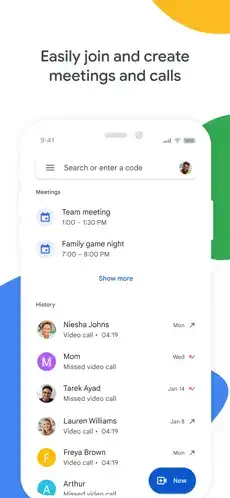
Google Meet sits inside Gmail, Google Calendar and every Android phone.

Millions of people open Google Meet weekly without thinking about what it can actually do. Most never touch the settings menu, never turn on captions, never try breakout rooms. They join a call, mute themselves, and leave. That habit leaves a lot on the table.
The app holds a 4.8 star rating from 2.3 million U.S. App Store ratings at the time of writing. The iOS download size sits around 342 MB, though this varies by device, region and updates installed. The age rating is 4+ on the App Store, making it suitable for younger users under supervision. It is free to download, with advanced features tied to Google Workspace, Google Workspace Individual and selected Google One plans.
The App You Already Have but Never Really Learned
What Google Meet Actually Is
Google Meet is Google’s video calling and online meeting platform. It works for personal calls, classrooms, teams and businesses. It runs on iPhone, iPad, Android, desktop browsers and compatible smart devices. The interface is available in more than 55 languages .
The free plan is stronger than most people realize. You can create a meeting, invite up to 100 participants and talk for up to 60 minutes when three or more people are present. One to one calls can run for up to 24 hours. That last detail alone makes it a serious alternative to FaceTime for mixed device households.
For professionals and schools, Meet becomes a collaboration platform through Google Workspace. Recording, noise cancellation, breakout rooms, polls, Q&A, watermarks and client side encryption all sit behind paid tiers. The gap between free and premium matters, and understanding it before your next important call saves frustration.
The Tension Between Simplicity and Depth
Google Meet has a specific problem. It tries to be two things at once. For casual users, it is a FaceTime style calling app with filters, video messages and group calls. For professionals, it is a structured meeting platform with host controls and Workspace integration.
That duality creates confusion. Features appear or disappear depending on your plan. A host on a Workspace account sees breakout rooms and recording options. A free participant on the same call sees none of that. Neither person is wrong. The interface simply does not make the distinction obvious until you look for it. Users love the cross platform reliability. iPhone users can call Android users without friction. Families use it for virtual holidays. Teams use it for standups and client meetings.
Critics point to paywalled features, device specific quirks and an interface that mixes casual calling with formal meetings in ways that occasionally feel cluttered. A minority of reviewers report glitches, slow video message loading and camera mirroring issues. Those complaints exist. They just do not define the experience for most users.
What Google Meet Actually Does Well (And Where It Holds Back)
The Core Features That Make It Worth Using
One to one video calls. Free accounts support calls up to 24 hours. That covers long conversations, remote relationship maintenance and virtual catch-ups without a timer running in the background .
Free group meetings. Up to 100 participants for up to 60 minutes on the free plan. This works for study groups, small team standups, family reunions and community check-ins.
Google Calendar integration. Create a Meet link directly from a Calendar event. Add the agenda, attach files, set reminders and invite attendees without switching apps.
Gmail, Docs, Slides, and Drive integration. Join meetings from Gmail. Present Google Docs, Sheets or Slides during a call without downloading anything. This is the feature that keeps Workspace users loyal.
Screen sharing. Present a full screen, a browser tab, photos, videos, documents or slides. Essential for demos, lessons, troubleshooting and client presentations.
In-call chat. Send links, questions, and notes without interrupting the speaker. Keeps meetings organized when multiple people need to share information.
Live captions. Real time subtitles appear as people speak. Useful for accessibility, noisy environments, accents and note taking.
Live translated captions. Translate captions in supported language pairs. Helpful for international teams and multilingual meetings.
Noise cancellation. Reduces background noise from traffic, keyboards, fans and busy rooms. Available on eligible paid plans.
Recording. Record meetings and save them to Google Drive. Useful for training, lectures, review and absent attendees. Recording requires an eligible plan.
Breakout rooms. Divide participants into smaller discussion groups. Works for workshops, classrooms and brainstorming sessions. Plan dependent.
Polls and Q&A. Collect feedback, run votes and organize questions. Adds structure to large meetings. Plan dependent.
Reactions and hand raising. Nonverbal ways to participate. Reduces interruptions and helps moderators manage discussion.
Virtual backgrounds, filters, and effects. Apply backgrounds, filters and stackable effects. Makes calls more personal without requiring a clean room behind you.
On the go mode. An audio first calling mode with larger controls. Useful while walking, commuting or minimizing visual distraction.
Video messages. Send a recorded video message when someone cannot answer. An asynchronous alternative to live calling.
Up to 4K video quality. Available when bandwidth and device capability permit. Strong visual quality for high-end devices and stable connections.
Host controls. Admit, remove, mute and manage participants. Important for schools, workplaces, and public meetings.
Security measures. Encryption in transit, anti abuse protections, access management and optional client side encryption on eligible Workspace tiers.
Free vs Premium and What Actually Matters
The free plan covers more than most people expect. One to one calls run up to 24 hours. Group meetings support up to 100 participants for up to 60 minutes when three or more people are present.
Paid plans unlock the features that professionals assume are standard. Group meetings extend to 24 hours. Participant limits rise to 150, 250, 500 or 1,000 depending on tier, with participants beyond 500 potentially view only. Recording, noise cancellation, breakout rooms, polls, Q&A, watermarks and client side encryption all require eligible plans.
The distinction matters because frustration during important meetings usually comes from expecting premium features on a free account. If you host client calls, teach classes or run workshops, the free tier will eventually limit you. If you make personal calls and occasional group check-ins, the free plan covers everything you need.
How Google Meet Works
You create or receive a meeting link through the app, Calendar, Gmail or a meeting code. You can join from iPhone, iPad, Android, desktop browser or supported smart devices.
Camera and microphone controls sit at the bottom of the screen. You can mute, turn off video, change backgrounds, raise a hand, react or leave at any time.
Collaboration happens through screen sharing, chat, files and slides. Captions and translations run during the call if you enable them.
Hosts manage participation with admission controls, breakout rooms, polls and Q&A on eligible plans. Recording saves to Google Drive when the plan supports it.
Security relies on encryption in transit and anti abuse protections. Higher Workspace tiers add client side encryption for audio and video.
What Users Say About Google Meet
What users like: Cross platform communication between iPhone and Android users. Family and group calling for virtual holidays. Reliable video quality. Filters and notes not available in FaceTime. Strong work and school tools including captions, screen sharing, recording, chat, polls and breakout rooms.
What users criticize: Occasional glitches and crashes. Slow loading for video messages. Feature inconsistency between Pixel and iPhone. Camera mirroring concerns. Privacy uncertainty about who can access calls.

Google Meet Tips
You do not need a Workspace subscription or a technical background to get more out of Google Meet. You need a few minutes before your next call and a willingness to press buttons you have been ignoring.
For better call quality
Use stable Wi-Fi whenever possible. Meet adjusts video quality based on available bandwidth. A weak signal reduces resolution, introduces lag and makes you look like a pixelated ghost. If Wi-Fi is unreliable, move closer to the router or switch to a wired connection on desktop.
Turn on noise cancellation when available. It helps with traffic, keyboard clatter, barking dogs and crowded rooms. The feature sits under Settings, Audio. If you do not see it, your plan likely does not include it. On eligible paid tiers, it makes a noticeable difference in professional calls.
Use on the go mode for mobile calls. When you are walking, commuting or simply do not need video, this mode swaps the full grid for larger audio controls. Fewer distractions. Better battery life. Easier one handed use.
Close bandwidth heavy apps and browser tabs before important meetings. Streaming video, large downloads and cloud backups compete for the same connection. Closing them before an interview, a client call or a lesson keeps your video steady.
Use headphones or a headset. Speakers create echo. Built-in microphones pick up room noise. A simple wired headset solves both problems and improves voice clarity without any software changes.
For meetings and collaboration
Schedule from Google Calendar. Add the Meet link, agenda, guests, reminders and supporting Docs or Slides in the same calendar event. This keeps everything in one place and prevents the “where is the link” messages five minutes before the call.
Use presenter only mode when sharing. If you share your screen while also being in the room on another device, presenter only mode prevents echo and double audio. Google’s own training guidance recommends presenting from Docs, Sheets or Slides on a second screen when possible.
Turn on captions for clarity. Captions help with accents, noisy environments, hearing accessibility and note taking. They also keep you focused on the speaker instead of scrambling to write things down.
Use chat for links and questions. Instead of interrupting the presenter, post URLs, action items and questions in the in-call chat. This keeps the spoken conversation flowing and gives quieter participants a channel to contribute.
Use breakout rooms with clear tasks and time limits. For workshops or classes, give each room a specific goal and a timer. Bring everyone back for summaries. Without structure, breakout rooms become awkward silence generators. This feature requires an eligible plan.
Use polls and Q&A for large meetings. Polls collect rapid decisions. Q&A prevents useful questions from disappearing in a fast moving chat. Both features add structure when attendance climbs above a handful of people.
Record only when appropriate and notify attendees beforehand. Recording is a plan dependent feature. Tell people before you press record. Check the Drive sharing permissions afterward so the file does not end up accessible to more people than intended.
For privacy and security
Avoid sharing public meeting links widely. A link posted in a public forum invites uninvited guests. Use Calendar invitations, waiting room controls and host admission settings to keep meetings private.
Check who is in the meeting before sharing sensitive content. Do not assume a meeting link is private simply because it was intended for a limited group. Glance at the participant list. Verify names. Remove anyone who should not be there.
Use client-side encryption or watermarks on eligible Workspace plans. For sensitive business meetings, these features add confidentiality and traceability. They require specific Workspace editions, so check your plan before relying on them.
Review recording permissions and Drive access afterward. A recording may be encrypted in Drive but still accessible to everyone it is shared with. Check the sharing settings. Remove access for anyone who no longer needs it.
Google Meet tips like these take minutes to apply but change how the platform feels. Fewer interruptions. Cleaner audio. More control over who sees what.
Google Meet Similar Apps
| App | Best For | Main Difference from Google Meet |
|---|---|---|
| Zoom Workplace | Large meetings, webinars, workshops | More mature webinar tools, different free plan limits |
| Microsoft Teams | Microsoft 365 organizations | Better for Outlook, SharePoint and Teams workflows |
| FaceTime | Apple to Apple personal calls | Simpler, deeply integrated into Apple devices, weaker for cross platform work meetings |
| Cisco Webex | Enterprise conferencing and compliance | Stronger enterprise administration, heavier for casual users |
| Jitsi Meet | Open source, privacy conscious meetings | Can be self-hosted, fewer native Workspace integrations |
| Discord | Gaming, communities, voice rooms | Better for informal communities, less formal meeting structure |
| Personal calls and family groups | Best for phone number messaging, fewer presentation and workplace tools | |
| Messenger | Social calling with Facebook contacts | Better for Meta social graph, less structured Workspace collaboration |
Google Meet app stands out for one reason above all others. Integration. If your calendar, email, files and classroom all live inside Google’s ecosystem, Meet becomes the path of least resistance. Zoom is often stronger for large external events and webinars. Teams fits Microsoft-first organizations that live in Outlook and SharePoint. FaceTime is simpler for Apple only personal calling. Discord handles informal communities and voice rooms better than any formal meeting tool.
The right choice depends on where your work and social life already live. For Google centered users, Meet is the default for good reason.
Conslusion
Remember the tension from the beginning. Google Meet is the app you already have but never really learned. That gap exists because the core experience works well enough that nobody feels the need to explore the settings.
Google Meet is one of the best all round video calling platforms available. The free plan covers more than most people realize. The paid tiers unlock serious collaboration tools. The cross-platform reliability makes it a default choice for mixed device households and Google centered teams.
The nuance is this. Some of its best features are paywalled. The mobile interface mixes casual and professional experiences. A minority of users report bugs and device specific quirks. If you already use Gmail and Google Calendar, you are leaving value on the table by treating Meet as just another video window.
Open the app. Schedule a meeting from Calendar. Turn on captions. Try breakout rooms if you have access. Check the host controls before your next call. Five minutes of learning what Meet actually does changes how you use it.
Frequently Asked Questions About Google Meet
Where can I get the official Google Meet download for my device?
The Google Meet download is available on the Apple App Store for iPhone and iPad. Desktop users can join meetings directly through any modern browser at meet.google.com without installing anything. For desktop apps and Workspace information, visit the official Google Workspace page at workspace.google.com/products/meet. For background on the platform’s history and feature rollout, the Wikipedia page at en.wikipedia.org/wiki/Google_Meet covers the major milestones.
How do I contact Google Meet support if I have a problem during a meeting?
Google handles Meet support through the Google Workspace Help Center at support.google.com/meet. You can browse troubleshooting guides, billing questions, and setup instructions without waiting. For Workspace administrators, the Admin Help Center at support.google.com/a covers advanced controls, security settings, and user management.
Is Google Meet really free, and what do the paid plans add?
Google Meet is free for anyone with a Google Account. Free users can host one to one calls up to 24 hours and group meetings with up to 100 participants for up to 60 minutes. Paid Google Workspace and Google One plans extend group meetings to 24 hours, raise participant limits to 150, 250, 500 or 1,000 and unlock recording, noise cancellation, breakout rooms, polls, Q&A, watermarks and client side encryption. The free tier covers personal calls, small teams and study groups well. Professional features that people assume are standard sit behind the paywall.
Does Google Meet work across iPhone, Android and desktop?
Yes. Google Meet runs on iPhone, iPad, Android phones and tablets, desktop browsers and compatible smart displays. A participant on an iPhone can join the same call as someone on a Windows PC or an Android phone without installing matching software. Cross platform reliability is one of the strongest reasons people choose Meet over FaceTime, which only works between Apple devices. The experience stays consistent across devices, though some features like camera flipping or background effects may differ slightly depending on platform.
How does Google Meet compare to Zoom and Microsoft Teams?
All three handle video calls and screen sharing well. The difference comes down to ecosystem and scale. Google Meet integrates deeply with Gmail, Calendar, Drive, Docs, Slides and Classroom, which makes it the smoothest choice for Google centered users. Zoom is often stronger for large webinars and external events with more mature host controls. Microsoft Teams fits organizations that already live inside Outlook, SharePoint and Microsoft 365. For casual personal calls, FaceTime is simpler if everyone uses Apple devices. For cross platform personal and professional use inside Google’s ecosystem, Meet remains the default for good reason.