
Google Drive is a practical tool where you store everything.

Google Drive cloud storage and file-sharing app from Google lets you store, access, and collaborate on files from your phone, tablet, and computer. Built-in AI search helps you find what you need fast. Real time collaboration on Docs, Sheets, and Slides means you can work with anyone, anywhere. Secure backup keeps your photos and documents safe. This is productivity, not entertainment. And it works.
What Exactly Is Google Drive?
Google Drive is a cloud based storage service that gives you a personal, secure space online to store files, documents, photos, videos, PDFs, and more, and access them from anywhere with an internet connection. It is tightly integrated with Google Workspace, including Docs, Sheets, Slides, Gmail, Calendar, and Chat, and offers AI-powered search, AI Overviews, and Gemini integration to help you find and summarize content faster.
Plans range from a free 15 GB, shared across Drive, Gmail, and Photos, to multi terabyte paid tiers via Google One or Workspace, with options for individuals, families, and businesses. Think of it as your digital filing cabinet that follows you everywhere.
Google Drive holds a 4.8 star rating on the Apple App Store from millions of ratings. The app size is roughly 439 MB depending on your device. Age rating is 4+ with no objectionable content. For a similar experience, check out Microsoft OneDrive.
Who Benefits Most From Using Google Drive?
Google Drive has a broad audience, and it serves them well.
Students needing to store and share assignments and collaborate on group projects will find the real-time editing invaluable. No more emailing drafts back and forth.
Professionals and remote teams who rely on real-time collaboration will appreciate the seamless integration with Docs, Sheets, and Slides. Work together from anywhere.
Individuals who want to back up photos, documents, and important files securely will have peace of mind knowing their files are safe in the cloud.
Anyone who needs cross-device access to files from phone, tablet, or computer will love the sync. Start on your phone. Finish on your computer.
Businesses using Google Workspace for team file management and shared drives will benefit from the organization and control. Files stay with the team, even when people leave.
Core Features That Define Google Drive
Cloud Storage and Sync Across Devices
Store all file types and sync across devices via the Drive app and Drive for Desktop (Windows and macOS). Your files are always up to date.
Real Time Collaboration on Docs, Sheets, and Slides
Co-edit Docs, Sheets, and Slides with others. See changes live. Add comments and suggestions. Work together in real time.
AI-Powered Search and Overviews
Use Google’s search and AI to surface relevant files. Generate cited summaries. Get quick answers from your content.
Gemini Integration for Grounded Answers
Ask Gemini questions grounded in your Drive, Gmail, Calendar, and Chat content. Get detailed, relevant answers.
Document Scanning Into Searchable PDFs
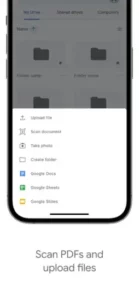
Scan receipts, forms, and documents into searchable PDFs directly from the mobile app. No separate scanner needed.
File Annotations and PDF Comments
Highlight and comment on PDFs within Drive. Review contracts and assignments without leaving the app.
Sharing and Permissions With Expiration Dates
Share files and folders with specific people or links. Set Viewer, Commenter, or Editor roles. Add expiration dates and extra restrictions.
Shared Drives for Team Projects
Team-owned spaces for projects. Files stay with the organization even if people leave. Perfect for businesses.
Backup and Restore for Phone Files and Photos
Auto-backup phone files, photos, and even WhatsApp data. Restore to new devices easily.
Security Features Including Malware Scanning and Encryption
Malware, spam, and ransomware scanning. Encryption for data at rest and in transit. Two-step verification. Admin controls on business plans.
Integration With Third-Party Apps (Slack, Zoom, Salesforce, etc.)
Connect with Slack, Zoom, Salesforce, Atlassian, SAP, and more. Create and share Drive files from those tools.
Offline Access for Docs, Sheets, and Slides
Use offline mode to view and edit files without internet. Changes sync later when you reconnect.
Google Drive Graphics and Visual Design
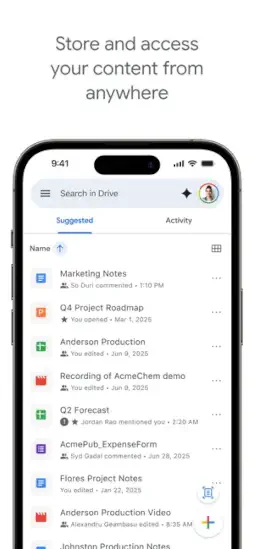
Google Drive uses a clean, minimal Material Design interface focused on file lists, folders, and quick actions like share, remove, and rename. The main screen shows recent files, starred items, and folders, with a prominent search bar and a “+” button for creating or uploading content.
Users generally find it simple and intuitive, with clear icons and color-coded file types. However, some power users note that advanced features like detailed version history or admin settings are easier on the web than in the mobile app. The design prioritizes clarity and ease of use.
How Google Drive Works
The daily flow is straightforward. Open Drive to see recent files, folders, and search. Everything is where you expect it to be.
Upload or create files. Docs, Sheets, Slides, scans, or other file types. Add content from your device or create new files directly.
Share and collaborate by inviting people or sending links with permissions. Set Viewer, Commenter, or Editor roles. Control who can see and edit your files.
Use AI and search to find files quickly or get summaries and answers. No more digging through folders. Ask and find.
Access anywhere from mobile, desktop, or web, with offline options for key files. Your files follow you wherever you go.
What Users Say about Google Drive
Common praise includes reliable sync and access across devices, with files “always there” when needed. Excellent collaboration on Docs, Sheets, and Slides, especially for teams, students, and remote work. Convenient free tier and straightforward upgrades via Google One for extra storage.
Common criticisms include privacy concerns about Google’s data practices and scanning of content, even if for security and machine learning. The shared 15 GB limit across Drive, Gmail, and Photos can fill up quickly for heavy users, pushing them toward paid plans. Some users report confusion over file ownership, sharing permissions, or accidental deletions, especially in shared drives.
Google Drive Tips
You could just upload files and call it a day. But a few Google Drive tips will help you work faster, stay organized, and get more from the app.
Use advanced search with filters like owner, file type, and date. For example, owner:you@example.com type:pdf after:2025-01-01 narrows results fast. No more scrolling through hundreds of files.
Enable offline mode for viewing and editing without internet. In the web app settings, turn on offline access. View and edit Docs, Sheets, and Slides anywhere. Changes sync when you reconnect.
Scan documents on mobile using the Drive app’s Scan feature. Turn paper documents into searchable PDFs instantly. No scanner needed. Receipts, forms, contracts, all digitized.
Color-code and star folders for quick access. Use colors to visually organize projects. Star important folders so they appear at the top. Find what you need faster.
Use revision history to restore older versions. For native Drive files, open “See revision history.” Restore previous versions. Track changes over time. Undo mistakes easily.
Free up space by sorting storage by file size. In Drive’s “Storage” view, sort by size. Find and delete large files you no longer need. Keep your free space under control.
Leverage Gemini and AI Overviews for summaries and insights. If you have access, ask Gemini in Drive to summarize projects. List action items. Find specific info across multiple files. Let AI do the heavy lifting.
Combine with Google Photos and Gmail, understanding the shared quota. Your 15 GB free storage is shared across Drive, Gmail, and Photos. Use Drive for long-term archives. Keep Photos for consumer photo management. Know where your space goes.
Google Drive Similar Apps
If Google Drive does not fit your needs or you want to compare options, you have alternatives. The best Google Drive similar apps share the same focus on storage, sync, and collaboration.
| App / Service | Main Similarity |
|---|---|
| Dropbox | Cloud storage, file sync, and sharing across devices |
| Microsoft OneDrive | Deep integration with Office; personal and business cloud storage |
| iCloud Drive | Apple’s cloud storage tightly integrated with iOS/macOS apps |
| Box | Business focused cloud storage with strong collaboration features |
None of these replace Google Drive exactly. Each has strengths. Dropbox offers excellent file sync and third-party integrations. OneDrive integrates seamlessly with Microsoft Office. iCloud Drive is best for Apple users. Box is enterprise-focused.
For most users, Google Drive strikes the best balance between free storage, collaboration tools, and AI features. The integration with Google Workspace makes it a default choice for students, teams, and professionals.
If you are already in the Google ecosystem, Drive is the natural fit. If you use Microsoft Office heavily, OneDrive may be better. If you are all-in on Apple, iCloud Drive is worth considering.
Conclusion
Google Drive is a universal cloud workspace that blends storage, collaboration, and AI assistance into one app. It is not the most exciting app on your phone. But for many people, it is one of the most useful.
The strongest angle is integration. The app works seamlessly with Google Workspace. Docs, Sheets, Slides, Gmail, Calendar, Chat. All connected. The AI features make searching and summarizing content effortless. The collaboration tools are industry standard.
Who should download it? Students needing to store and share assignments and collaborate on group projects. Professionals and remote teams who rely on real-time collaboration. Individuals who want to back up photos, documents, and important files securely. Anyone who needs cross-device access to files from phone, tablet, or computer. Businesses using Google Workspace for team file management and shared drives.
Who should skip it? People with serious privacy concerns about Google’s data practices. Those who prefer fully offline storage with no cloud sync. Anyone who needs more than 15 GB of free storage but does not want to pay. If you are all-in on Apple or Microsoft, their alternatives may fit better.
Google Drive is not trying to be the flashiest app on your phone. It is trying to be the most reliable. And for millions of users, it is. Download it. Upload your files. Share a folder. Collaborate on a doc. Let AI find what you need. That is the loop. That is the drive.
FAQ
Where can I get Google Drive download for my phone?
You can get Google Drive app downloaded from the Official App Store.
Is there an official website or help page where I can learn more about storage plans and features?
Yes. The official Google Drive website is here: Official Google Drive Website Link. For detailed information on storage plans, sharing settings, and advanced features, the Google Workspace Learning Center is here: [Insert Wiki Link]. Google also maintains extensive support documentation.
How does the free 15 GB storage work, and what happens when I run out?
The free 15 GB is shared across Drive, Gmail, and Photos. When you run out, you cannot upload new files or receive emails. You can free up space by deleting large files or upgrade to a paid Google One plan starting at 100 GB.
Is Google Drive secure for storing sensitive documents and photos?
Yes. Google Drive uses encryption for data at rest and in transit, malware and ransomware scanning, and two-step verification. Business plans add advanced security features like data loss prevention and endpoint management. Always use strong passwords and enable two-factor authentication.