
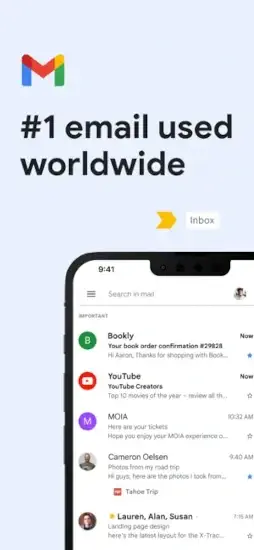
Gmail is on your phone right now, but are you using it well? Labels. Filters. Snooze. Smart Compose.

Gmail app has more features than you probably know. The question is whether you are getting the most out of it or just letting emails pile up in an unorganized inbox that stresses you out.
Gmail in 2026 is not just an email app. It is a communication hub. You send and receive messages. You schedule emails to send later at the perfect time. You snooze what you cannot answer now so it comes back when you are ready. You let Smart Compose finish your sentences while you type. Understanding the features helps you manage your inbox faster and with less stress.
Email apps exploded as people needed to manage increasing volumes of messages. Outlook focused on business integration with Microsoft Office and Teams. Proton Mail prioritized privacy with end to end encryption. Spark Mail added smart organization and team collaboration. Gmail stayed simple, reliable, and deeply connected to Google’s ecosystem. It did not try to reinvent email. It just made it work better.
The app holds a 4.7 star rating on the App Store based on over 2.4 million reviews. Size sits around 799 MB depending on cached data. Age range stretches from teenagers managing school emails to professionals running businesses. If you prefer an email app with stronger privacy features, Proton Mail offers end to end encryption
What Is Gmail ?
A free email app for sending, receiving, organizing, and searching mail across all your devices. Strong spam protection keeps your inbox clean from junk. Deep Google integration connects to Calendar, Drive, Meet, and Chat. One app for multiple communication tools.
Who It Is For
Anyone with a Google account. People who need a reliable email app for personal use every day. Professionals managing work correspondence and client communication. Students tracking school announcements and assignment submissions.
The Google Ecosystem
Gmail integrates with Google Calendar for scheduling meetings without leaving the app. Google Drive for attaching files from cloud storage. Google Meet for joining video calls from email threads. Google Chat for messaging colleagues. Google Docs for editing documents directly. Everything works together.
Free to Use
Completely free. No subscription required. No ads in the main Primary inbox. Ads appear only in the Promotions tab where marketing emails live. Google Workspace paid plans available for businesses needing custom email domains.
Gmail on 2026: What’s New
Smart Compose
AI suggests sentence completions as you type. Tab to accept the suggestion. Faster email writing without typing every word. The AI learns your writing style over time and suggests phrases you commonly use.
Smart Reply
One-tap responses to common emails. “Thanks.” “Sounds good.” “I’ll check.” “Let me know.” Good for quick replies when you are on mobile and do not want to type much.
Email Scheduling
Write an email now. Schedule it to send later. Tonight. Tomorrow morning. Next week. The feature respects your recipients’ time zones so you do not wake them up.
Snooze
Temporarily remove an email from your inbox. It comes back at a chosen time. Later today. Tomorrow. Next week. Good for emails you cannot answer now but do not want to forget.
Confidential Mode
Set expiration dates for sensitive emails. Recipients cannot forward, copy, print, or download the message. You can also require a passcode sent via text message. Good for sharing private information like passwords or contracts.
Offline Access
Read, search, and reply to emails without internet connection. Changes sync when you reconnect. Good for flights, commutes, or areas with poor reception.
Gmail Core Features:
Inbox Organization
Primary tab for important emails from people you know. Social tab for notifications from Facebook, Twitter, Instagram, and LinkedIn. Promotions tab for marketing emails, deals, and newsletters. Updates tab for confirmations, receipts, bills, and statements. Forums tab for discussion boards and group messages.
Labels
Color coded tags for organizing emails across your account. Create labels for work, personal, shopping, projects, or anything else. An email can have multiple labels, unlike traditional folders where an email can only be in one place.
Filters
Automatic rules for incoming emails based on your criteria. Skip the inbox entirely. Apply a label automatically. Mark as read. Forward to someone else. Filters save time by doing the work for you.
Search
Fast search across all your emails, even years old. Search by sender, subject, keyword, or date. Search operators for precise queries. “from:boss has:attachment” finds emails from your boss with files attached.
Stars
Mark important emails with a star icon. Starred emails appear in a separate view for quick access. Good for follow-ups, action items, and important messages you cannot forget.
Archive
Remove emails from your inbox without deleting them permanently. Archived emails stay in your account and can be found with search. Good for emails you want to keep but do not need in your face.
Spam Protection
Automatic spam filtering keeps junk mail out of your inbox. The system learns from user reports. Rarely misses real emails. Rarely marks good emails as spam.
Gmail Inbox Organization: Tabs and Labels
Default Tabs
Primary is for emails from people you know and important conversations. Social is for Facebook, Twitter, Instagram, LinkedIn, and other social networks. Promotions is for marketing emails, deals, newsletters, and coupons. Updates is for confirmations, receipts, bills, statements, and shipping notifications. Forums is for discussion boards, group messages, and mailing lists.
Customizing Tabs
Turn tabs on or off in settings based on your preference. Drag emails between tabs to train the filter. The system learns where you want emails to go over time.
Labels vs Folders
Labels are like tags, not traditional folders. An email can have multiple labels. In traditional folders, an email can only be in one place. Labels are more flexible for organizing emails that fit multiple categories.
Creating Labels
Create labels for work, personal, projects, or anything you track. Color code them for visual distinction. Nested labels for subcategories. “Work/Projects/Website Redesign” shows as a sub-label under Work.
Applying Labels
Manually apply labels to emails from the inbox view. Use filters to apply labels automatically based on sender, subject, or keywords. Drag emails directly to labels on the sidebar.
Gmail Search and Filters
Basic Search
Type keywords in the search bar at the top of the app. Gmail searches subject lines, email bodies, sender names, and recipient names. Results appear instantly as you type. No need to click a search button.
Search Operators
Use operators for precise searches when basic search is not enough. “from:name” finds emails from a specific sender. “to:name” finds emails sent to someone. “subject:keyword” searches subject lines only. “has:attachment” finds emails with files attached. “older_than:1y” finds emails older than one year. “label:work” finds emails with a specific label.
Creating Filters
Click the filter icon in the search bar. Enter your search criteria. Click “Create filter.” Choose actions like “Skip the Inbox,” “Apply a label,” “Mark as read,” “Star it,” or “Forward to another address.” Save the filter. New emails matching your criteria will be processed automatically.
Common Filters
Filter newsletters to skip the inbox and go to a “Newsletters” label so they do not clutter your main view. Filter receipts to skip the inbox and go to a “Receipts” label for easy tax season searching. Filter work emails to apply a “Work” label so you can see them separately.
Editing Filters
Manage filters in Settings > Filters and Blocked Addresses. Edit existing filters to change their criteria or actions. Delete filters you no longer need. The filter list shows all your automatic rules.
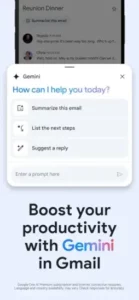
Gmail Smart Features: AI That Helps
Smart Compose
As you type, Gmail suggests complete sentences in light gray text. Tab to accept the suggestion and keep typing. The AI learns your writing style over time. Suggests phrases you commonly use in replies. Saves time on repetitive emails.
Smart Reply
Below each email you read, Gmail suggests short one-tap responses. “Thanks for the update.” “Sounds good.” “I’ll take a look.” “Let me know.” Tap one to reply instantly without typing. Good for quick acknowledgments on mobile.
Nudges
Gmail reminds you to follow up on emails you may have forgotten. It also reminds you to reply to emails you have not answered. Nudges appear at the top of your inbox. The feature helps you stay on top of important conversations.
Summary Cards
For purchases and travel, Gmail shows summary cards at the top of emails. See order details without opening the email fully. Track packages with delivery status. View flight information with gate and time. The cards pull key information from the email body.
Grammar Suggestions
Gmail underlines potential grammar errors in your draft emails. Right-click or long press to see suggestions. The feature helps you write more professional emails without a separate grammar checker.
Gmail Graphics and Design
Visual Style
Clean and familiar interface that has not changed drastically in years. Built around readability and speed. White background with simple icons. Clear typography that is easy to scan. The design is practical, not decorative.
Layout
Left sidebar for navigating between Inbox, Starred, Snoozed, Sent, Drafts, and labels. Central inbox showing your email list with sender, subject, and date. Right panel showing email content when you open a message. Compose button in the bottom right corner.
Compose Window
Pop-up window for writing new emails. Supports formatting like bold, italic, lists, and links. Attach files from your device or Google Drive. Insert emojis and images. The window stays above your inbox so you can reference other emails while writing.
Dark Mode
Full dark theme available for night reading. Easier on your eyes when you check email before bed. Saves battery on OLED screens. Toggle the setting in the app or follow your system theme.
Performance
Runs on most iPhones from iPhone 7 and newer. Syncs quickly across all your devices. Push notifications arrive seconds after emails land in your inbox. The app is lightweight and does not drain battery.
Gmail Similar Apps
| App | Main Similarity |
|---|---|
| Outlook | Email plus calendar and productivity tools |
| Proton Mail | Secure email with privacy focused features |
| Yahoo Mail | Traditional email inbox management |
| Spark Mail | Smart inbox organization and collaboration |
| BlueMail | Multi account email management |
The Differentiation
Outlook integrates with Microsoft Office and Teams. Good for business users in the Microsoft ecosystem. Proton Mail offers end-to-end encryption and privacy-focused features with no ads. Yahoo Mail is traditional with generous 1TB of storage. Spark Mail offers smart inbox organization and team collaboration features with shared emails. BlueMail supports multiple accounts with a unified inbox across providers.
Gmail stands out for its deep integration with Google services. Calendar, Drive, Meet, and Chat all work seamlessly within the app. The spam filtering is best in class. The search is fast and powerful across years of emails.
If you search Gmail similar apps, these five appear most often. Each does something well. Gmail does Google integration and spam filtering better than anyone.
Gmail Privacy and Security
Spam Protection
Automatic filtering keeps junk mail out of your primary inbox. The system learns from user reports when you mark emails as spam. Rarely misses real emails. Rarely marks good emails as spam. The filtering is best in class.
Phishing Protection
Gmail warns you about suspicious emails before you open them. Links are checked against known phishing sites. Dangerous attachments are blocked from downloading. The warnings are clear and hard to ignore.
Confidential Mode
Set expiration dates for sensitive emails. Recipients cannot forward, copy, print, or download the message. You can also require a passcode sent via text message for extra security. Good for sharing private information like passwords, contracts, or financial data.
Two Factor Authentication
Protect your Google account with 2FA. Gmail supports Google Authenticator for code generation. SMS codes sent to your phone. Security keys like Titan or YubiKey. 2FA prevents unauthorized access even if your password is stolen.
Encryption
Emails are encrypted between your device and Google’s servers using TLS. This protects against interception during transmission. End to end encryption for email content requires third-party tools like PGP.
Data Collection
Google scans emails for advertising personalization in the free version. This is how Gmail stays free. Google Workspace paid plans do not scan for ads. The scanning is automated, not human.
Gmail Tips and Tricks
Use Labels to Separate Work, Personal, Shopping, and Newsletters
Create a “Work” label for job related emails. Create a “Personal” label for friends and family. Create a “Shopping” label for receipts and orders. Create a “Newsletters” label for subscriptions. Apply them manually or with filters.
Create Filters to Auto Sort Incoming Messages
Filter newsletters to skip the inbox and go to a “Newsletters” label. Filter receipts to skip the inbox and go to a “Receipts” label. Filter work emails to apply a “Work” label. Filters do the work for you automatically.
Archive Instead of Deleting When You May Need an Email Later
Archive removes emails from your inbox but keeps them in your account permanently. Search to find them later. Deleting is permanent and cannot be undone. When in doubt, archive.
Use Search Operators to Find Messages More Precisely
“from:boss” finds emails from your boss. “has:attachment” finds emails with files attached. “older_than:1y” finds old emails you forgot about. “label:work” finds emails with the work label. Combine operators for precise searches.
Turn on Smart Reply and Smart Compose for Faster Responses
Smart Reply gives one tap responses for quick acknowledgments. Smart Compose finishes your sentences as you type. Both features save significant time for frequent emailers.
Use Snooze for Emails That Need Attention Later
Snooze an email until tonight, tomorrow, or next week. The email disappears from your inbox and returns at the chosen time. Good for emails you cannot answer now but do not want to forget.
Connect Gmail with Calendar for Meeting Scheduling
Create calendar events directly from emails. See your Google Calendar in the Gmail sidebar. Join Google Meet calls from email threads. The integration saves you from switching between apps.
Keep One Primary Inbox Routine
Check email at set times during the day. Process emails to zero or a low number in your inbox. Use stars for follow-ups you need to handle. The routine prevents inbox overwhelm and stress.
Use the Promotions Tab for Newsletters and Deals
Marketing emails go to the Promotions tab by default. Check it when you want to see deals and coupons. Ignore it when you do not. Keep your Primary tab clean.
Set Up Canned Responses for Common Emails
Create templates for emails you send often. Support replies. Introduction emails. Status updates. Insert them with a few clicks instead of typing the same thing repeatedly.
Conclusion: Should You Use Gmail in 2026?
The honest answer is yes. Gmail is the best free email app for most people. The spam filtering is excellent and rarely misses. The search is fast and powerful across years of emails. The Google integration with Calendar, Drive, and Meet is seamless. The app is reliable across all your devices.
What works: Excellent spam and phishing protection that learns over time. Fast, powerful search across all emails with operators. Deep integration with Calendar, Drive, and Meet in one app. Smart Compose and Smart Reply save time on frequent emails. Labels and filters for flexible organization. Free with no subscription required.
What does not: Free version includes ads in the Promotions tab. Privacy concerns about Google scanning emails for ads. Interface can feel busy with many features and tabs. Some users prefer simpler email apps like Spark.
What do you want from an email app? If you want reliable delivery, strong spam protection, and deep Google integration, Gmail delivers. If you want end-to-end encryption and privacy as the top priority, Proton Mail might fit better.
Frequently Asked Questions About Gmail
Is Gmail really free to use?
Yes. Gmail is completely free for personal use. You get 15 GB of free storage shared across Gmail, Google Drive, and Google Photos. No subscription required. No ads in your primary inbox. Ads only appear in the Promotions tab. Businesses can upgrade to Google Workspace for custom email domains and more storage. You can start your Gmail download from the App Store.
How do I stop spam emails in Gmail?
Gmail automatically filters most spam before you see it. Mark any spam that gets through by selecting the email and tapping the stop sign icon. Gmail learns from your reports. Create filters to automatically delete emails from specific senders. Never reply to spam emails. Never click links in suspicious messages.
What is the difference between Archive and Delete?
Archive removes emails from your inbox but keeps them in your account. You can find archived emails later using search. Delete sends emails to the Trash folder. Emails in Trash are permanently deleted after 30 days. Use Archive for emails you may need later. Use Delete for emails you will never need again.
How do I organize my Gmail inbox effectively?
Use the default tabs to separate Primary, Social, Promotions, and Updates emails. Create labels for different categories like Work, Personal, Shopping, and Newsletters. Set up filters to automatically apply labels and skip the inbox for low-priority emails. Star important emails that need follow-up. Snooze emails you cannot answer right now.
Where can I find official information and get support if I have issues?
The official Gmail Help Center has documentation, video tutorials, and troubleshooting guides. The Google Workspace community forum offers peer-to-peer support. For account recovery or security issues, visit the Google Account Help page. Official website: https://mail.google.com