
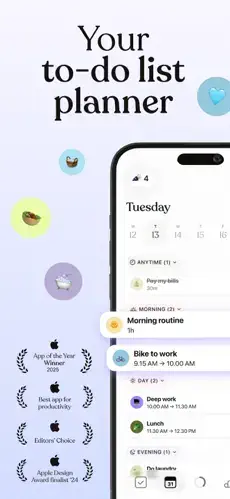
Tiimo is a visual planning and productivity app built around color coded schedules, flexible to-do lists, focus timers, calendar syncing, AI assisted planning, widgets, routines and shared profiles.

Tiimo holds a 4.6 out of 5 rating from 20,000 App Store ratings. The app weighs around 250 MB on iOS, carries a 4+ age rating, and requires iOS 16.0 or later. It earned Apple Editors’ Choice status and was named iPhone App of the Year 2025. It was also a 2024 Apple Design Awards finalist.
Those are serious credentials. The story behind them is more interesting than the awards.
So is Tiimo genuinely different from every other planner, or is it a calendar with nicer colors and a subscription attached? The answer depends on how your brain handles time, tasks, and the gap between knowing what to do and actually starting.
How Tiimo Works
Capture tasks manually, through Siri, or by photographing handwritten notes. Prioritize with AI priority grouping and task suggestions. Build a visual schedule by dragging tasks onto a color-coded timeline. Sync calendars to see external commitments alongside routines. Start a focus session with the calming countdown timer. Pause, resume, or add time when real life interrupts. Use widgets and Apple Watch to stay oriented without opening the app. Review patterns through personal insights and completion data. Share profiles with family when appropriate.
Why Conventional To-Do Lists Fail Some Brains
Most people reading this have tried productivity apps before. Maybe several. The problem was never that they did not understand how to make a list. The problem was that lists alone did not help them start.
Tiimo targets that specific gap. It is positioned as a neurodivergent friendly planner for people managing ADHD, autism related executive function challenges, time blindness, overwhelm, routines and task initiation. Users praise the visual timeline, calming design, focus timer and routine support. Critics point to notification intensity, widget problems, calendar sync friction, app stability and subscription cost.
The Visual Timeline That Changes How Planning Feels
Color coded blocks make time and task order concrete. The timeline replaces text heavy lists with something easier to scan. Drag and drop planning lets users rearrange the day visually. Soothing colors and icons lower the emotional weight of a full schedule.
Why does this matter? Because seeing time is different from reading time. For people with time blindness, that gap is the whole problem.
Flexible Tasks and the End of Minute by Minute Planning
Duration only tasks let users start when ready rather than at a fixed time. Tasks can be started, paused, resumed, and completed without rigid scheduling. Multiple activities can run at once, which matches how real life actually works.
One reviewer said fixed scheduling backfires when distraction causes them to fall behind. Flexible tasks solve that. This design choice separates Tiimo from traditional calendar apps.
Focus Timer and Task Initiation Support
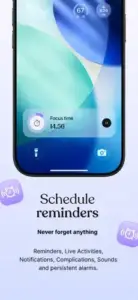
A calming countdown helps users begin tasks they have been avoiding. The timer is designed for focused work, study, chores, admin and routine building. Starting is often harder than continuing. The timer targets that exact moment. Live Activities show active timers and task icons on the lock screen. This feature alone justifies the app for some users.
AI Co-Planner and Task Prioritization
AI helps create, prioritize, organize and plan tasks. AI priority grouping suggests what matters most without manual ranking. The feature reduces decision fatigue for users who struggle to decide what comes first. Snap to Plans uses AI to convert photos of handwritten notes into organized tasks. Useful for converting paper planning into something actionable.
Calendar Integration and External Commitments
Tiimo syncs with Apple Calendar, Apple Reminders, iCloud calendars and Google Calendar. It keeps external commitments visible alongside routines and tasks. Recent release notes mention improvements to Google Calendar reliability and iCloud calendar imports. Two way syncing remains a common user request. This is still an active development area.
Widgets, Apple Watch and Siri Integration
Home screen, lock-screen, XL, and resizeable widgets keep current tasks visible. Live Activities display active timers and task icons. Apple Watch shows current and next tasks, countdowns, subtasks, pause controls and completion options. Siri and App Intents let users add tasks and check their day hands-free.
Some users reported widget issues and Apple Watch logouts, though newer versions list reliability improvements.
Shared Profiles and Family Planning
Up to five profiles can be shared with family. Useful for family schedules, caregiver support, children’s routines and shared household planning. Privacy boundaries matter. Only share schedules with people who genuinely need access. This feature makes Tiimo more than a solo planner.
Neuroinclusive Courses and Community Hub
Courses cover productivity, habits, routines and planning. The Community Hub offers tips from neurodivergent teens and adults. Adds educational and peer informed support beyond task tracking. Makes Tiimo more community informed than a typical calendar app.
Free Versus Pro
The free tier includes a basic planner, limited AI chats and one profile. Tiimo Pro unlocks full features, expanded AI access, web version access, profile sharing, and advanced planning. Annual subscriptions include a seven day trial.
App Store listings show Pro prices at $7, $11.99, $12, $14, $36, $42, $48 and $54 depending on region and plan type. Confirm the exact price in your region before committing.
Privacy and Accessibility
The privacy label notes that the developer may use identifiers to track users across apps and websites. The app may collect and link email address, name, user ID, device ID, user content, support content and product interaction data. Crash and performance data may be collected without being linked to identity.
Tiimo declares support for VoiceOver, Voice Control, Larger Text and Dark Interface. That is a meaningful strength for a planner intended to support varied cognitive and sensory needs.
Design Strengths
Visual timeline instead of a plain task list. Calmer presentation with soothing colors and icons. Flexible planning model with duration only tasks. Widget rich experience with home screen, lock screen and resizeable options. Apple Watch support for current tasks and focus sessions. Handwritten note capture through AI assisted task creation. Siri integration for voice based task capture. Accessibility support and right to left layout support.
Design Limitations
Structured timelines can feel restrictive for users who fall behind. Notification strength is not fully customizable. Short sounds may not interrupt hyperfocus. Widgets have occasionally caused issues for some users. Calendar syncing remains a friction point for two way workflows. App stability has varied historically. Reviews mention bugs, Apple Watch logouts, and syncing issues.
Tiimo User Reviews
Positive themes include help with ADHD and focus, routine support, visual planning, mobile first design, flexible activity flow, developer responsiveness and continual feature development.
Negative themes include weak notifications, minute-by-minute planning backfiring, widget problems, calendar syncing requests, no distraction blocking, Apple Watch reliability and bugs undermining routines.
Tiimo Tips
For Beginners
Start with three core routines, not a full life overhaul. Create a morning routine, a work or school routine and an evening wind down routine first. A smaller plan is easier to follow and adjust. Trying to schedule every hour of your week on day one leads to abandoned plans and a deleted app.
Use duration only tasks for unpredictable work. If fixed start times cause stress, create activities like “Study for 45 minutes” or “Clean kitchen for 20 minutes” and start them when ready. This flexible model is one of the reasons Tiimo works for people who struggle with rigid scheduling.
Brain dump first, prioritize later. Add everything occupying mental space, then use AI priority grouping to reduce decision fatigue. The brain dump clears the noise. The AI handles the sorting.
Name tasks with the first action. Replace “Work on assignment” with “Open assignment brief” or “Find two sources.” Smaller first steps are easier to begin because they remove the ambiguity that causes procrastination.
Do not schedule every minute. Leave buffer blocks for travel, meals, transitions, and unexpected tasks. Real life does not fit neatly into color-coded blocks, and pretending otherwise creates unnecessary pressure.
For Focus and Time Awareness
Use the Focus Timer for task initiation. Start a short countdown when a task feels intimidating. The goal is to start, not to finish everything immediately. Even five minutes of focused work breaks the inertia that keeps you stuck.
Put widgets on your home screen and lock screen. Visible schedules reduce the need to remember to open the app. When your next task is already on screen, you spend less energy trying to recall what you planned.
Use Apple Watch for transitions. Check the current or next activity, pause a focus session, add time or complete a task from your wrist. This keeps the planning layer present without pulling out your phone.
Request stronger reminder behavior if needed. If short notifications do not interrupt hyperfocus, review iOS notification settings and send feedback to Tiimo about persistent alert options. Users have asked for longer alarms and vibration, and the developer has acknowledged this request.
Use Live Activities to stay oriented. Active timers with custom task icons provide a constant visual cue during focus sessions. Seeing the timer on your lock screen reinforces that you are still in a session, even if you glance away.
For Calendar and Task Management
Connect calendars carefully. Review permissions after linking Google Calendar, Apple Calendar, iCloud or Reminders. Know what data Tiimo can read and write before enabling sync.
Separate fixed events from flexible work. Use calendar imports for appointments and deadlines. Use Tiimo tasks for routines and follow-ups. Mixing the two creates confusion about what is immovable and what can shift.
Photograph paper notes instead of retyping them. Snap to Plans converts handwritten lists into digital tasks when available. If you are someone who plans on paper, this bridges the gap without forcing a full digital transition.
Use Siri for quick capture. Add tasks while walking, cooking or leaving a meeting. Voice capture removes the friction that causes tasks to be forgotten before they reach the app.
Review completed tasks weekly. Personal insights help you understand which durations and routines are realistic. If a task consistently takes longer than planned, adjust the duration rather than blaming yourself.
For Privacy and Wellbeing
Use profile sharing thoughtfully. Shared profiles help families coordinate, but only share schedules with people you trust. Not every task needs an audience.
Treat missed tasks as information, not failure. If you consistently miss an activity, shorten it, move it, add a buffer or make it duration only. The pattern is telling you something. Listen to it.
Use Tiimo as support, not pressure. If the planner becomes stressful, simplify the schedule and focus on one next task. A tool meant to reduce overwhelm should not become another source of it.
Tiimo Similar Apps
| App | Best For | Main Difference from Tiimo |
|---|---|---|
| Structured | Visual timeline planning on Apple devices | Similar timeline first approach; Tiimo leans more into neurodivergent planning, AI co-planning, shared profiles, and focus tools |
| TickTick | Tasks, calendar, habits, Pomodoro, advanced productivity views | More feature dense and traditional; less visually calm and neuroinclusive by design |
| Todoist | Fast task capture, collaboration, recurring task management | Stronger conventional task management and integrations; less visual timeline focused |
| Fantastical | Calendar first planning on Apple devices | More powerful calendar handling; less focused on routines, visual task blocks, and focus support |
| Apple Reminders | Free Apple ecosystem task management | Simpler and deeply integrated with iOS; lacks Tiimo’s visual schedule, AI co-planning, and focus design |
| RoutineFlow | ADHD-friendly routine building | More routine focused; Tiimo combines visual planning, to-dos, AI, calendars, focus, and family profiles |
| Focus Keeper | Pomodoro style focus sessions | Better for simple Pomodoro timing; lacks Tiimo’s planner, calendar and routine layers |
| Notion Calendar | Calendar management and work organization | Better for connected work databases; less focused on daily visual support |
| Habitica | Gamified task management | Better for RPG-style motivation; less calming and less timeline based |
| Sunsama | Intentional daily planning for professionals | Stronger work calendar and task integration; less designed around visual neurodivergent accessibility |
If you want a similar app with a different focus, Structured is worth a look. It offers visual timeline planning on Apple devices and is available on the same platforms as Tiimo.
Tiimo’s clearest distinction is its combination of visual scheduling, flexible time blocks, AI-assisted planning, focus timers, neuroinclusive framing, widgets, Apple Watch support and family profile sharing. No single competitor matches all of those at once. Structured comes closest on the visual timeline. Todoist and TickTick win on traditional task management. Sunsama wins for professionals who live inside their work calendar. But if you want one app that handles visual planning, flexible tasks, focus support, and family coordination together, Tiimo occupies a space few others attempt.
Conclusion
Tiimo rewards users who benefit from visual structure, flexible task timing, and lower friction planning. It frustrates those who need stronger notifications, seamless two-way calendar sync or advanced project management.
If conventional to-do lists have never worked for you, Tiimo might be the first planner that does. If you need feature-dense productivity tools with deep integrations, TickTick or Todoist may serve you better.
Download it. Build one routine. Start one focus timer. See how it feels. The design is genuinely different.
Frequently Asked Questions About Tiimo
Where can I get the official Tiimo download for my device?
Tiimo is available as a free download on App Store. Desktop users can access the web version through the official Tiimo website at tiimoapp.com. The app itself costs nothing to install. Tiimo Pro features require a subscription, but the free tier works for basic planning.
What devices and operating systems does Tiimo support?
Tiimo runs on iPhone and iPad with iOS 16.0 or later. It also works on Apple Watch, Mac and Android devices. The web version is available for desktop access through Tiimo Pro. Accessibility features include VoiceOver, Voice Control, Larger Text, Dark Interface and right to left layout support. Checking your device compatibility before subscribing saves frustration.
Does Tiimo work offline or does it require an internet connection?
Tiimo stores your schedule locally on your device, so basic planning works without an internet connection. Calendar syncing, AI features, and profile sharing require connectivity. If you rely on synced calendars or AI assisted planning, keep that in mind when working offline. The app syncs changes once you reconnect.