
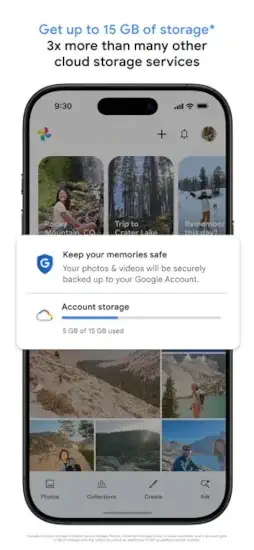
Google Photos promises to solve a problem you have probably ignored. Your phone is full of photos. Thousands of them. Memories you do not want to lose. But backing them up is a hassle.

Google Photos offers automatic backup, smart search, and powerful editing tools all for free up to 15GB. The question is whether it is the best solution for your photo library or just another way for Google to collect your personal data.
Cloud photo storage exploded as phone cameras got better and people started taking more photos every year. iCloud Photos integrated deeply with Apple devices but locked you into the ecosystem. Amazon Photos offered free full-resolution storage for Prime members. OneDrive and Dropbox provided general cloud storage with photo features. Google Photos combined automatic backup, AI-powered search, and editing in one free app.
Google Photos is not just a backup tool. It is a complete photo management system. You back up your photos automatically without thinking about it. You search by people, places, and things without manual tagging. You edit with AI tools like Magic Eraser and Photo Unblur. You share albums with family members easily. Understanding the features helps you decide whether to trust Google with your precious memories.
Google Photos app holds a 4.8 star rating on the App Store based on over 1.300,000 reviews. Size sits around 410 MB depending on cached content. Age range stretches from teenagers backing up selfies to parents preserving family photos. If you prefer deeper integration with Apple devices, iCloud Photos offers seamless sync.
What Is Google Photos ?
A cloud photo storage, organization, and editing app that works across devices. Automatically backs up your photos and videos when you take them. Makes them searchable without you manually tagging anything. Gives you AI-powered tools to edit and share memories with others.
Who It Is For
Anyone who takes photos on their phone regularly. People who want to keep memories safe without manual backup effort. Photographers who need quick editing tools on mobile. Families who want to share albums from trips and events.
The Core Promise
Keep your photos safe and easy to find at all times. Once backup is turned on in settings, your photos are saved to your Google Account automatically. Access them from any signed-in device instantly.
Free to Use
Free for high quality compression storage. Original quality uses Google Drive storage space. 15 GB free shared across Google Photos, Gmail, and Google Drive. Paid plans available for more storage.
Google Photos 2026: What’s New
Magic Editor
AI-powered editing tool that changes photos dramatically. Move subjects within the frame. Remove distracting objects. Change skies to sunset or sunny. Generate new background content. Available on newer Pixel phones and some Android devices.
Magic Eraser
Remove unwanted objects from your photos quickly. People walking into your shot. Power lines crossing the sky. Trash cans on the sidewalk. AI fills the background naturally. Works surprisingly well for most images.
Photo Unblur
Sharpen blurry photos that would otherwise be useless. Good for old photos scanned from prints. Good for motion blur from moving kids or pets. AI enhances details without creating artifacts.
Collections Tab Redesign
Cleaner way to browse different photo types. Screenshots in one place. Favorites in another. Albums organized better. Reduced clutter on the main screen.
Memory Creations
Automatically created movies, collages, and animations. Google surfaces memories from past years on this day or week. Share them with friends and family easily.
Face Grouping Improvement
Better facial recognition than previous versions. Group photos by person automatically. Name faces once. Search by name later.
Google Photos Core Features: What You Actually Use
Automatic Backup
Turn on backup once in settings. New photos save automatically in the background. No manual uploads ever. Photos accessible from any device you sign into.
Search by People, Places, and Things
Search without tagging anything manually. Type “beach” to see all your beach photos. Type “dog” to see all your pets. Type “New York” to see trip photos. The AI does the work.
AI-Powered Editing
Magic Editor for complex edits like moving subjects. Magic Eraser to remove unwanted objects. Photo Unblur to sharpen blurry photos. Basic filters and adjustments also available.
Shared Albums
Create albums for trips, weddings, or events. Share with family and friends via link. Others can add their own photos to the same album.
Automatic Creations
Google automatically creates movies, collages, and animations from your photos. Highlights from recent trips. Memories from past years. Ready to share.
Face Grouping
Group photos by person automatically. Name faces when prompted for easier search. Google does this without you tagging.
Cross Device Access
Access your entire photo library from any signed-in device. iPhone. iPad. Android phone. Computer. Web browser. All the same photos.
Google Photos Backup and Storage
How Backup Works
Install Google Photos from the App Store. Turn on backup in settings. Choose your upload quality preference. Photos save to your Google Account automatically. Access from any device.
High Quality (Storage Saver)
Compressed photos that look nearly as good as originals. Good quality for most people sharing on social media. Smaller file size saves storage space. Free unlimited until June 2021, now counts toward storage. Still good quality.
Original Quality
Full resolution with no compression. Counts toward your storage limit. Good for professionals who need maximum quality. Good for printing large photos.
Free Storage
15 GB free shared across Google Photos, Gmail, and Google Drive. One storage pool for all three services.
Paid Storage
Google One plans for more space. 100 GB plan. 200 GB plan. 2 TB plan. More storage for photos, videos, and files.
Storage Management
Free up space on your phone periodically. Remove backed-up photos from device storage. Keep them safely in the cloud.
Google Photos Search: Finding Photos Fast
Search by People
Name a face in the app once. Google finds all photos of that person automatically. Works across multiple years. Good for finding family members quickly.
Search by Places
Type a location name into search. Photos taken there appear instantly. Works for cities, landmarks, and stored GPS locations.
Search by Things
Type “dog” to see all photos of your pets. Type “food” to see meals you have photographed. Type “screenshot” to see screenshots. Google recognizes objects in images.
Search by Date
Type “Christmas 2023” to see holiday photos. Type “summer 2020” for seasonal photos. Date ranges work naturally.
Search by Text in Photos
Google reads text that appears in your images. Search for “menu” to find photos of restaurant menus. Search for “sign” to find photos of street signs.
Search by Color
Search for “red” to find photos with red objects prominently. Search for “blue” to find blue skies or oceans. Useful for specific color schemes.
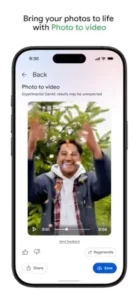
Google Photos Editing Tools: AI-Powered Enhancements
Magic Editor
Select and move subjects within the photo freely. AI fills the background where the subject was moved from. Example: move a person from the edge of the frame to the center for better composition. Remove unwanted people or objects from group shots easily. Make distracting backgrounds disappear completely. Adjust lighting and colors for better atmosphere. Available on Pixel devices and some premium Android phones.
Magic Eraser
Remove unwanted objects with a simple brush tool. Circle what you want to remove. AI erases and fills the background naturally. Works well for power lines, trash cans, strangers, and photobombers. The results are often surprising. Available on Pixel devices and select devices with Google One subscription.
Photo Unblur
Sharpen blurry photos from any camera, not just Pixel. Good for moving kids or pets that never stand still. Good for low-light shots that came out soft. AI enhances sharpness without creating unnatural artifacts. Available on Pixel 6 and newer, and iOS devices.
Other Tools
Crop and rotate for basic composition changes. Adjust brightness, contrast, and saturation manually. Filters and presets for quick looks. Portrait blur adjustment to change background blur after taking the shot.
Google Photos Graphics and Design
Visual Style
Clean, modern, minimalist interface throughout. Keeps your photos at the center of the experience. No clutter or distracting elements. Large image previews make browsing easy.
Navigation
Tabs for Photos, Search, and Collections at the bottom. Photos tab shows your entire library in chronological order. Search tab for finding specific photos. Collections tab for albums, people, and automatic creations.
Collections Tab
Redesigned for cleaner browsing organization. Screenshots grouped in one place. Favorites in another section. Albums organized logically. Easier to scan quickly.
Photo View
Tap any photo to see it full screen. Swipe left or right to browse adjacent photos. Edit button for adjustments. Share button for sending. Info button for metadata.
Cross Device Consistency
Same interface across iPhone, iPad, Android, and web browsers. No learning curve when switching between devices. Familiar controls everywhere.
Performance
Runs on most iPhones from iPhone 7 and newer. Backup works in the background without slowing your phone. Search is fast, even with thousands of photos.
Google Photos Similar Apps
| App | Main Similarity |
|---|---|
| iCloud Photos | Automatic cloud photo backup and device sync |
| Amazon Photos | Cloud storage and photo backup for Prime members |
| OneDrive | Cross device cloud file and photo storage |
| Dropbox | Backup and access across devices |
| Adobe Lightroom | Photo organization and editing tools |
The Differentiation
iCloud Photos is deeply integrated with Apple devices but limited to Apple ecosystem only. Amazon Photos offers free full-resolution storage for Prime members. OneDrive is general cloud storage with photo features added on. Dropbox is similar but less photo focused overall. Adobe Lightroom has superior professional editing but weaker backup and search.
Google Photos stands out for its AI-powered search and editing tools. No other app can find “dog” or “beach” without manual tagging and organization.
If you search Google Photos similar apps, these five appear most often. Each does something well. Google Photos does AI search and editing better than anyone.
Google Photos Free vs Paid: Storage Plans
Free Tier
15 GB shared across Google Photos, Gmail, and Google Drive. High quality compression counts toward storage now, same as original quality. Original quality also counts. Free tier is very limited for heavy users.
Google One 100 GB
1.99permonthor19.99 per year. Good for average users who take photos regularly. Enough for most phone libraries.
Google One 200 GB
2.99permonthor29.99 per year. Good for heavy photo takers who never delete. 2 years of photos for most people.
Google One 2 TB
9.99permonthor99.99 per year. Good for families or professional photographers. Multiple users can share the same storage.
Shared Storage
Google One plans can be shared with family members. Up to 5 family members can use the same storage pool. Good value for families.
Value Proposition
Free tier is very limited now. Paid plans are reasonable for what you get. The 100 GB plan is enough for most users.
Google Photos Tips and Tricks for 2026
Turn on Backup Right Away
Enable backup in settings immediately after installing. New photos will be protected automatically. Do this first before you forget.
Use Face Groups for Faster Search by People
Name faces in the app when prompted. Google groups photos by person automatically. Search by name later to find all photos of that person.
Try Searching by Place or Object Instead of Manually Browsing
Type “beach” instead of scrolling through years of photos. Type “dog” instead of searching through folders. Search is the best feature of Google Photos.
Use Magic Editor, Magic Eraser, or Photo Unblur for Quick Improvements
Remove distractions from good photos. Fix blurry shots that would otherwise be unusable. Improve composition by moving subjects. The AI tools are genuinely powerful.
Create Shared Albums for Family Trips or Events
Create an album for a vacation or wedding. Share the link with family. Others can add their photos to the same album. Everyone gets all the memories.
Check Collections for a Cleaner Way to Browse
Screenshots, favorites, and albums all in one place. Less clutter on the main Photos tab. Easier to find specific types of content.
Keep an Eye on Storage Usage
Check remaining storage in settings periodically. Delete unwanted blurry photos. Upgrade to a paid plan if needed.
Use the App on Multiple Devices
Sign in on all your devices with the same account. Photos accessible everywhere instantly. Upload from any device.
Free Up Space on Your Phone
Use the “Free up space” feature in settings. Removes backed-up photos from device storage. Keeps them safely in the cloud.
Archive Old Photos You Do Not Want to Delete
Archive removes photos from the main timeline. Keeps them accessible in the Archive section. Good for receipts, screenshots, or old images you want to keep but not see daily.
Google Photos Common Issues and Fixes
Backup Not Working
Check your internet connection first. Check backup settings in the app. Ensure the app has background refresh access in iPhone settings. Restart the app.
Storage Full
Free up space by deleting blurry or duplicate photos. Upgrade to a paid Google One plan. Remove large videos that take significant space.
Search Not Finding Photos
Ensure backup is complete for all photos. Photos need to be processed by Google’s servers. Wait a few hours for indexing to finish.
Magic Editor Not Available
The feature requires a newer device or Google One subscription. Not available on all devices. Check device compatibility.
Privacy Concerns
Google scans your photos to enable search and features. Read the privacy policy carefully. Decide if you are comfortable with this tradeoff.
Conclusion: Should You Use Google Photos in 2026?
The honest answer is yes. Google Photos is the best photo backup and management app for most people. The search capability is unmatched by any competitor. The editing tools are genuinely powerful. The backup is reliable and automatic. The free tier is very limited now, but paid plans are reasonable for what you get. The AI features like Magic Eraser and Photo Unblur are genuinely useful for everyday photos.
What works: Automatic backup that works without thinking. Powerful search by people, places, and things. AI editing tools that improve photos dramatically. Shared albums for family and friends. Cross-device access on any platform. Free tier available with 15GB.
What does not: Free tier only 15GB shared with Gmail and Drive. Privacy concerns about Google scanning your photos. Magic Editor not available on all devices. Compression on high quality reduces file size but loses original quality.
What do you want from a photo app? If you want reliable backup, powerful search, and AI editing, Google Photos delivers. If you want end-to-end encryption or deep Apple integration, iCloud Photos might fit better.
FAQ
Is Google Photos free to use?
Google Photos is free to download and use. You get 15 GB of free storage shared across Google Photos, Gmail, and Google Drive. Photos backed up in high quality (Storage Saver) count toward this limit as of June 2021. Original quality also counts toward the same limit. You can purchase more storage through Google One plans starting at 100 GB for $1.99 per month. You can start your Google Photos download from the Official App Store.
What is the difference between high quality and original quality?
High quality (Storage Saver) compresses photos slightly to save space. The compression is nearly invisible to most people. Good for sharing on social media and everyday viewing. Original quality keeps the full resolution and file size. Good for professional printing or archival. Both count toward your 15 GB free storage limit.
How does Google Photos search work?
Google Photos uses AI to recognize people, places, objects, and text in your photos without manual tagging. Type “beach” to see all beach photos. Type “dog” to see pets. Type “New York” to see trip photos. You can also search by date, color, or face after naming people in your library.
What editing tools does Google Photos offer?
Google Photos includes Magic Editor to move subjects and change skies, Magic Eraser to remove unwanted objects, and Photo Unblur to sharpen blurry photos. Basic tools include crop, rotate, adjust brightness, contrast, saturation, filters, and portrait blur adjustment. Magic Editor is available on newer Pixel phones and some Android devices with Google One.
Where can I find official information and get support if I have issues?
The official Google Photos Help Center has documentation, troubleshooting guides, and feature explanations. The Google Photos community forum offers peer-to-peer support. For account recovery, billing issues, or technical support, contact Google support through the website. Official website: https://photos.google.com