
CapCut add to your videos smooth transitions that glide from one clip to the next. Perfect captions that pop up in time with the music. Viral effects that make ordinary footage look like a movie.

CapCut. ByteDance built it for creators who want polished content without spending hours learning complicated software.
Mobile video editing exploded after TikTok proved short form video was here to stay. InShot offered simple trimming and basic filters for beginners. VN Video Editor provided timeline editing with more control. Adobe Premiere Rush brought professional tools to mobile with a subscription fee. CapCut combined AI features, templates, and effects into one free package. No watermarks. No subscription. No catch. That is why creators switched.
CapCut is not just a video trimmer. It is a full editing suite. Auto captions that transcribe speech in seconds. Background removal that separates people from any scene. Chroma key for green screen effects. Speed ramping for dramatic slow motion. Trendy effects that change weekly. All free. Understanding how to use its features helps you create better content faster than any other mobile editor.
The app holds a 4.6 star rating on the App Store based on over 2 million reviews. Size sits around 839 MB depending on assets downloaded. Age range stretches from teenagers editing TikTok videos to professional creators producing brand content. If you prefer a simpler editor with fewer features, InShot offers basic trimming and filters.
The Gap Between Free and Paid
What CapCut Actually Offers
CapCut’s pitch is simple. Edit video fast. Add captions without typing. Use a template and post in minutes. The free tier covers the essentials. Cut, split, multi track timeline, keyframe animation, chroma key, speed ramping, filters, basic AI voiceover and 1080p export all come without paying.
The template library is the entry point for most people. Thousands of editable templates for TikTok, Instagram Reels and YouTube Shorts. One tap applies the template. You replace the media. Adjust timing. Export. The workflow takes minutes, not hours.
Direct publishing to TikTok, Instagram and YouTube removes the download then upload step. Beat sync tools align cuts to music automatically. The royalty free music library covers most social content needs. For someone making their first video, CapCut feels generous. For someone making their hundredth video, the walls become visible.
The AI Tools That Save Real Time
Auto captions generate synced text in seconds. Dynamic captions animate them without manual keyframing. Text to speech turns written scripts into voiceover without recording. AI background removal works without a green screen .
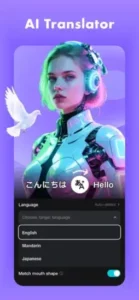
The Pro tier expands this significantly. AI video maker turns prompts or scripts into complete videos. AI avatars deliver lifelike presenters reading your script. Video translator handles spoken dialogue across languages. Vocal isolation splits music from vocals. Auto color grading and relight reduce manual cleanup work .
These tools are not gimmicks. They address real bottlenecks. Auto captions alone save hours on talking head content. Background removal without a green screen opens up shooting locations. The question is whether the free tier gives you enough to stay useful or whether the best tools sit permanently behind the paywall.
The Paywall Reality in 2026
CapCut restructured its paid tiers in 2025 and 2026. The free plan remains functional but limited. Standard tier sits around $9.99 per month** and removes watermarks while unlocking more templates and effects. Pro tier runs between **$7.99 and $19.99 per month depending on region and billing channel, with annual plans offering discounts .
Pro unlocks 4K export, the full AI toolkit, 100 GB or more of cloud storage, and commercial licensing . The free tier includes watermarks on certain Pro-tagged templates and effects. Some features that were once free, like smooth slow motion and dynamic captions, now require a subscription .
The complaint pattern is consistent. Roughly three in every ten written complaints on Google Play reference pricing or paywall concerns . Users describe a feeling of features being taken away rather than added. Whether that perception matches reality matters less than the fact that it shapes how people talk about the app.
Storage, Performance and Mobile Constraints
Cache buildup remains a documented frustration. Phones with limited storage prompt users to delete videos to continue editing. Clearing cache helps temporarily but the problem returns. Cloud backup requires Pro, which means free users face a choice between losing projects and managing storage manually .
Performance varies by device. Some users report playback glitches even on newer hardware, where editing becomes impossible until export . Others describe subtitles jumping between positions, fonts reverting after updates and features displaying “too many users” errors during peak times. The desktop version handles larger projects with fewer resource constraints, making cross device workflow valuable when cloud sync is active.
Privacy and Data Practices
ByteDance collects identifiers, usage data, diagnostics and user content. The data may be used for tracking across apps and sites. Privacy conscious users should review settings before uploading sensitive material. This is not unique to CapCut. Most social first editing tools operate under similar data models. But the ByteDance connection makes some users pause, especially given the broader conversation around TikTok’s data handling.
CapCut Tips
You do not need CapCut Pro to make sharp, publish ready videos. What you need is a workflow that avoids the common traps. These CapCut tips come from the patterns that show up again and again in user feedback and hands-on use.
Generate auto captions before heavy edits. Captions sync to the timeline as it exists when you create them. Move clips around afterward and the text drifts out of alignment. Lock your sequence first, then run auto captions, then make only minor trims. This one habit saves more time than any export setting.
Start from a template when speed matters, then customize. Templates handle timing, transitions and text placement out of the box. Replace the media, adjust the pacing, tweak the colors. Building from scratch gives you control, but a template gives you momentum. Most creators use both depending on the project.
Use keyframes for zooms and pans instead of stacking effects. Keyframe animation brings static shots to life without the clutter of layered effects. Set a start point, set an end point, and let the software interpolate. The motion stays smooth and the edit stays clean.
Clean audio before adding music. Noise reduction and vocal isolation work best on raw audio. Apply them first, then layer music underneath. Doing it in reverse means fighting a mess you created yourself.
Clear cache regularly and export drafts as you go. Mobile storage fills up fast. When the app prompts you to delete videos to continue, that is your cue to offload finished projects to external storage or the cloud. Cloud backup sits behind Pro, so free users need manual discipline. Deleting cache from settings also helps, though the relief is temporary.
Stick to free transitions and filters if budget is tight. The free tier still covers enough ground for polished social content. Speed ramps, basic transitions, text animations and standard filters all work without paying. Save Pro for when a specific AI tool or 4K export becomes essential to a paid project.
Back up projects locally and to the cloud. Reinstalls have cost users their saved templates and in-progress edits. If a project matters, keep a copy outside the app. Cloud sync requires Pro, but local exports cost nothing.
Preview templates before applying them. User-generated templates have slipped through moderation with inappropriate content. A quick look before you apply saves embarrassment, especially when editing for younger audiences or brand clients.
CapCut Similar Apps
| App | Best For | Main Difference from CapCut |
|---|---|---|
| VN Video Editor | Watermark free mobile editing | Strong timeline and keyframe tools, smaller template library |
| InShot | Quick social clips | Simple interface, Pro removes watermark, fewer AI tools |
| Canva Video | Branded templates and team work | Design first approach, huge template library, lighter timeline |
| Adobe Premiere Rush | Cross device Adobe workflow | Clean exports, being phased out, fewer AI features |
| Descript | Text based editing and captions | Transcript driven edits, strong caption workflows, desktop focus |
| KineMaster | Layered effects and green screen | Advanced mobile editing, watermark on free tier |
| FilmoraGo | AI-assisted mobile editing | Friendly interface, watermark on free, paid unlocks |
| DaVinci Resolve | Pro-grade color and editing | Desktop powerhouse, free tier very capable, steeper learning curve |
| Clipchamp | Windows and Microsoft 365 users | Browser and Windows focus, templates, subscription tiers |
| Splice | Simple clean edits | No watermark on free, smaller effect library |
CapCut sits as the default for social first creators. Fast, AI-heavy, template rich. VN appeals to editors who want watermark free output with strong timeline control but do not need thousands of templates. DaVinci Resolve serves professionals who want color depth and granular control, with a free tier that rivals paid software. Descript suits anyone who prefers editing by editing the transcript. Canva Video works for teams that need branded templates and collaboration tools.
The choice depends on what you value. Speed and templates point to CapCut. Control and no watermark point to VN or DaVinci. Team workflows and brand consistency point to Canva.
Conclusion
Free editing changed everything. CapCut led that charge and it still holds the crown for speed and accessibility.
CapCut rewards creators who value templates, AI assistance, and a fast path from clip to publish. It frustrates those who remember when more features sat outside the paywall. Both things are true at once.
If you want the fastest route to a finished video without learning a complex tool, CapCut remains hard to beat. If you want full control without a subscription, alternatives exist and they are worth your attention.
Download it. Try the free tier. See where the line sits between convenience and cost for your workflow. The CapCut app is free to start, and that starting point still delivers real value.
Frequently Asked Questions About CapCut
Is CapCut really free to use with no watermark?
Yes. CapCut is completely free to download and use. No watermark appears on exported videos. No subscription required. You get access to all editing tools, effects, transitions, filters, and AI features without paying. ByteDance owns CapCut and uses it to support the TikTok creator ecosystem. You can start your CapCut download from the App Store.
What AI features does CapCut offer?
CapCut includes several AI powered tools. Auto captions transcribe speech and add subtitles automatically. Text to speech generates voiceover from typed text. Background removal separates people or objects from any scene. AI video generation creates clips from text prompts. Auto beat sync detects music beats and marks them on the timeline. These features save hours of manual editing.
Can I use CapCut on my computer as well as my phone?
Yes. CapCut works on iPhone, iPad, Android, and desktop web browsers. Projects sync across devices through cloud support. Start editing on your phone during a commute. Continue on your computer at home. The desktop version has keyboard shortcuts for faster editing, though some features are still mobile only.
What makes CapCut better than InShot or other free editors?
CapCut stands out for its AI tools and zero cost. Auto captions alone save hours of manual work. No watermark on exports. No subscription. Regular updates with trending effects and templates. InShot and other free editors either have watermarks, fewer features, or paid tiers for advanced tools. CapCut gives you professional features for free.
Where can I find official information and get support if I have issues?
The official CapCut website has information about features, updates, and desktop versions. The help center answers common questions about editing, export, and account issues. For technical problems or feature requests, contact CapCut support through the website. Official website: https://www.capcut.com or CapCut Wiki page.