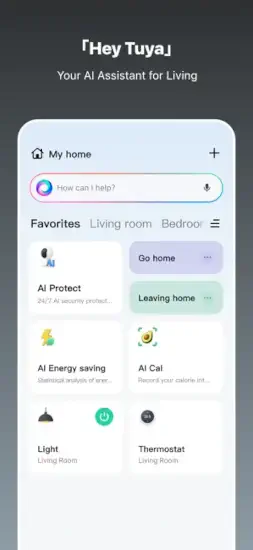
Tuya is not just a device controller that turns things on and off.
Tuya is a smart home platform for budget conscious users. You connect devices from many brands. You create automations that run without you thinking. You monitor energy usage to save money. You share control with family members. Understanding the features helps you turn your collection of random smart gadgets into a real smart home that actually works together.
The app holds a 4.6 star rating on the App Store based on over 44,000 reviews. Size sits around 298 MB depending on cached data. Age range stretches from young tech enthusiasts setting up their first smart home to older adults who want convenience and security. If you prefer a smart home app focused purely on Google’s ecosystem with deep Nest integration, Google Home offers a different approach.
What Is Tuya?
A smart home control app from Tuya Smart Inc., a major platform for affordable smart devices. Manage connected devices from one place. Automate routines for convenience. Monitor security and energy usage. Coordinate household tasks. Works with hundreds of compatible devices from many brands.
Who This App Is For
People who have multiple smart home devices from different brands and want one app. Anyone who wants to control lights, plugs, cameras, and sensors from one interface. Those who want to automate routines and share control with family members.
The Platform
Tuya powers many affordable smart home devices on the market. Brands like Moes, Gosund, Treatlife, and Martin Jerry use Tuya’s platform. The app works with a wide range of devices across categories.
Free to download and use with no subscription. No monthly fees for basic features. Some advanced features may require compatible devices.
Tuya 2026: What’s Included in the App
Remote Control
Control smart appliances from anywhere in the world. Turn lights on and off while away. Adjust thermostats before you get home. Check camera feeds from your phone. All from one app.
Multiple Device Control
Control multiple devices at once without switching screens. Create groups for rooms or functions. Turn off all lights with one tap. Set scenes for movie night or bedtime routine.
Voice Control
Link to Amazon Echo and Google Home for voice commands. Control devices hands free. “Alexa, turn off the living room lights.” “Hey Google, set the thermostat to 72.”
Automated Routines
Set automations based on temperature, location, time, and device status. Lights turn on at sunset automatically. Thermostat lowers at bedtime without you thinking. Coffee maker starts at 7 AM.
Real Time Alerts
Security and safety notifications delivered instantly. Motion detected at your front door. Door opened while you are away. Water leak detected under the sink.
Family Sharing
Share devices with family members easily. Everyone can control the home. No need for multiple accounts or shared passwords.
Energy Insights
Monitor energy usage for compatible devices. See which devices use the most power. Get smart recommendations to save money.
Health Integration
HealthKit integration for body scale data. Track weight automatically in Apple Health. Useful for fitness tracking.
AI Life Tools
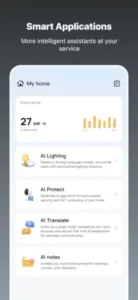
Fitness tracking, meal planning, notes, pet care, and recognition features. Extends beyond smart home into daily life.
Multi Language Support
Works in multiple languages with translation features built in.
Device Compatibility
Supported Devices
Lights and smart bulbs. Smart plugs and switches. Security cameras and doorbells. Door and window sensors. Motion sensors. Thermostats. Smoke and CO detectors. Water leak sensors. Robot vacuums. Air purifiers. Humidifiers.
Brands That Use Tuya
Moes offers affordable smart switches and dimmers. Gosund makes smart plugs and power strips. Treatlife has smart switches and dimmers. Martin Jerry offers smart switches. Many other affordable smart home brands use Tuya’s platform.
How to Check Compatibility
Look for the Tuya logo on product packaging. Check the product description online. Many devices list “Works with Tuya” or “Smart Life” which uses the same platform.
Setting Up Devices
Scan the QR code on the device with your phone. Put the device in pairing mode. The app detects it automatically. Follow the prompts to finish setup.
Wi Fi Requirements
Devices need a 2.4GHz Wi Fi network to connect. 5GHz networks do not work with most Tuya devices. Check your router settings if you have issues.
Hub Requirements
Most Tuya devices are Wi Fi and need no hub. Some use Zigbee and require a compatible hub. Check before buying.
Setting Up Your Smart Home
Download the App
Install Tuya from the App Store. Create an account with your email. The account syncs across all your devices.
Add a Device
Tap the plus button in the app. Select the device type from the list. Put the device in pairing mode. The app detects it. Name it. Assign it to a room.
EZ Pairing Mode
Use EZ pairing mode first as the default. It works for most devices with a quick setup.
AP Pairing Mode
If EZ mode fails, use AP mode as backup. The device creates a Wi Fi hotspot. Connect your phone to it. The app finishes setup.
Group Devices
Create groups for multiple devices in the same room. “Living Room Lights” controls all lights in that room. “Downstairs Plugs” controls all plugs.
Name Devices Clearly
Use names you will remember easily. “Lamp” is better than “Bedroom Light 2.” “Front Door Camera” is clear.
Test Each Device
After adding, test control immediately. Turn it on and off. Check that the app responds correctly.
Automations and Scenes
What Are Automations
Rules that trigger actions automatically without you thinking. Based on time, location, weather, or device status changes.
Time Based Automations
Lights turn on at sunset every day. Thermostat lowers at bedtime. Coffee maker starts at 7 AM automatically.
Location Based Automations
When you arrive home, lights turn on automatically. When you leave, everything turns off. Uses your phone’s location.
Weather Based Automations
When temperature drops below freezing, turn on heat. When rain is detected, close smart blinds.
Device Based Automations
When motion detected, turn on light automatically. When door opens, send notification to your phone. When leak detected, turn off water valve.
Scenes
Manual triggers for multiple devices with one tap. “Good Night” locks doors, turns off lights, sets alarm. “Movie Time” dims lights, lowers shades, turns on TV.
Creating Automations
Tap the automation tab. Tap plus to create new. Choose trigger condition. Choose action. Save. Test it.
Editing Automations
You can change triggers and actions anytime. Disable automations without deleting them.
Voice Control Integration
Amazon Alexa
Link Tuya to your Alexa account for hands free control. Enable the Tuya Smart skill in the Alexa app. Discover your devices automatically. Control with simple voice commands. “Alexa, turn on the kitchen light.” “Alexa, dim the bedroom lights to 50 percent.”
Google Home
Link Tuya to Google Home for voice control through Google Assistant. Connect your Tuya account in the Google Home app. Sync devices so they appear. Control with voice commands. “Hey Google, set the thermostat to 72 degrees.” “Hey Google, turn off all the lights.”
Voice Commands
Turn devices on and off with your voice. Dim lights to any brightness level. Change colors on smart bulbs. Activate scenes like “Movie Time” or “Good Night.” Adjust thermostats up or down. Check device status without opening the app.
Group Control
Create groups in Tuya for voice control convenience. “Living Room Lights” controls all lights in that room. “Alexa, turn off all lights” turns off every light in the house. Groups work with voice assistants seamlessly.
Voice Routines
Combine with voice assistant routines for complex automations. “Good morning” turns on lights, starts coffee maker, reads the news. “Good night” locks doors, turns off lights, sets the alarm. Voice routines trigger multiple actions.
Troubleshooting
If voice control fails, check that devices are online and connected. Re link the skill in your voice assistant app. Rediscover devices to refresh the connection. Ensure you are using the correct device names.
Energy Monitoring and Insights
Energy Usage
See how much power each device uses in real time. Track consumption over hours, days, and weeks. Identify energy hogs that cost you money. Make informed decisions about device usage.
Cost Estimates
Some compatible devices show estimated cost of running them. Helps you budget for electricity. Shows where you can save money by adjusting usage patterns.
Smart Recommendations
The app suggests ways to save energy based on your usage. Turn off devices when not in use automatically. Schedule devices to run during off peak hours when electricity is cheaper.
Device Health
Check if devices are working properly with health monitoring. Get alerts for unusual power consumption that might indicate a problem. Catch issues before they become failures.
Historical Data
View energy usage over days, weeks, and months. See patterns in your consumption. Adjust habits based on data.
Compatible Devices
Not all Tuya devices support energy monitoring. Look for devices with power measurement features when buying. Smart plugs with energy monitoring are common and affordable.
Environmental Impact
Some versions show carbon footprint estimates. Connect your energy usage to environmental impact. Make eco conscious choices.
Family Sharing and Multi User Access
Share Devices
Share devices with family members easily. Everyone can control the home without sharing passwords. No need for multiple accounts or logins.
How to Share
Tap the device in the app. Tap the share icon. Enter the family member’s email or phone number. They receive an invitation to control the device.
Permission Levels
Grant different permissions to different family members. Full control allows everything. View only lets them see status without changing. Limited control restricts certain actions.
Multiple Homes
Manage multiple homes from one account. Your house. Your parents’ house. Your vacation home. Switch between homes easily in the app.
Home Members
Invite family members to the home. They see all shared devices. They can control them based on their permissions.
Remove Access
You can revoke access at any time. Remove a family member instantly. They lose control of shared devices.
Security
Each user has their own account with their own password. Shared devices are safe. No one else can see your personal data.
Security and Privacy
Data Encryption
Tuya uses encryption for device communication. Your data is protected during transmission. No one can intercept and read your commands.
Account Security
Use a strong, unique password for your Tuya account. Enable two factor authentication if available in your region. This adds an extra layer of security.
Device Permissions
Control what devices can access on your phone. Cameras need camera permission to show video. Location needs location permission for geofencing automations.
Cloud Storage
Some devices store data in the cloud, like camera footage. Check what is stored. Review cloud privacy settings regularly.
Data Sharing
Tuya shares data with third party services for voice control. Alexa and Google Home access device status. This is required for voice commands to work.
Privacy Policy
Read Tuya’s privacy policy to understand what data is collected. Understand how it is used. Tuya is transparent about data practices.
Local Control
Some Tuya devices support local control without the cloud. Works even when internet is down. Better privacy since data stays on your network.
Tuya Tips and Tricks
Use EZ Pairing Mode First
This is the default pairing method. Works for most devices quickly. Quick and easy for beginners.
Make Sure Your Phone Is on a 2.4GHz Wi Fi Network
Tuya devices do not work on 5GHz networks. Check your Wi Fi settings if you have issues. 5GHz is for speed, 2.4GHz is for range and compatibility.
Group Devices into Rooms and Set Up Scenes for Faster Control
Room grouping makes control faster and more intuitive. Scenes automate multiple actions with one tap.
Link Tuya to Alexa or Google Home for Voice Commands
Voice control is faster than tapping on your phone. Especially useful for lights when your hands are full.
Share Devices with Family Members for Convenience
Everyone can control the home without asking someone else. No need to share passwords.
Check Device Compatibility before Buying
Not all smart devices work with Tuya. Look for the Tuya logo or “Works with Tuya” on packaging.
Use Automations for Repeating Routines
Set once and let automations run automatically. Lights at sunset. Thermostat at bedtime. Coffee at 7 AM.
Review Energy and Security Alerts Regularly
Catch issues early before they become problems. Leak detection. Unusual power usage. Motion alerts.
Name Devices Clearly
Use names that are easy to remember and say. “Front Door” not “Sensor 3.” “Living Room Lamp” not “Light 7.”
Keep the App Updated
Updates fix bugs and improve security. Add new features for new devices. Enable automatic updates.
Tuya Common Issues and Fixes
Device Not Pairing
Reset the device to factory settings. Put it in pairing mode again. Try AP mode if EZ mode fails. Restart the app.
Wi Fi Connection Issues
Ensure your phone is on 2.4GHz. Check the Wi Fi password for typos. Move the device closer to your router.
Voice Control Not Working
Check integration settings in your voice assistant app. Rediscover devices. Unlink and relink the skill.
Device Offline
Check power to the device. Check Wi Fi connection. Restart the device. Restart the app. Restart your router.
Automations Not Running
Check triggers and conditions are set correctly. Ensure devices are online. Test the automation manually.
App Crashes
Update to the latest version from the App Store. Restart your phone. Reinstall the app.
Sharing Not Working
Check the email address for typos. Resend the invitation. Make sure the recipient has a Tuya account.
Energy Data Not Showing
Check device compatibility. Some devices do not support energy monitoring. Look for models with power measurement.
Tuya vs Google Home vs Alexa vs Apple Home
| Feature | Tuya | Google Home | Alexa | Apple Home |
|---|---|---|---|---|
| Device Compatibility | Wide (Tuya devices) | Wide | Wide | Limited (HomeKit) |
| Voice Control | Via Alexa/Google | Google Assistant | Alexa | Siri |
| Automations | Yes | Yes | Yes | Yes |
| Family Sharing | Yes | Yes | Yes | Yes |
| Energy Monitoring | Yes | Limited | Limited | Limited |
| Price | Free | Free | Free | Free |
| Setup Difficulty | Moderate | Easy | Easy | Moderate |
When to Choose Tuya
You have affordable Tuya compatible devices from multiple brands. You want energy monitoring for compatible devices. You want a single app for multiple brands without buying expensive hubs.
When to Choose Google Home
You use Google services like Gmail and Calendar. You want the best voice assistant for general knowledge. You have Nest devices like thermostats and cameras.
When to Choose Alexa
You use Amazon services like Prime and shopping. You want voice shopping convenience. You have Echo devices throughout your home.
When to Choose Apple Home
You only use Apple devices like iPhone, iPad, Mac. You prioritize privacy over compatibility. You have HomeKit compatible devices.
Conclusion
Tuya is not the prettiest smart home app on the market. But it works with a wide range of affordable devices that cost less than Apple or Google alternatives. Automations are powerful and easy to set up. Voice control works through Alexa and Google Home. Family sharing is convenient for multiple users. Energy monitoring is useful for saving money. It is a solid choice for budget smart homes.
What works: Controls a wide range of affordable devices from many brands. Automations and scenes for convenience. Voice control via Alexa and Google Home. Family sharing for multiple users. Energy monitoring for compatible devices. Free with no subscription.
What does not: Interface can be confusing for new users. Setup can be finicky with some devices. Device compatibility varies by region. Some advanced features require specific hardware.
What do you want from a smart home app? If you have Tuya compatible devices and want one app to control them all, Tuya delivers. If you are all in on Google or Apple devices, their ecosystems may fit your needs better.
FAQ
What exactly does Tuya do, and how does it work with my existing smart devices?
Tuya acts as a single command center for your smart home. It connects to hundreds of brands and thousands of devices through a simple app. You can control lights, thermostats, and security cameras from one place, and the new AI assistant “Hey Tuya” lets you manage everything with natural conversation instead of complicated menus . If you have devices from different brands that don’t normally talk to each other, Tuya serves as the translator that makes them work together.
Where can I download the official Tuya app for my phone?
The official app is called “Tuya- Smart Life, Smart Living.” You can download Tuya from the Official App Store
What if I need help or run into an issue with the app?
For technical support or developer inquiries, you can reach the team directly at the official Tuya website: tuya.com. The platform has a dedicated developer portal with documentation and support resources . For app-specific troubleshooting or feedback, you can also contact the developer support email: service[at]tuya.com. Users have noted that support responsiveness is critical, so having that direct line is your best bet.
I’ve heard about “Hey Tuya” and AI features. Is that available now?
Yes, and it’s central to the latest version of the app. “Hey Tuya” is an AI assistant that lets you control your devices, manage household tasks, and get lifestyle tips through voice or text conversations . The newest upgrades connect it with third-party services like Google Mail and Calendar, so you can do things like send emails or schedule meetings just by speaking . It’s available now as part of the main app download.