
Discord app that started as a simple voice tool for gamers now hosts communities for knitting circles, crypto traders, study groups and neighborhood watch organizations.

Discord launched in 2015 as a better alternative to TeamSpeak and Skype. Low latency voice. Clean interface. Free to use. No servers to rent. No ads. It spread through gaming communities because it just worked. Fast forward to 2026 and the platform handles millions of daily users across gaming, education, professional teams and hobby groups. The company kept adding features. Voice stayed strong. Video arrived. Screen sharing improved. Bots automated everything.
The app holds a 4.7 star rating on the App Store based on over 3 million reviews. Size sits around 250 MB depending on cached data. Age range stretches from teenagers organizing game nights to professionals running remote teams. If you prefer a simpler communication tool, Telegram offers large groups and channels.
What Discord Actually Is
If you have used group chats before, you already know the limits. Threads get buried. Notifications never stop. Someone always misses the plan. Discord solves those problems with servers, channels and roles. It also introduces new ones. The interface does not explain itself, and the feature list is long.
You may have heard Discord is for gamers. That was true in 2015. It is not true now. Users praise the community setup, friend group usage, use beyond gaming, creative customization, cross device support and voice first design. Critics point to text box glitches, menu and navigation issues, username system backlash, link feature concerns, UI redesign backlash, data and privacy concerns, and moderation and safety concerns.
The Server Foundation
Create separate spaces for friends, games, hobbies or communities. Servers keep different groups and topics organized. A server can be a private friend group, a gaming team, a classroom, a fan community or a worldwide interest-based community.
Why does this matter? Because the server model is what separates Discord from a simple group chat. It scales from three friends to fifty thousand members. The same tool works for both.
Text Channels and Organization
Discuss topics in organized text rooms. This keeps conversations searchable and structured. Separate channels for announcements, general chat, media, games and support prevent chaos. Threads and forum channels add further structure.
Organization is the point. A well run server is easier to follow than any group chat. A poorly run server is harder.
Voice Channels and the Hop-In Model
Hop in and out of live voice chat without placing a traditional call. Useful for gaming sessions and casual hanging out. The hop-in model means no invitations, no ringing and no waiting.
Push to talk reduces background noise in busy channels. Headphones improve call quality and reduce echo. One reviewer highlights the hop-in design as a major strength.
Video, Streaming and Shared Activities
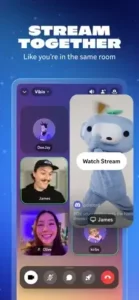
Talk face to face in supported chats. Share gameplay, shows, photos or other content. Built-in activities let groups watch videos, play games, listen to music or browse together. Screen sharing supports games, study sessions and shared viewing.
Discord is not just chat. It is a place to do things together. The listing highlights high quality, low latency streaming for games, shows, photos and homework.
Direct Messages and Private Groups
Chat privately with friends. Discord supports one to one or small group communication. Useful for conversations that do not belong in a public server. Private servers keep friend groups separate from public communities.
Privacy settings matter here. Not every conversation should live in a public channel.
Customization and Community Identity
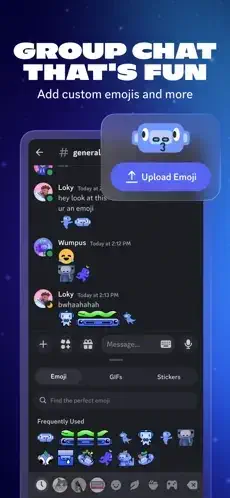
Custom emoji and stickers give communities a distinct personality. Soundboard effects add interactive audio reactions. Profiles and custom status help members express themselves. Server boosts expand customization options.
Identity is part of the appeal. A well customized server feels like a place, not a tool.
Cross Device and Live Activities
Use Discord on PC, phone, console and other devices. Continue conversations across platforms. See supported game modes or characters friends are playing and join directly. Live Activities show voice call information on the lock screen and Dynamic Island.
Recent updates add VoiceOver improvements, smoother Forum channels and less chunky scrolling. The accessibility work is ongoing.
The Nitro Economy
Nitro is an optional subscription with expanded features and server boosts. Nitro Monthly costs $9.99**. Nitro Yearly costs **$99.99. Nitro Basic Monthly costs $2.99**. Nitro Classic Monthly costs **$4.99. Nitro plus boosts run from $13.49 to $16.99 monthly.
Prices and features vary by region, billing method or promotion. Nitro is optional. The free version handles everything most users need.
Interface Strengths
Easy to join a voice chat with the hop-in model. Strong community customization through roles, channels, emoji, stickers and soundboard. Cross device continuity between PC, phone, and console. Live Activities support with direct mute and deafen controls. Recent accessibility improvements including VoiceOver and smoother scrolling.
Apple’s Editors’ Choice description says Discord is easy to understand, quick to set up, and slick to use. Once you learn the layout, it is.
Interface Limitations
Complex for new users. Servers, channels, roles, permissions, bots and moderation tools can overwhelm someone who only wants basic messaging.
UI changes have frustrated long-time users. Reviews criticize changes to server and DM separation, member lists, the username system, and the links feature. These are user opinions, not proof that every user dislikes the changes.
Large app size at 260.8 MB, though storage use may grow with caches and updates. Accessibility disclosure is incomplete. The developer has not indicated which accessibility features the app supports. Online dependence. Discord requires a persistent internet connection.
How Discord Works
Create or join a server as the main community space. Use text channels to discuss topics in organized rooms. Join voice channels freely without calling or inviting anyone. Share media and stream games, shows, photos or screen content. Use roles and permissions to manage who can post, moderate or access channels. Participate in events and activities with your group. Use bots and integrations for moderation, music, games or community management. Adjust safety settings through privacy, moderation and parental controls.
Discord User Reviews
Positive themes include easy community setup, good for friend groups, useful beyond gaming, creative customization, cross device support and voice first design. Apple’s Editors’ Choice description praises the setup process. One reviewer highlights the hop-in voice model.
Negative themes include text box glitches, menu and navigation issues, username system backlash, link feature concerns, UI redesign backlash, data and privacy concerns and moderation and safety concerns. One reviewer says the text box did not expand with longer messages, causing typing and typo issues. Another criticizes the removal of the number system for usernames. A third says the altered links feature can lead to scamming and hacking. That is a user-reported concern, not proof of a confirmed security flaw.
Discord Tips
For Setting Up a Server
Start with a clear purpose. Decide whether the server is for friends, gaming, school, a hobby or a public community. A server without a purpose becomes a mess of channels no one checks.
Use channels for topics. Create separate channels for announcements, general chat, media, games and support rather than mixing everything in one channel. Organized channels make conversations searchable and easier to follow.
Use roles for permissions. Give moderators, admins, and regular members different abilities. Roles are the backbone of a well run server. Without them, every member has the same power and that is a problem waiting to happen.
Set channel permissions carefully. Limit who can post, mention everyone or manage messages. Loose permissions create chaos fast. A single misconfigured channel can turn a quiet server into a spam zone.
Use a bot for moderation. Bots can help with warnings, filters, and automated moderation, but review permissions before adding them. A bot with admin access can do more harm than good. Check what each bot requests before you approve it.
For Improving Community Safety
Use a private server for private groups. Keep personal friend groups private rather than making them public. Public servers attract strangers. Private servers do not.
Review member roles. Check who can post, moderate, or manage permissions. A single misconfigured role can expose channels you meant to keep private.
Set up verification. Require new members to complete a simple verification step before accessing sensitive channels. This reduces spam and raid risk without adding much friction for legitimate members.
Use slow mode for busy channels. Slow mode can reduce spam and give moderators time to respond. It is one of the simplest tools for keeping a large server readable.
Report or block unwanted interactions. Use in-app safety tools if a post, message or account makes you uncomfortable.
For Improving Voice and Video
Use push to talk if background noise is a problem. This can reduce unwanted noise in voice channels. It is especially useful in shared spaces or households with background sound.
Use headphones for clearer audio. They reduce echo and improve call quality. The difference between headphones and speakerphone in a voice channel is noticeable immediately.
Use screen sharing for games or study sessions. The listing highlights high quality, low latency streaming for games, shows, photos and homework. It works for casual viewing and focused collaboration alike.
Use Live Activities for quick controls. Recent updates let users see call information and access mute and deafen controls from the lock screen. You do not need to open the app to silence yourself.
Set a spending budget. Nitro is optional. Decide whether the subscription is worth it before upgrading. The free version handles everything most users need.
Discord Similar Apps
| App | Best For | Difference from Discord |
|---|---|---|
| Slack | Work communication and professional teams | More business oriented; Discord is more gaming and community oriented |
| Telegram | Messaging, channels and large groups | More focused on messaging and channels; Discord is more voice and community oriented |
| Private messaging and calls | More focused on private messaging; Discord is better for large communities and servers | |
| Teamspeak | Gaming voice chat | More focused on gaming voice; Discord adds servers, video, streaming and community tools |
| Mumble | Lightweight gaming voice chat | More minimal; Discord adds servers, video, streaming and community tools |
| Guilded | Gaming communities and servers | Similar community structure, with a different ecosystem and feature set |
| Topic based communities and discussions | Organized around forums and posts, rather than voice and video chat | |
| Twitch | Live streams and creator communities | Better suited to live broadcasts than continuous text and voice chat |
If you want a similar app with a different focus, Slack is worth a look. It offers work communication and professional team tools and it runs on the same platforms as Discord.
Discord’s main differentiator is that it combines servers, text channels, voice channels, video, streaming, emoji, stickers, soundboard, bots and community management in one app. Slack wins on workplace structure. Telegram wins on messaging scale. Twitch wins on live broadcast. But if you want one app that handles friend groups, gaming sessions, study groups and public communities at once, Discord occupies a space few others attempt.
Conclusion
Discord want organized community chat, voice channels, streaming and cross device continuity. It frustrates those who want a simpler messenger, dislike UI changes, or worry about privacy and moderation. If you want one app that handles friend groups, gaming sessions, study groups and public communities, Discord delivers. If you want a simpler private messenger, Telegram or WhatsApp may serve you better.
Frequently Asked Questions About Discord
Is Discord really free to use, or do I need to pay for basic features?
Discord is completely free for all core features. You can join unlimited servers, use voice and video calls, send messages, and share files up to 25 MB without paying anything. The free tier covers everything most people need. Nitro adds extras like HD streaming, larger uploads, and custom emojis across servers, but you never need it to enjoy the platform. You can start your Discord download from the App Store.
How do I find servers to join for my interests?
Server Discovery lists public communities in categories like gaming, music, education, and tech. You can also find servers through friends sending invite links, social media posts, or websites dedicated to server listings. Many creators and content communities have Discord servers linked in their bios. Start with one or two servers. Add more as you figure out what you like.
What are bots, and do I need them?
Bots are automated tools that add features to your servers. Moderation bots like MEE6 help manage spam and welcome new members. Music bots play songs in voice channels. Game bots host trivia or poker. You do not need bots for basic servers. They become useful when your server grows beyond a small friend group. Add them through web links. Grant permissions. The bot joins like a member.
How do I stop notifications from overwhelming me?
Open server settings. Mute servers you do not need alerts from. Set notification preferences to only mentions or nothing. Create custom notification settings per channel within servers. The notifications overload is the most common complaint. Take fifteen minutes to configure your settings once and save yourself weeks of frustration.
Where can I find official information about updates and support?
The official Discord website posts updates and patch notes. The support center answers common questions. The community wiki tracks feature changes and tips. If you lose account access or have billing issues, contact support through the help center. Official website: https://discord.com or Discord Wiki