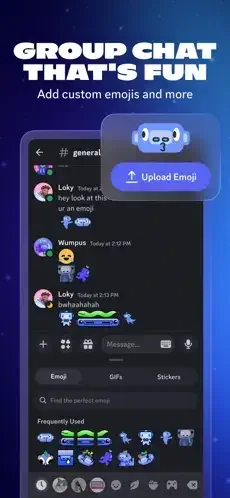
Discord sits on your phone right now. Maybe you opened it yesterday for a gaming session. Maybe your book club moved there last year. Maybe your team replaced Slack with it and you are still figuring out the channels.
Discord app that started as a simple voice tool for gamers now hosts communities for knitting circles, crypto traders, study groups, and neighborhood watch organizations. Nine years after launch, the question is whether it still works well or got buried under features nobody asked for.
Discord launched in 2015 as a better alternative to TeamSpeak and Skype. Low latency voice. Clean interface. Free to use. No servers to rent. No ads. It spread through gaming communities because it just worked. Fast forward to 2026 and the platform handles millions of daily users across gaming, education, professional teams, and hobby groups. The company kept adding features. Voice stayed strong. Video arrived. Screen sharing improved. Bots automated everything.
Discord in 2026 is a paradox. The voice quality remains excellent. The server structure organizes conversations better than any competitor. The free tier offers more than enough for most people. But the UI grew cluttered over the years. Notifications overwhelm anyone who joins more than five servers. Mobile users complain about readability. Understanding how to set it up correctly makes the difference between enjoying the platform and fighting it every time you open the app.
The app holds a 4.7 star rating on the App Store based on over 3 million reviews. Size sits around 250 MB depending on cached data. Age range stretches from teenagers organizing game nights to professionals running remote teams. If you prefer a simpler communication tool, Telegram offers large groups and channels.
What Is Discord, Actually?
Not Just for Gamers Anymore
Discord started as a place for gamers to talk during matches. The pitch was simple: better voice quality than Skype, no server costs like TeamSpeak. Now it hosts study groups sharing notes, professional communities networking, fan clubs obsessing over shows, and friend circles staying in touch. The platform does not care what you talk about. It just provides the rooms and gets out of the way.
Server Structure
Think of servers as clubhouses. Each server has its own rules, its own members, its own channels. You join servers by invite links. Some servers are public with thousands of members. Most are private spaces for friend groups with ten people. The server owner controls everything: who joins, what channels exist, who can talk where.
Channels Inside Servers
Text channels for typing conversations. Voice channels for talking live. Video channels for face to face calls. Forum channels for organized discussions with individual posts. Stage channels for events and AMAs where audience listens and speakers present. Each server organizes channels however the owner wants. Some keep it simple with one text and one voice. Others build complex hierarchies with categories and nested channels.
Direct Messages
Private conversations happen outside servers. One on one or group chats. Works like any messaging app but integrates with the larger Discord ecosystem. You can DM anyone you share a server with unless they block DMs from strangers.
Discord 2026 : What Changed
UI Redesign Criticism
Recent updates overhauled mobile navigation. Icons got busier. Menus shifted positions. The bottom bar changed. Long time users flooded Reddit with complaints about readability, clutter, and hidden features. The desktop version stayed cleaner, but mobile lagged behind in polish. Discord listens to feedback slowly, so the current design likely stays for a while.
AI Moderation Tools
New automated moderation features help large servers manage spam and toxic behavior. Filters catch problem messages before members report them. AI flags suspicious accounts. The tools still feel early, but they reduce manual work for mods. Small servers do not need them.
Cross Platform Consistency
Discord pushes for the same experience across mobile, desktop, and web. Features arrive on all platforms eventually, though desktop gets new tools first. Voice quality stays consistent regardless of device. Messages sync instantly.
Nitro Updates
Subscription perks expanded over the years. HD streaming at 4K resolution. Larger upload limits from 25 MB to 100 MB. Custom emojis usable across any server you join. Server boosting unlocks custom banners and higher voice quality. The free tier remains functional for most users.
Discord Features: What You Actually Use
Voice Channels
Low-latency voice chat remains the reason Discord won. Up to 50 participants in a channel. Push-to-talk or voice activation. Background noise suppression filters keyboard clicks and background sounds. The quality holds up even with bad internet connections.
Video Calls
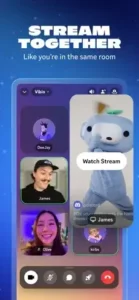
Face to face conversations when typing is not enough. Screen sharing included for showing presentations or troubleshooting. Up to 25 participants in video calls. Go Live lets you stream gameplay or your entire screen to servers without starting a separate call.
Text Channels
Typed conversations organized by topic. Markdown formatting for bold, italics, code blocks. Threads let you spin off side conversations without cluttering main channels. Pinned messages keep important information accessible.
Stage Channels
Event focused channels where most people listen and a few speak. Good for AMAs, lectures, performances, or town halls. No open mic chaos. Speakers raise hands. Moderators control who talks.
Forum Channels
Organized discussions with individual posts. Like traditional forums inside Discord. Good for help desks where people ask questions and others answer. Good for Q&A where answers get organized by topic. Good for long form conversations that threads handle poorly.
Discord Servers: How to Set Up Your Space
Creating a Server
Click the plus icon. Name it. Choose a region. Invite friends. That is it. Free servers handle most needs. The interface walks you through the basics. You can add channels later. You can adjust permissions later. Start simple.
Roles and Permissions
Assign roles to members. Mods get moderation tools. Regular members get standard access. Guests get limited visibility. Permissions control who sees what channel, who can talk, who can invite others. Roles make permissions manageable. Without roles, everyone has the same access.
Channels Organization
Create text channels for announcements, general chat, memes, links. Create voice channels for gaming, hanging out, meetings. Order matters. Most active channels go near the top. Categories group related channels. Collapse categories you do not need.
Server Settings
Slowmode limits how fast people can post. Verification levels require account age before posting. Welcome screens guide new members. Audit logs track who did what. Settings live under server name dropdown.
Community Servers
Public servers with Discovery listings. Onboarding screens help new members choose roles when they join. Analytics show growth and engagement. Required for servers with public ambitions. Not needed for private friend groups.
Discord Nitro: What You Get for Paying
HD Streaming
Stream at 4K resolution instead of standard. Better quality for viewers watching gameplay or presentations. Matters if you stream regularly. Casual users may not notice the difference.
Upload Limits
100 MB file uploads instead of 25 MB. Share videos, high-res images, large files directly in chat. Useful for sharing clips or design files. Free limit handles most casual sharing.
Custom Emojis
Use any emoji from any server you join. Express yourself across all servers with the same reactions. Free users only see emojis from servers they are currently in.
Server Boosting
Boost servers you love. Unlocks custom banners, more emoji slots, higher voice quality for everyone in that server. Communities collect boosts from members to unlock perks.
Worth It?
Depends how much you use Discord. Heavy users benefit from upload limits and custom emojis. Casual users fine without it. Server boosting only matters if you run or love a specific community.
If you prefer a simpler communication tool without servers and channels, check out Telegram for group chats and broadcast channels.
Discord Bots and Integrations: Making Servers Work
What Bots Do
Bots turn basic servers into powerful communities. They automate moderation so you do not have to watch every message. They play music for voice channels. They track stats for leaderboards. They host games like poker or trivia. They send reminders for events. They log activity so you see who did what. A server without bots works. A server with bots works better.
Popular Bots
MEE6 handles moderation and leveling. Users earn XP for chatting. Level up for rewards. The bot also auto-deletes spam and welcomes new members. Dyno automates commands and moderation. Custom commands let members trigger responses. Auto-mod catches banned words. The bot ecosystem keeps growing despite platform changes. Groovy played music before YouTube blocked it. Alternatives like Hydra and Jockie Music fill the gap.
Adding Bots
Server owners invite bots through web links. Each bot has an invite page. You choose which server to add. Grant permissions the bot needs. Bots appear as members with special roles. You can kick them if they cause problems. Most bots offer free tiers with paid upgrades for advanced features.
Webhooks
Automated messages from external services. Post Twitter feeds directly to channels. Send GitHub updates when code changes. Push YouTube notifications when creators upload. Webhooks work without a bot account. Useful for keeping your server updated without manual posting.
Rich Presence
Discord detects games you play. Shows friends what you are doing. Works with over 100 titles. Click your profile picture to see what your friends are playing. The feature started for gaming but now supports Spotify listening and custom status messages.
If you search Discord bots, you will find hundreds of options. Start with MEE6 for moderation. Add one music bot. Grow from there.
Discord Similar Apps and How It Compares to Other Apps
| App | Developer | Key Similarities | Rating |
|---|---|---|---|
| Slack | Salesforce | Team channels, threads | 4.6 stars |
| Microsoft Teams | Microsoft | Enterprise voice, video | 4.5 stars |
| Guilded | Rokkin | Gamer focused, similar layout | 4.4 stars |
| Telegram | Telegram | Large groups, bots, channels | 4.7 stars |
| Element | Element | Decentralized Matrix protocol | 4.3 stars |
The Differentiation
Slack focuses on professional teams with paid tiers and business integrations. Free tier limits message history. Teams targets enterprise with Office 365 lock-in. Video calls handle hundreds of participants. Guilded copied Discord but added features for esports and tournaments. Tournament brackets, team management, and scheduling tools built in. Telegram offers broadcast channels with unlimited subscribers and encrypted chats. Element gives you control over your data through Matrix. You host your own server if you want.
Discord sits between. Free enough for casual groups. Powerful enough for large communities. Voice quality beats competitors. Mobile experience lags behind desktop. If you search Discord similar apps, these five appear most often. Each does one thing better. None match Discord’s combination of free voice, server organization, and bot ecosystem.
Discord Community Management: Running a Healthy Server
Moderation Tools
Slowmode limits how fast people can post. Timeouts remove permissions temporarily. Bans remove problem members permanently. Audit logs track who deleted messages, changed roles, or kicked members. Assign trusted members as moderators with limited permissions. Permissions hierarchy prevents chaos. Owners control everything. Mods handle daily issues. Regular members just talk.
Reaction Roles
Members click emojis to assign themselves roles. Build a #roles channel with options. Click the book emoji for reading updates. Click the gamepad for gaming channels. Self service access reduces manual work for admins. New members get access without waiting for someone to assign them.
Threads
Side conversations without spamming main channels. When a channel topic goes off-track, move to a thread. The main channel stays clean. Threads archive automatically after inactivity. You can also keep them permanently for ongoing discussions.
Scheduled Events
Calendar tools for planning game nights, meetings, or watch parties. Members RSVP. Reminders send automatically. Events appear in the server sidebar so everyone sees what is coming up. Works for recurring meetups like weekly game sessions.
Onboarding Screens
Community servers get welcome flows. New members choose interests when they join. Get assigned relevant channels automatically. The system reduces the “I am new, what do I do?” questions. Good for servers with hundreds of members.
Search Discord community management and you will find templates for roles, channels, and permissions. Steal from servers you like.
Discord Tips and Tricks
Enable Developer Mode
Settings > Advanced > Developer Mode. Copy user IDs, message IDs, channel IDs. Useful for bot setup and reporting problems to Discord support. Numbers instead of names for precision.
Create Reaction Roles
Build a #roles channel. Let members self assign. Reduces spam from new members asking for access. Reduces manual work for admins. Set up once, works forever.
Use Threads Wisely
When a channel topic goes off-track, move to a thread. Keeps main channels clean. Members can still follow the side conversation without cluttering the main flow.
Pin Important Messages
Pin rules, resources, and announcements. New members find them easily without scrolling through weeks of chat. Pinned messages live at the top of the channel.
Schedule Events
Use the event feature for recurring meetups. Members see upcoming events in sidebar. Reminders send automatically. Reduces “when is game night?” questions.
Organize Channels with Categories
Group related channels under categories. Collapse categories you do not need. Reduces visual clutter. Voice channels for gaming. Text channels for discussions. Admin channels for mods only.
Set Notification Preferences
Mute servers you do not need alerts from. Set keywords for important mentions. Notifications overload is the top complaint among Discord users. Take control of what buzzes your phone.
Use Search Filters
Search by user, channel, date, or keywords. Find old messages without scrolling. Useful for finding that link someone posted three weeks ago.
Server Folders
Group related servers into folders. Collapse folders for cleaner sidebar. Gaming servers in one folder. Work servers in another. Friend groups in a third.
Check Privacy Settings
Adjust who can DM you, add you as friend, or see your game activity. Default settings are open. Close them down if you prefer privacy.
Search Discord tips and you will find endless advice. The settings menu hides useful features. Dig through it once and save yourself months of frustration.
Discord Privacy and Safety
What Discord Knows
Your email address for login. Your IP address for connections. Your messages for delivery. Your server memberships for functionality. Standard for communication apps. Nothing unusual.
What You Control
Privacy settings limit DMs to friends only. Block users who bother you. Report abusive content to Discord Trust and Safety. Turn off activity status if you do not want people seeing what you play.
Two Factor Authentication
Required for moderation accounts. Protects against takeover if someone steals your password. Set up in settings. Use an authenticator app. Do not rely on SMS.
Data Requests
You can request your data from Discord. Takes time but available. Settings > Privacy & Safety > Request Data. The file includes messages, server history, and account details.
Safety Concerns
Public servers attract bad actors. Scammers. Trolls. Harassment. Moderation matters. Private servers with invite only access stay safer for personal groups. Do not share invite links publicly unless you want anyone joining.
Search Discord privacy settings and walk through each option. The defaults favor openness. Change them to match your comfort level.
Conclusion: Should You Use Discord in 2026?
The honest answer is yes, but set it up intentionally. Discord excels at voice quality, server organization, and free features. The community tools work well once configured. The learning curve exists, but the payoff is worth it.
What works: Voice chat remains best in class. Server structure organizes conversations better than group chats. Free tier offers plenty for most users. Bots extend functionality without coding. Large active communities exist for almost any interest you can name.
What does not: Mobile UI got cluttered in recent updates. Notifications overwhelm new users who join many servers. Learning curve exists for server management. Public servers require active moderation or they become unusable.
What do you want from a communication app? If you need reliable voice, organized group chats, and community tools, Discord delivers. If you want simple messaging without servers and channels, Telegram or WhatsApp might fit better.
If you prefer a simpler communication tool without servers and channels, check out Telegram for group chats and broadcast channels.
Frequently Asked Questions About Discord
Is Discord really free to use, or do I need to pay for basic features?
Discord is completely free for all core features. You can join unlimited servers, use voice and video calls, send messages, and share files up to 25 MB without paying anything. The free tier covers everything most people need. Nitro adds extras like HD streaming, larger uploads, and custom emojis across servers, but you never need it to enjoy the platform. You can start your Discord download from the App Store.
How do I find servers to join for my interests?
Server Discovery lists public communities in categories like gaming, music, education, and tech. You can also find servers through friends sending invite links, social media posts, or websites dedicated to server listings. Many creators and content communities have Discord servers linked in their bios. Start with one or two servers. Add more as you figure out what you like.
What are bots, and do I need them?
Bots are automated tools that add features to your servers. Moderation bots like MEE6 help manage spam and welcome new members. Music bots play songs in voice channels. Game bots host trivia or poker. You do not need bots for basic servers. They become useful when your server grows beyond a small friend group. Add them through web links. Grant permissions. The bot joins like a member.
How do I stop notifications from overwhelming me?
Open server settings. Mute servers you do not need alerts from. Set notification preferences to only mentions or nothing. Create custom notification settings per channel within servers. The notifications overload is the most common complaint. Take fifteen minutes to configure your settings once and save yourself weeks of frustration.
Where can I find official information about updates and support?
The official Discord website posts updates and patch notes. The support center answers common questions. The community wiki tracks feature changes and tips. If you lose account access or have billing issues, contact support through the help center. Official website: https://discord.com or Discord Wiki