eWeLink is an all in one home control center.
eWeLink lets you pair, manage, automate, and monitor connected devices from one interface, app works as an IoT platform rather than a single brand controller, which is why it supports multiple device types and ecosystems. You can control your devices whether you are at home or on the other side of the world. The app connects to your devices over the internet, giving you live status and command capabilities
What Exactly Does eWeLink Do?
eWeLink is an all in one home control center developed by Shenzhen CoolKit Technology Co., Ltd. . It lets you pair, manage, automate, and monitor connected devices from one interface. The app works as an IoT platform rather than a single brand controller, which is why it supports multiple device types and ecosystems .
Core Capabilities
Remote control from anywhere using your phone. Device pairing and setup with step by step guidance. Centralized dashboard for all connected products . The app supports remote control, schedules, timers, loop timers, inching, interlock, smart scenes, sharing, grouping, and LAN mode .
The eWeLink Mission
“Our mission is ‘eWeLink Support, Works with everything.’ ‘eWeLink Support’ is what you should look for when buying any smart home devices” . The company commits to expanding the list of eWeLink Support brands and products . eWeLink is also a full fledged IoT Smart Home turnkey solution which includes WiFi/Zigbee/GSM/Bluetooth module and firmware, PCBA hardware, global IoT SaaS platform, and open API .
Free to Use
Free to download and use with no subscription. Advanced and Prime plans unlock higher limits for power users. Free users get 0 virtual devices, 3 thermostat plugins, and can share with 20 devices. Advanced users get 5 virtual devices and 100 shared devices. Prime users get 10 virtual devices, 15 thermostat plugins, and 200 shared devices
Key Features That Make eWeLink Stand Out
Remote Access and Real-Time Control
Control your devices whether you are at home or on the other side of the world. The app connects to your devices over the internet, giving you live status and command capabilities . Check if your lights are on. Turn off appliances you forgot. Adjust the thermostat before you get home.
Scheduling and Timers
Set schedules for lights, fans, appliances, and more . The app supports standard timers for specific times, loop timers for recurring actions, and auto-off settings for devices that should not run indefinitely. Coffee maker at 7 AM. Lights at sunset. Fan off after two hours.
Smart Scene Automation
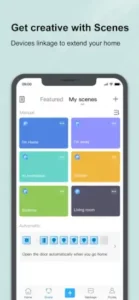
Create custom scenes that trigger multiple devices with one command . For example, a “Goodnight” scene might turn off all lights, lock the doors, and lower the thermostat. A “Movie Time” scene dims lights and turns on the TV .
Interlock Mode
Set conditions where one device cannot be on while another is active . Useful for safety-related automations. For example, a heater cannot turn on if the window is open. The interlock mode prevents conflicts.
Device Sharing and Group Management
Share access with family members so everyone in the household can control the system . Group related devices together for faster management. With Prime, you can share up to 200 devices with family members .
LAN Mode for Local Control
Even without internet access, you can control devices on the same local network . This adds a layer of reliability when the cloud connection drops. Your devices still work even when the internet is down.
Voice Assistant Integration
Works with Amazon Alexa and Google Assistant for hands-free control . Just say the command and eWeLink handles the rest. “Alexa, turn on the kitchen light.” “Hey Google, set the thermostat to 72.”
IFTTT Integration
eWeLink works with IFTTT for cross-platform automations . “Track your eWeLink 1 channel switch usage on Google spreadsheet” or “Turn on/off your eWeLink 1 channel switch as you leave home” .
Virtual Devices
Introduced in eWeLink App V5.14, virtual devices are virtual switches and buttons that behave like real devices but exist only in the app . You can create two types: Virtual Switch and Virtual Button. Virtual devices give you extra flexibility to build smarter automation routines across your home . They can be used as triggers or actions in scenes, synced with third-party platforms like Google Home or SmartThings, and added to widgets for one-tap access .
Wear OS Support
Control and monitor devices directly from your smartwatch for quick access without pulling out your phone.
Broad Device Compatibility
Works with switches, sockets, curtains, lights, locks, cameras, sensors, and Zigbee devices . Supports brands including SONOFF, and many others .
If you prefer a smart home app focused on affordable devices from multiple brands, check out Tuya Smart for a similar platform.
Tips to Get the Most Out of eWeLink
Smart Scenes for Daily Routines
Set up scenes for morning, evening, or away-from-home situations. A “Good Morning” scene could turn on the coffee maker, open the blinds, and turn on the kitchen lights. A “Good Night” scene could turn off all lights, lock the doors, and lower the thermostat. A “Away” scene could turn on lights randomly to simulate occupancy while you are on vacation.
Group Related Devices
Put all living room lights in one group for single-tap control. Group all bedroom devices together. Group all outdoor devices together. Groups make it easier to control multiple devices at once without creating complex scenes.
Use LAN Mode for Reliability
Enable local control to keep devices responsive even during internet outages. LAN mode allows your devices to communicate on your local network without going through the cloud. If your internet goes down, your devices still work.
Link Voice Assistants
Connect to Alexa or Google Assistant for hands-free operation. Voice control is faster than tapping your phone. “Alexa, turn on the kitchen light.” “Hey Google, set the thermostat to 72.” Voice assistants also work with scenes. “Alexa, activate Good Night.”
Share Access With Family
Give household members their own access so everyone can manage the system. Share devices with family members through the app. Each person has their own account and controls.
Check Compatibility Before Buying
Not all smart devices work with eWeLink. Verify compatibility, especially for Matter or Zigbee support. Look for the eWeLink logo on packaging. Check the product description online.
Test Timers and Loop Timers
Perfect for recurring actions like fans, aquarium lights, or watering systems. Set a fan to turn on for two hours then turn off. Set aquarium lights to follow a day night cycle. Loop timers repeat daily.
Explore Wear OS Control
Quick device access from your watch adds convenience. Control devices without pulling out your phone. Check device status from your wrist. eWeLink brings seamless smart home control directly to your Wear OS watch. Your favorite devices and scenes are just a tap away, right from your wrist.
Keep the App Updated
New features and device support arrive with regular updates. Enable automatic updates to get the latest features. New device compatibility is added frequently.
What eWeLink App Users Say
Positive Feedback
“Good. Easy to use. Relatively clean UI.” Users consistently praise the app’s interface. Responsive control when devices are online. Straightforward device pairing process. The app does not overwhelm new users.
Common Observations
Occasional offline behavior that recovers quickly on its own. Performance depends partly on the connected device quality. Network conditions affect reliability more than the app itself.
The Takeaway
Most user satisfaction comes from the combination of app functionality and the quality of the devices connected to it. A good device with a good network connection works perfectly. A poor device with a poor network connection frustrates users regardless of the app.
eWeLink Community and Support
Device Sharing
The primary collaborative feature, allowing household members to control the same system. Share devices with family members easily. Multiple accounts can control the same devices.
Active Community Presence
Forums, social channels, and support pages help users troubleshoot and learn about updates. The eWeLink community is active on Facebook and Reddit. Users share tips and solutions.
Official Resources
The eWeLink website offers documentation, FAQs, and firmware updates. The support center answers common questions. Firmware updates improve device performance.
Conclusion
Broad device compatibility across many brands. Strong automation tools for scheduling and scenes. Voice assistant integration with Alexa and Google Home. Local control option that works without internet. Device sharing capabilities for family members. Virtual devices for advanced automations. Wear OS support for watch control.
Reliability can depend on connected devices and network conditions. Best experience with SONOFF and officially supported brands. Some advanced features require paid plans. Not all devices support all features.
Homeowners with multiple smart devices from different brands. Users who want one app instead of several scattered apps. People who value automation and scheduling. Anyone looking for a free, capable smart home platform.
FAQ
How do I get started with eWeLink?
Getting started takes just a few minutes. Download eWeLink from the Official App Store . Once installed, create your account and follow the in-app pairing instructions to connect your first device. The app guides you through each step, so you will be controlling your home within minutes.
What exactly can I automate with Scenes?
Think of Scenes as your personal home choreographer. You can link multiple devices to act together based on a single trigger. For example, your “Bedtime” scene could turn off all lights, lock the front door, and lower the thermostat simultaneously. You set the rules; the system does the work. Once you start building scenes, you will wonder how you managed without them.
My device shows offline in the app. What should I check first?
This happens occasionally, and the fix is often simple. First, check the Wi-Fi status LED on your device. A slow flash usually means it cannot connect to your network, while a double flash indicates it’s connected to Wi-Fi but cannot reach the eWeLink cloud . Try refreshing the app, waiting 30 to 60 seconds for the device to reconnect, or simply restarting your phone . If the problem persists, check your router’s DHCP settings or try pairing the device using a mobile hotspot to identify whether the issue is with your home network .
Is there a way to control my devices when I am not home?
Yes. As long as your phone has an internet connection and your smart devices are connected to your home Wi-Fi, you can control them from anywhere. The eWeLink app communicates with the eWeLink cloud, so your commands reach your devices no matter where you are.