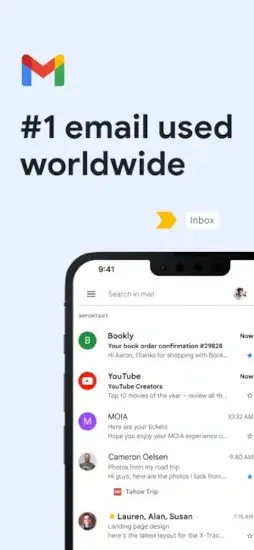
Gmail Labels. Filters. Snooze and Smart Compose.
Gmail app has more features than you probably know. Gmail in 2026 is not just an email app. It is a communication hub. You send and receive messages. You schedule emails to send later at the perfect time. You snooze what you cannot answer now so it comes back when you are ready. You let Smart Compose finish your sentences while you type. Understanding the features helps you manage your inbox faster and with less stress.
Gmail app holds a 4.7 out of 5 rating from 2.4 million U.S. App Store ratings. The download sits at 756.4 MB, and the age rating is 4+. If you prefer an email app with stronger privacy features, Proton Mail offers end to end encryption
What Is Gmail ?
If you have used Gmail before, you already know the basics. You have a Google account. Maybe you tried switching to Outlook or Apple Mail and came back. Maybe you are frustrated by the mobile app’s quirks or curious about the new AI features. Gmail promises a complete email experience, but the mobile version has gaps.
Users praise secure email, AI features, multiple accounts, summary cards and subscription management. Critics point to spam filtering, signature limitations, mobile only limitations, limited accessibility support, large app size and feature overload.
The Email Foundation
Set Gmail as your default email app on iOS. Browse the inbox in a list based layout with labels, stars and swipe actions. Organize mail by labeling, starring, deleting and reporting spam. Swipe to archive or delete to quickly clear out the inbox.
Why does this matter? Because the email foundation is still the core. Everything else builds on it. One reviewer praises the service for secure emails, which is the baseline expectation for any email app.
Gemini and AI Assistance
Gemini summarizes emails, crafts, refines responses and searches the inbox. Suggested Replies respond to emails faster with AI powered suggestions. AI Overviews help stay on top of work. Proofread improves email quality.
The AI layer is the app’s biggest recent addition. It is also the feature most likely to change how you handle long threads and unfamiliar topics.
Summary Cards and Subscription Management
Summary cards show packages, events, bills and travel details. Subscription management declutters the inbox by managing email subscriptions. The Promotions tab finds top deals faster.
These tools help users stay organized without manual sorting. The organization features reduce inbox clutter in ways that manual labeling cannot match.
Multiple Accounts and Calendar Integration
Connect and switch between accounts from different providers. Manage personal and work email in one app. Add events to Google Calendar based on emails.
This keeps communication and scheduling in one place. The multi account support is essential for anyone juggling work and personal email.
Meet, Chat and Google Workspace
Access Google Meet and Google Chat without leaving Gmail. Connect with coworkers via Meet or Chat, send invites and add tasks. The Workspace integration turns Gmail into a collaboration hub.
This keeps communication in one app. The integration is useful for teams already using Google tools.
Spam Protection and Undo Send
The spam filter blocks more than 99.9% of spam, phishing and malware. Undo send prevents embarrassing mistakes for up to 30 seconds.
The spam filter is the app’s most important safety feature. Undo send is a small feature that saves real embarrassment. One reviewer says blocked spam senders can still email them and go to spam, which they find frustrating.
The Storage Reality
Gmail is free to download with in-app purchases for additional storage. The 100 GB plan costs $1.99**. The 200 GB plan costs **$2.99. Google AI Plus with 2 TB costs $9.99.
Prices and features vary by region, billing method or promotion. Storage is shared with Google Photos and Drive.
How Gmail Works
Set up an account by creating or signing in to a Google account. Browse the inbox in a list based layout with labels, stars and swipe actions. Use search to find emails with intelligent search across all mail. Use Gemini to summarize emails, craft and refine responses, and search the inbox. Manage subscriptions to declutter the inbox. Add events to Google Calendar based on emails using Gemini. Access Google Meet and Google Chat without leaving Gmail. Organize mail by labeling, starring, deleting, and reporting spam. Use swipe actions to archive or delete quickly. Use Google Workspace to connect with coworkers, send invites and add tasks.
Gmail Graphics
Design Strengths
Clean inbox layout that is easy to browse and navigate. AI powered tools including Gemini, Suggested Replies, AI Overviews and Proofread. Multiple accounts from different providers in one app. Summary cards surface packages, events, bills and travel details. Subscription management helps declutter the inbox. Multi language support including English and 57 additional languages.
Design Limitations
Large app size at 756.4 MB. No declared accessibility support. Google has not indicated which Apple accessibility features the app supports. Requires iOS 18 or later. Older devices may not be compatible.
Location use can affect battery. The listing says the app may use location even when it is not open. Feature overload. Email, AI, calendar, Meet, Chat, storage and organization can make the app feel busy for new users.
Gmail User Reviews
Positive themes include secure email, AI features, multiple accounts, summary cards and subscription management. One reviewer praises the service for secure emails. The listing highlights Gemini, Suggested Replies, AI Overviews, and Proofread.
Negative themes include spam filtering, signature limitations, mobile only limitations, no declared accessibility support, large app size and feature overload. One reviewer says blocked spam senders can still email them and go to spam. Another says the mobile signature section is plain text and does not support images or rich formatting. A third says they cannot select all to delete mass emails through the app, which they find infuriating.
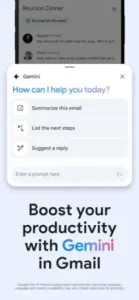
Gmail Smart Features: AI That Helps
Smart Compose
As you type, Gmail suggests complete sentences in light gray text. Tab to accept the suggestion and keep typing. The AI learns your writing style over time. Suggests phrases you commonly use in replies. Saves time on repetitive emails.
Smart Reply
Below each email you read, Gmail suggests short one-tap responses. “Thanks for the update.” “Sounds good.” “I’ll take a look.” “Let me know.” Tap one to reply instantly without typing. Good for quick acknowledgments on mobile.
Nudges
Gmail reminds you to follow up on emails you may have forgotten. It also reminds you to reply to emails you have not answered. Nudges appear at the top of your inbox. The feature helps you stay on top of important conversations.
Summary Cards
For purchases and travel, Gmail shows summary cards at the top of emails. See order details without opening the email fully. Track packages with delivery status. View flight information with gate and time. The cards pull key information from the email body.
Grammar Suggestions
Gmail underlines potential grammar errors in your draft emails. Right click or long press to see suggestions. The feature helps you write more professional emails without a separate grammar checker.
Gmail Privacy and Security
Spam Protection
Automatic filtering keeps junk mail out of your primary inbox. The system learns from user reports when you mark emails as spam. Rarely misses real emails. Rarely marks good emails as spam. The filtering is best in class.
Phishing Protection
Gmail warns you about suspicious emails before you open them. Links are checked against known phishing sites. Dangerous attachments are blocked from downloading. The warnings are clear and hard to ignore.
Confidential Mode
Set expiration dates for sensitive emails. Recipients cannot forward, copy, print, or download the message. You can also require a passcode sent via text message for extra security. Good for sharing private information like passwords, contracts, or financial data.
Two Factor Authentication
Protect your Google account with 2FA. Gmail supports Google Authenticator for code generation. SMS codes sent to your phone. Security keys like Titan or YubiKey. 2FA prevents unauthorized access even if your password is stolen.
Encryption
Emails are encrypted between your device and Google’s servers using TLS. This protects against interception during transmission. End to end encryption for email content requires third-party tools like PGP.
Data Collection
Google scans emails for advertising personalization in the free version. This is how Gmail stays free. Google Workspace paid plans do not scan for ads. The scanning is automated, not human.
Gmail Tips
For Managing Email Efficiently
Use labels and stars. Organize mail by labeling, starring, deleting and reporting spam. Labels work like folders but allow one email to carry multiple tags. A single message can be both “Work” and “Needs Reply.”
Use swipe actions. Swipe to archive or delete to quickly clear out your inbox. Once you learn the gestures, clearing email takes seconds instead of minutes.
Use subscription management. Declutter your inbox with built-in email subscription management. It is faster than unsubscribing one by one. The tool finds the senders you ignore and lets you remove them in bulk.
Use summary cards. Stay up to date on packages, events, bills and travel details without opening every email. The cards surface what matters before you open the inbox.
Use search. Search emails with intelligent search across all your mail. The search bar is faster than scrolling through labels, especially when you remember a name but not the date.
For Using AI and Integrations
Use Gemini. Summarize emails, craft or refine responses and search your inbox with AI. It is useful for long threads and unfamiliar topics.
Use Suggested Replies. Respond to emails faster with AI-powered suggestions. The suggestions are a starting point, not a final answer. Edit them before sending.
Use AI Overviews. Stay on top of work with AI assistance.
Use Proofread. Improve email quality with AI assistance before sending. It catches tone issues and minor errors that spellcheck misses.
Use Calendar integration. Add events to Google Calendar based on emails with Gemini. The event appears in your calendar without a second app.
Use Meet and Chat. Access Google Meet and Google Chat without leaving Gmail. This keeps communication in one place.
Use Google Workspace. Connect with coworkers via Meet or Chat, send invites and add tasks. The Workspace integration turns Gmail into a collaboration hub.
For Managing Storage and Privacy
Set a storage budget. The app includes in-app purchases for additional storage. Storage is shared with Google Photos and Drive, so plan accordingly. One photo library can fill the 15 GB free tier faster than email ever will.
Review privacy and location settings. Control what data is collected and how location is used.
Use Family Sharing if appropriate. Some in-app purchases and subscriptions may be shareable with your family group.
Use Siri for email. Gmail works with Siri to help you get things done.
Use Wallet for passes. Get all your passes in one place.
Gmail Similar Apps
| App | Best For | Difference from Gmail |
|---|---|---|
| Microsoft Outlook | Secure email, calendar, and files | More business oriented; Gmail is more consumer and AI focused |
| Yahoo Mail | Organized inbox and bulk delete | More focused on inbox organization; Gmail is more AI and Google ecosystem focused |
| Edison Mail | Fast, secure, organized inbox | More focused on inbox organization; Gmail is more AI and Google ecosystem focused |
| Apple Mail | iPhone and iPad email management | More integrated with Apple devices; Gmail offers stronger AI and Google ecosystem integration |
| mail.com | Email and cloud storage | More focused on email and cloud; Gmail is more AI and Google ecosystem focused |
| Contacts Sync | Google, Outlook, and more | More focused on contacts; Gmail is more email and AI focused |
| Email App for Gmail | Gmail and other mail services | More focused on email; Gmail is more AI and Google ecosystem focused |
| Microsoft OneDrive | File and photo cloud storage | More file management focused; Gmail is more email and AI focused |
| Verizon Cloud | Productivity | More cloud focused; Gmail is more email and AI focused |
| Spark Mail | Smart inbox and team collaboration | More focused on team collaboration and smart sorting; Gmail is more Google ecosystem focused |
If you want a similar app with a different focus, Microsoft Outlook is worth a look. It offers secure email, calendar and files with a business orientation and it runs on the same platforms as Gmail.
Gmail’s main differentiator is that it combines email, AI assistance, spam protection, multiple account support, calendar integration, Google Meet, Chat access and storage upgrades in one productivity app. Outlook wins on business integration. Apple Mail wins on device integration. Spark wins on smart inbox sorting. But if you want one app that covers email, AI, calendar, chat and Meet together, Gmail occupies a space few others attempt.
Conclusion:
Gmail is the best free email app for most people. The spam filtering is excellent and rarely misses. The search is fast and powerful across years of emails. The Google integration with Calendar, Drive and Meet is seamless. The app is reliable across all your devices.
What works: Excellent spam and phishing protection that learns over time. Fast, powerful search across all emails with operators. Deep integration with Calendar, Drive and Meet in one app. Smart Compose and Smart Reply save time on frequent emails. Labels and filters for flexible organization. Free with no subscription required.
What does not: Free version includes ads in the Promotions tab. Privacy concerns about Google scanning emails for ads. Interface can feel busy with many features and tabs. Some users prefer simpler email apps like Spark.
What do you want from an email app? If you want reliable delivery, strong spam protection and deep Google integration, Gmail delivers. If you want end to end encryption and privacy as the top priority, Proton Mail might fit better.
Frequently Asked Questions About Gmail
Is Gmail really free to use?
Yes. Gmail is completely free for personal use. You get 15 GB of free storage shared across Gmail, Google Drive, and Google Photos. No subscription required. No ads in your primary inbox. Ads only appear in the Promotions tab. Businesses can upgrade to Google Workspace for custom email domains and more storage. You can start your Gmail download from the App Store.
How do I stop spam emails in Gmail?
Gmail automatically filters most spam before you see it. Mark any spam that gets through by selecting the email and tapping the stop sign icon. Gmail learns from your reports. Create filters to automatically delete emails from specific senders. Never reply to spam emails. Never click links in suspicious messages.
What is the difference between Archive and Delete?
Archive removes emails from your inbox but keeps them in your account. You can find archived emails later using search. Delete sends emails to the Trash folder. Emails in Trash are permanently deleted after 30 days. Use Archive for emails you may need later. Use Delete for emails you will never need again.
How do I organize my Gmail inbox effectively?
Use the default tabs to separate Primary, Social, Promotions, and Updates emails. Create labels for different categories like Work, Personal, Shopping, and Newsletters. Set up filters to automatically apply labels and skip the inbox for low-priority emails. Star important emails that need follow-up. Snooze emails you cannot answer right now.
Where can I find official information and get support if I have issues?
The official Gmail Help Center has documentation, video tutorials, and troubleshooting guides. The Google Workspace community forum offers peer-to-peer support. For account recovery or security issues, visit the Google Account Help page. Official website: https://mail.google.com