Zoom became a verb during the pandemic.
Zoom Workplace holds a 4.7 out of 5 rating from 3.2 million reviews on the App Store, carries Editors’ Choice status and ranks #5 in the Business category. The app is free to download, rated 9+ on the App Store and the iOS version sits at roughly 483 MB depending on your device and region. It runs on iPhone, iPad, Apple Vision, Apple Watch, iMessage, Android, macOS, Windows, Linux and web browsers.
But a meeting app cannot carry a whole business. Scheduling lives in one place. Chat lives in another. Documents sit in a third. Phone calls happen somewhere else entirely. Follow-ups get lost in the gap between all of them.
So does Zoom Workplace close that gap? Or is it just a video tool wearing a workspace costume?
The answer depends on what you actually need. Individuals who make calls will find everything they want and more. Teams that commit to the ecosystem get a genuinely unified platform. Everyone else might wonder why there are so many tabs.
The Gap Between Video Calls and Actual Work
Most people know Zoom for one thing. You click a link. You join a call. You talk. You leave. That simplicity made it the default for remote meetings, job interviews, online classes and family gatherings across every operating system and internet provider.
Then the pandemic ended. Work changed shape. Meetings did not disappear, but the work around them became harder to manage. Notes needed to be written. Action items needed tracking. Scheduling needed coordination. Chat needed persistence. Zoom was still a meeting app in a world that needed a workspace.
Zoom Workplace is the company’s answer to that shift. The question is whether the answer holds up in daily use.
If you have tried Google Meet or Microsoft Teams, you already know the alternatives. Zoom’s bet is that combining meetings, chat, phone, mail, calendar, documents, whiteboards, clips and AI into one platform beats switching between five apps. Whether that bet pays off depends on how deep you want to go.
What Zoom Workplace Delivers
The Meeting Foundation Still Holds
Video meetings remain the strongest part of the platform. HD audio and video, screen sharing, reactions, polls, annotation and breakout rooms work reliably across devices. That reliability is not marketing. It is the reason Zoom survived the pandemic surge while other tools collapsed under load.
Cross platform access keeps that foundation strong. Anyone can join from any operating system, browser or phone. That ubiquity is why teachers, doctors and businesses standardized on Zoom in the first place. You do not need to check what device someone uses before sending a link.
Security runs on 256-bit AES encryption by default. Optional end to end encryption is available for meetings, though it may limit some features when enabled. Virtual backgrounds, immersive views and gallery layouts keep presentations polished without requiring extra software.
The core meeting experience has not regressed. It has been surrounded by more tools.
AI Companion Changes the Follow-Up Problem
The follow-up problem is simple. You finish a meeting. Everyone agrees on next steps. Two days later, nobody remembers exactly what was decided or who promised what.
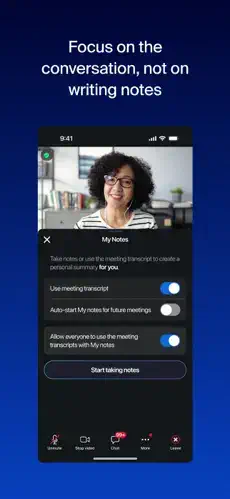
Zoom Workplace addresses this with AI Companion. It generates meeting summaries, next steps and action items automatically. My Notes captures notes from Zoom meetings and supported in-person conversations, so you can focus on the discussion instead of typing. Live queries let late joiners ask “What did I miss?” or “Was my name mentioned?” without stopping the meeting.
AI also drafts messages, email text, whiteboard ideas and chat thread summaries. For knowledge workers with packed calendars, these features reduce the manual work that follows every call. You still need to verify facts and commitments before acting on a summary, but the starting point is already written.
The catch is that full access requires paid plans. Free users get limited AI summaries and My Notes usage. The free tier gives you a taste. Pro gives you the full meal.
Beyond Meetings, the Workspace Tools
Team Chat handles direct messages, group chats, channels, file sharing and searchable conversations. It creates persistent communication outside meetings, which matters for teams spread across time zones.
Zoom Phone adds business VoIP calling, voicemail, SMS controls and call queues inside the same app. Mail and Calendar unify email and scheduling for users who adopt the Zoom ecosystem. Scheduler reduces back and forth booking emails by sharing availability and letting people pick open slots.
Docs supports real time collaborative documents and wikis tied to meeting content. Whiteboard handles brainstorming, diagrams and AI-generated mind maps. Clips records short video messages and screen recordings for asynchronous updates.
Each tool works on its own. The value comes from using them together. A meeting generates a summary. The summary links to a Doc. The Doc references a Whiteboard. A Clip updates the team without scheduling another call. That chain is where the platform earns its name.
If you want a direct comparison point, Microsoft Teams follows a similar philosophy but integrates more tightly with Microsoft 365. Google Meet leans into Google Workspace. Zoom asks you to adopt its ecosystem to get full value.
Free Versus Paid, the Honest Breakdown
The free Workplace Basic plan supports up to 100 participants. That sounds generous until you hit the 40 minute cap on hosted group meetings. For quick check-ins and one on one calls, free works fine. For classes, client calls or team discussions that need more time, the cap becomes a problem.
Pro removes the 40 minute limit and allows meetings up to 30 hours. It adds 10 GB cloud recording per license, expanded AI access and unlimited Clips. Business raises capacity to 300 participants. Enterprise goes to 500 or more, up to 1,000 with a Large Meeting add-on.
Pro costs $16.99 per month or $159.99 annually in the U.S., though pricing varies by country. My Notes is sold separately at $10 per month or $100 per year. If you host meetings regularly, Pro pays for itself in uninterrupted calls alone.
Design, Usability and the Feature Density Problem
The interface evolved from meeting first to dashboard style. Mail, Calendar, Phone, Docs, Scheduler, Clips, Whiteboard, Tasks and AI now sit inside the same app. That is a lot of surface area for a tool that used to do one thing.
Meeting controls stay accessible. The five most used buttons remain visible, with additional options moved into a More menu. Global search finds messages, contacts, files, documents and whiteboards across the app. iPad navigation was redesigned for easier access to profile, settings and tabs.
The downside is real. New users who just want a meeting link may find the extra layers distracting. Mobile complexity shows up too. Document collaboration and large whiteboards feel better on desktop than on a phone.
Accessibility information is incomplete. Zoom has not stated which accessibility features the iOS app supports. The privacy label notes collection of location, contacts, user content, identifiers, usage data and diagnostics. If privacy matters to you, review those settings before installing.
What Users Actually Say About Zoom Workplace
Praise centers on cross platform reliability, remote education and work and staying connected across devices and internet providers.
Teachers use it for lessons. Families use it for gatherings. Businesses use it for client calls. Doctors use it for appointments. The common thread is that Zoom works when people need it to work.
AI summaries and note taking earn positive mentions from knowledge workers with packed meeting schedules. The features save time without demanding new habits.
Criticism centers on glitches, freezes, lag and audio or video issues under weak connections. Some users report mute button glitches and shared screens going black during lessons. Background noise, echo and microphone confusion appear in reviews. One regional review notes the camera switching on unexpectedly, though that is a user report and not confirmed platform wide behavior.
Battery use and mobile performance draw complaints, especially on poor networks. These issues tend to surface on older devices or unstable connections rather than across the board.

Zoom Workplace Tips
Zoom Workplace tips that make a real difference are not complicated. They just require a few minutes of setup before the call starts, not during it.
Test your gear five to ten minutes early. Camera, microphone, headphones, connection. Run through all of it before a presentation, interview, lesson or client call. Most of the glitches people complain about trace back to something that could have been caught in those five minutes.
Headphones reduce echo better than any setting. If keyboard clicks, traffic or household noise interfere, adjust noise suppression in audio settings. But headphones solve the problem before it starts. Use them when audio quality matters.
Share a window, not your whole screen. Full screen sharing exposes notifications, private messages and browser tabs you forgot were open. Window sharing keeps the focus on what you actually want people to see.
Turn on AI summaries for recurring calls. The Zoom Workplace app captures decisions, next steps and discussion points automatically when you enable AI Companion. You still need to verify commitments before acting on them, but the starting point writes itself.
Use live queries instead of interrupting. Joined late? Ask “What did I miss?” or “Was my name mentioned?” without stopping the meeting. It is faster than scrolling back through chat and less disruptive than asking someone to repeat five minutes of context.
Replace status meetings with Clips. A short screen recording or video update lets teammates watch on their own schedule. This works especially well for routine updates that do not need live discussion.
Let Scheduler handle the booking back and forth. Share your availability and let invitees pick an open slot. This cuts the email chain that usually happens before every meeting.
Plan around the 40 minute Basic limit. If you are hosting on the free tier, schedule 30 to 35 minutes of core content. That buffer accounts for late starts and gives you room to wrap up without a hard cutoff.
Lock down public meetings. Waiting rooms, passcodes and host controls prevent uninvited guests from joining. This matters for classes, community events and any meeting where the link might spread beyond your intended audience.
Enable end to end encryption when confidentiality matters more than features. Zoom states that AES encryption is enabled by default and optional E2EE is available for meetings. Evaluate the trade-offs before turning it on, since some features may be restricted.
Review privacy settings and device permissions. Grant microphone, camera, contact and location permissions only when needed. The privacy label indicates the app may collect location, contacts, user content, identifiers, usage data and diagnostics.
Zoom Workplace Similar Apps
| App | Best For | Main Difference from Zoom Workplace |
|---|---|---|
| Google Meet | Google Workspace users | Better Gmail, Calendar and Drive integration. Free group meetings generally run up to 60 minutes instead of 40. |
| Microsoft Teams | Microsoft 365 organizations | Stronger Outlook, SharePoint and Office workflow. Often more complex for casual hosts. |
| Cisco Webex | Enterprise and compliance-heavy teams | Strong enterprise controls and events focus. May feel heavier for small teams. |
| Slack Huddles | Quick internal discussions | Better for informal, chat first communication. Less suited to formal large meetings. |
| Discord | Communities and gaming | Excellent for servers and persistent voice spaces. Weaker formal meeting and recording tools. |
| FaceTime | Apple only personal calls | Simpler for Apple users. Not built for structured cross platform collaboration. |
| Jitsi Meet | Open source and self hosted | Greater deployment control for technical teams. Fewer integrated productivity tools. |
| GoTo Meeting | Traditional business meetings | Meeting focused alternative with a different pricing and administration model. |
Zoom Workplace competes most directly with Google Meet, Microsoft Teams and Cisco Webex. Its differentiator is the broad collaboration bundle. Meetings, Chat, Phone, Mail, Calendar, Scheduler, Docs, Whiteboard, Clips, Tasks and AI Companion in one platform.
The trade-off is ecosystem commitment. Google Meet integrates better with Google Workspace. Teams integrates better with Microsoft 365. Zoom asks you to adopt its ecosystem to get full value from everything it offers. If you already live in Google or Microsoft, switching means leaving tools that already work together.
Conclusion
Remember the tension from the beginning. Zoom became a verb, but a meeting app cannot carry a whole business. Zoom Workplace answers that problem by adding the tools that used to live elsewhere.
Zoom Workplace rewards teams that commit to the ecosystem. Meetings, chat, phone, docs and AI notes work best when everyone lives in the same platform. It asks for that commitment in return.
If you want one app for calls, messaging, scheduling and AI summaries, this might be it. If you only need occasional video calls and already live in Google or Microsoft, the switch may not pay off.
Try the free tier first. The 40 minute limit will tell you quickly whether you need Pro.
Frequently Asked Questions About Zoom Workplace
Where can I find the official Zoom Workplace download links?
Zoom Workplace is available on the Apple App Store. Desktop users can get the latest version from the official Zoom download center for Windows, macOS and Linux. If you want to check version history and feature details, the Zoom Wikipedia page keeps a running record of the platform’s development.
How do I contact Zoom support if I run into problems?
You can submit a ticket through the Zoom support portal or email the team directly at support@zoom.us. Paid plan customers can also call 1-888-799-9666 for phone support. For billing and account-related issues, customercare@zoom.us handles those requests.
What are the limits of the free Zoom Workplace plan?
The free Basic plan supports up to 100 participants per meeting, but hosted group meetings cap at 40 minutes. One on one calls do not have that time restriction. If you need longer meetings, cloud recording and full AI features, upgrading to Pro or higher removes the limit and unlocks the complete toolkit.
How does Zoom Workplace differ from Google Meet and Microsoft Teams?
Zoom Workplace bundles meetings, chat, phone, mail, calendar, docs, whiteboards, clips and AI notes into one app. Google Meet integrates more tightly with Google Workspace and its free group meetings run up to 60 minutes. Microsoft Teams leans into the Microsoft 365 ecosystem and also offers 60 minute free group meetings for most users. Zoom’s advantage is the breadth of its collaboration tools in a single platform.
How much storage does the Zoom Workplace app take up?
The iOS version sits around 493.5 MB, while the Android file size varies by device and region. Desktop installers typically range between 180 MB and 220 MB, with cache and logs adding roughly 350 MB once installed. If storage is tight, clearing cache in settings frees up space without losing your account data.