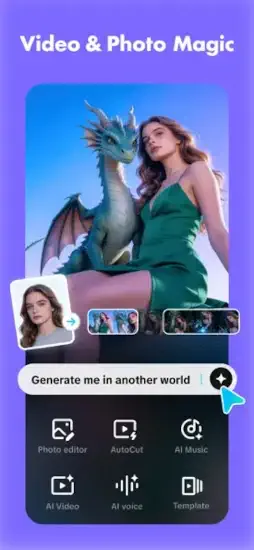
CapCut add to your videos smooth transitions that glide from one clip to the next. Perfect captions that pop up in time with the music. Viral effects that make ordinary footage look like a movie.

CapCut. ByteDance built it for creators who want polished content without spending hours learning complicated software. The question is whether it is as good as everyone says or just another free app with hidden costs.
Mobile video editing exploded after TikTok proved short-form video was here to stay. InShot offered simple trimming and basic filters for beginners. VN Video Editor provided timeline editing with more control. Adobe Premiere Rush brought professional tools to mobile with a subscription fee. CapCut combined AI features, templates, and effects into one free package. No watermarks. No subscription. No catch. That is why creators switched.
CapCut in 2026 is not just a video trimmer. It is a full editing suite. Auto captions that transcribe speech in seconds. Background removal that separates people from any scene. Chroma key for green screen effects. Speed ramping for dramatic slow motion. Trendy effects that change weekly. All free. Understanding how to use its features helps you create better content faster than any other mobile editor.
The app holds a 4.6 star rating on the App Store based on over 2 million reviews. Size sits around 839 MB depending on assets downloaded. Age range stretches from teenagers editing TikTok videos to professional creators producing brand content. If you prefer a simpler editor with fewer features, InShot offers basic trimming and filters.
What Is CapCut ?
An all in one video and photo editing app for creators. Trim, split, merge, crop, and resize your clips. Add effects, transitions, filters, and text. Use AI tools for auto captions, text to speech, and background removal. Export ready for TikTok, Instagram, YouTube Shorts, and Facebook. One app that does everything.
Who It Is For
Social media creators making short form content for platforms. Beginners who want easy editing without a learning curve. Experienced editors who need fast workflows for daily content. Anyone who wants polished videos without paying for premium software like Adobe Premiere.
Free to Use
CapCut is completely free. No watermarks on exported videos. No subscription required. ByteDance owns it, and the app supports the TikTok ecosystem. You can edit professionally without spending money. The business model is about keeping creators in the ByteDance family.
Cross Platform
Works on iPhone, iPad, Android, and desktop web browsers. Projects sync across devices through cloud support. Start editing a video on your phone during a break. Finish it on your computer at home. The workflow is seamless.
CapCut 2026 State: What’s New
AI Video Generation
New AI tools that generate video clips from text prompts. Describe what you want to see. “Sunset over mountains.” “Coffee being poured.” The AI creates footage that matches your description. Still experimental but improving with each update.
Auto Captions Upgrade
Caption accuracy improved significantly. More language options added. Better timing detection for fast speech. The feature saves hours of manual captioning. What used to take ten minutes now takes ten seconds.
Background Removal
Chroma key and AI background removal work better than before. Cleaner edges around hair and objects. Less noise in the removed areas. Good for green screen effects and product videos where you need a clean background.
Cloud Workflow
Projects save to cloud automatically. Start on mobile during lunch. Continue on desktop at home. The workflow now supports team collaboration for creators who work with editors.
Trend Templates
New templates updated regularly based on trending sounds and effects from TikTok. Apply with one tap. Your video gets the same transitions and effects that are going viral.
CapCut Core Features: What You Actually Use
Basic Editing
Trim clips to remove unwanted sections from the start or end. Split clips to rearrange parts or remove middle sections. Merge multiple clips into one continuous video. Crop to change aspect ratio for different platforms. Resize to fit without distorting.
Effects and Transitions
Hundreds of visual effects. Glitch for a cyberpunk look. Retro for vintage vibes. Blur for focus shifts. Light leaks for cinematic feels. Transitions like zoom, slide, fade, and dissolve. Apply between clips for smooth changes that hide cuts.
Filters and Color
Adjust brightness, contrast, saturation, and warmth manually. Apply preset filters for quick looks like vintage, noir, or vibrant. Color grading tools for advanced users who want to match shots from different cameras.
Audio Editing
Add music from CapCut’s library or import your own tracks. Sound effects included for transitions, impacts, and ambiance. Adjust volume levels for clips independently. Add fade in and fade out to avoid abrupt starts. Noise reduction removes background hiss from location audio.
Text and Captions
Add text overlays with multiple fonts and animations. Auto captions generate subtitles from speech automatically. Edit timing and position after generation. Translate captions to other languages with one tap.
Speed Changes
Slow motion for dramatic effects or to emphasize a moment. Fast motion for time lapse or to speed through boring sections. Speed ramping changes speed within a single clip for dynamic effects.
Keyframes
Animate position, scale, and rotation over time. Create zoom effects that start wide and end tight. Create panning across a still image. Create motion graphics that move with the music. Advanced but accessible to beginners.
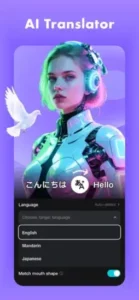
CapCut AI Tools: The Game Changer
Auto Captions
Upload a video with speech. CapCut transcribes and adds captions automatically at the bottom of the screen. Editable timing and text. Supports multiple languages. The feature alone makes the app worth using. Captions increase engagement on social media.
Text to Speech
Type text into the app. Choose a voice from dozens of options. The app generates speech in that voice. Multiple voices available in different languages and accents. Good for voiceover when you do not want to record your own voice.
Background Removal
Remove background from video or photo automatically. Replace with solid color, image, or another video. Chroma key for green screen footage. AI selection works on people, objects, and even hair. The edges are cleaner than previous versions.
AI Video Generation
Type a prompt describing a scene. “Aerial view of a city at night.” “Close up of coffee pouring into a mug.” The AI generates video clips that match your description. Good for B-roll or abstract visuals when you do not have footage. Quality varies but improves with each update.
Auto Beat Sync
Music detection built into the app. CapCut finds beats in your audio track and marks them on the timeline. Snap your edits to beats automatically. Good for music-driven content where cuts should match the rhythm.
CapCut Templates and Workflow
Templates
One tap templates that handle everything. Apply a template to your clips. The template handles transitions, effects, timing, and music. Replace placeholder clips with your own footage. Export ready for social media. Good for beginners who want professional results fast.
Trending Templates
New templates based on viral sounds and effects from TikTok. Updated regularly. The app surfaces what is popular so you can stay current. Using trending templates helps your content perform better.
Cloud Projects
Save projects to CapCut cloud. Access from any device where you are logged in. Share projects with collaborators for team editing. Good for creators who work with editors or agencies.
Export Settings
Choose resolution up to 4K. Choose frame rate matching your source footage. Choose bitrate for quality versus file size. Export directly to TikTok, Instagram, or save to camera roll. The app remembers your preferred settings.
No Watermark
Free version has no watermark. Export without paying. No logo in the corner of your videos. The app is truly free. That is why creators love it.
If you prefer a simpler editor with fewer features, check out InShot for basic trimming and filters.
CapCut Graphics and Design
Visual Style
Clean, creator-friendly interface puts everything where you expect it. Visible timeline at the bottom shows your clips arranged in order. Preview window at the top shows your video as you edit. Tool panels on the sides give access to effects, text, and audio. The layout feels familiar to anyone who has used modern video editors like Premiere Pro or Final Cut.
Timeline
Clips appear as blocks on the timeline. Zoom in for frame level precision when you need to cut exactly on a beat. Zoom out for an overview of your whole project. Drag clips to rearrange their order. Split clips with one tap. The timeline is responsive and easy to learn.
Tool Organization
Effects grouped by category so you are not scrolling forever. Glitch effects in one section. Retro effects in another. Transitions live between clips, not in a separate menu. Filters for color grading. Text for captions and titles. The organization makes tools easy to find even for beginners.
Performance
Runs on most iPhones from iPhone 8 and newer. 4K editing may lag on older devices with less processing power. Proxy editing is available for smoother playback. The app is well-optimized for modern phones. Battery drain is noticeable during long sessions but acceptable.
Dark Mode
Dark interface reduces eye strain during long editing sessions. Good for editing at night or in low light. Default setting cannot be changed to light mode. Most users prefer it anyway.
CapCut Similar Apps
| App | Main Similarity |
|---|---|
| InShot | Easy mobile video editing for social content |
| VN Video Editor | Timeline based editing with creator workflow |
| Adobe Premiere Rush | Cross device editing for social videos |
| KineMaster | Mobile editing with layers, effects, and control |
| YouCut | Lightweight editing for quick social videos |
The Differentiation
InShot is simpler with fewer advanced features. Good for basic trimming and filters. No timeline editing. VN Video Editor offers timeline editing without AI tools. Good for editors who want control without complexity. Adobe Premiere Rush is cross device with professional branding. Subscription required for full features. KineMaster has layers and detailed control but a steeper learning curve and watermark on free version. YouCut is lightweight and fast but lacks advanced features like keyframes and chroma key.
CapCut stands out for its AI tools and zero cost. Auto captions alone make it better than most competitors. No watermark. No subscription. Regular updates with new effects and templates.
If you search CapCut similar apps, these five appear most often. Each does something well. CapCut does free AI powered editing better than all of them.
CapCut Tips and Tricks
Start with a Template
Use templates for fast results when you are in a hurry. Replace placeholder clips with your own footage. The template handles transitions, effects, and timing. Good for beginners who want professional results without learning everything first.
Use Auto Captions
Turn on auto captions for any video with speech. Edit the text if the AI misheard something. Captions increase engagement on social media because people watch without sound. The feature alone saves hours of manual work.
Try Background Removal
Remove background from clips with people or products. Replace with images or video. Good for product videos where you want a clean background. Good for talking heads where you want to replace a messy room.
Use Speed Changes
Slow motion for dramatic moments or to emphasize an action. Fast motion for time-lapse or to speed through boring sections. Speed ramping changes speed within a single clip for dynamic effects that grab attention.
Add Keyframes
Animate zoom and pan across your video. Create motion graphics that move with the music. Keyframes add production value that makes your content look professional. The feature is advanced but accessible.
Use Audio Fades
Add fade in and fade out to music tracks. Avoid abrupt starts and stops that sound amateur. Clean audio improves perceived quality as much as good video.
Save Projects to Cloud
Enable cloud sync in settings. Switch between devices seamlessly. Start editing on your phone during a commute. Continue on your desktop at home. The cloud workflow saves time.
Export at 4K
If your source footage supports it, export at 4K resolution. Downscaled 4K looks better than native 1080p even on 1080p screens. The extra data creates sharper images.
Learn Keyboard Shortcuts
Desktop version has keyboard shortcuts for common actions. Learn them for faster editing. Cut, split, undo, and zoom have shortcuts. Muscle memory speeds up your workflow.
Follow Trends
Check trending templates and effects in the app. Use what is popular right now. Your content will feel current. Trends change weekly, so check before each project.
CapCut Common Issues and Fixes
4K Lag
4K video may lag on older devices during playback. Use proxy editing in settings. Edit with lower resolution proxies, then switch to 4K for final export. The feature is in the playback settings.
Auto Caption Errors
Accents and background noise cause transcription errors. Edit captions manually after generation. The app lets you change text and timing. Fixing errors takes less time than typing from scratch.
Export Fails
Close other apps running in the background. Clear storage space on your device. Restart the CapCut app. Try export again. Most export failures are memory related.
Audio Sync Issues
Frame rate mismatch between clips causes sync problems. Match project frame rate to your source footage before editing. Set it in project settings when you start.
Cloud Sync Delays
Cloud sync may take time for large projects. Wait for confirmation before switching devices. Check your internet connection. Large projects with 4K footage take longer.
CapCut Community and Social Features
Template Sharing
Users share templates online through links. Download templates others created. Use them in your projects. The community creates thousands of templates for every occasion. Weddings. Travel. Product reviews. Comedy.
Tutorials
YouTube has millions of CapCut tutorials. Search for any effect you want to create. Learn new techniques from creators who share their workflows. The learning resources are abundant and free.
Trends
CapCut effects often go viral on TikTok and Instagram. Use trending effects in your videos while they are popular. The app surfaces what is trending on the homepage. Timing matters.
ByteDance Ecosystem
CapCut connects directly to TikTok. Export videos and post immediately. Use TikTok sounds in your CapCut edits. The integration is seamless because both apps are owned by ByteDance.
Creator Community
Reddit and Discord communities share tips daily. Ask questions when you are stuck. Get feedback on your edits. The community is active and helpful.
Conclusion: Should You Use CapCut ?
The answer is yes. CapCut is the best free video editor for social media creators. The AI tools save hours of work. Auto captions are accurate enough for most content. Effects and transitions look professional. No watermark. No subscription. It competes with paid software like Premiere Rush and KineMaster.
What works: Completely free with no watermark on exports. AI auto captions save hours of manual work. Background removal and chroma key for green screen effects. Hundreds of effects and transitions to choose from. Templates for fast editing when you are in a hurry. Cloud sync across devices for seamless workflow. 4K export for high-quality content.
What does not: 4K editing may lag on older devices like iPhone 8 or older. Auto captions need manual editing sometimes for accents or background noise. Cloud sync can be slow for large projects. Desktop version has fewer features than mobile version.
What do you want from a video editor? If you want free, fast, professional-looking edits for social media, CapCut delivers. If you need professional color grading, multi cam editing, or advanced audio mixing, look at desktop software like DaVinci Resolve or Final Cut Pro.
If you prefer a simpler editor with fewer features, check out InShot for basic trimming and filters.
Frequently Asked Questions About CapCut
Is CapCut really free to use with no watermark?
Yes. CapCut is completely free to download and use. No watermark appears on exported videos. No subscription required. You get access to all editing tools, effects, transitions, filters, and AI features without paying. ByteDance owns CapCut and uses it to support the TikTok creator ecosystem. You can start your CapCut download from the App Store.
What AI features does CapCut offer?
CapCut includes several AI powered tools. Auto captions transcribe speech and add subtitles automatically. Text to speech generates voiceover from typed text. Background removal separates people or objects from any scene. AI video generation creates clips from text prompts. Auto beat sync detects music beats and marks them on the timeline. These features save hours of manual editing.
Can I use CapCut on my computer as well as my phone?
Yes. CapCut works on iPhone, iPad, Android, and desktop web browsers. Projects sync across devices through cloud support. Start editing on your phone during a commute. Continue on your computer at home. The desktop version has keyboard shortcuts for faster editing, though some features are still mobile only.
What makes CapCut better than InShot or other free editors?
CapCut stands out for its AI tools and zero cost. Auto captions alone save hours of manual work. No watermark on exports. No subscription. Regular updates with trending effects and templates. InShot and other free editors either have watermarks, fewer features, or paid tiers for advanced tools. CapCut gives you professional features for free.
Where can I find official information and get support if I have issues?
The official CapCut website has information about features, updates, and desktop versions. The help center answers common questions about editing, export, and account issues. For technical problems or feature requests, contact CapCut support through the website. Official website: https://www.capcut.com or CapCut Wiki page.