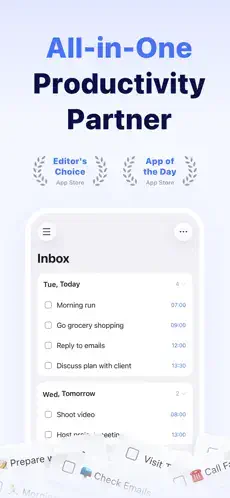
TickTick: The Productivity App That Does Almost Everything (And Does It Well)

TickTick is a productivity app by Appest Limited that combines tasks, reminders, calendar views, habits, countdowns, notes, collaboration, a Pomodoro timer, an Eisenhower Matrix, widgets and AI assisted task capture.
TickTick holds a 4.9 out of 5 rating from 46,000 App Store ratings and carries Apple Editors’ Choice status. The app weighs around 328 MB on iOS, has a 4+ age rating, and runs on iPhone, iPad, Apple Watch and Apple Vision.

Those numbers suggest something rare in productivity software. A tool that people actually stick with. So is TickTick genuinely the all in one productivity app it claims to be, or is it a jack of all trades that does nothing particularly well?

How TickTick Works

Capture tasks manually, through Siri AI, by voice, through email, from Telegram or by pasting a batch list. Organize with lists, tags, priorities, notes, attachments, subtasks and reminders. Schedule with dates, start times, deadlines, recurrence rules, countdowns, location reminders or calendar blocks. View in context through Today, Tomorrow, Next 7 Days, Calendar, Agenda, Kanban, Matrix, Smart Lists or search filters. Focus with the Pomodoro timer and track focus duration. Track habits separately and review statistics or widgets. Collaborate through shared lists, assignments and comments. Review and refine with sorting, grouping, and recurring schedule adjustments.

Why One App for Tasks, Calendar, Habits and Focus Beats Juggling Five

Most people reading this have used task apps before. Maybe Todoist, Apple Reminders, Notion or a paper planner. Maybe there is a calendar app, a separate habit tracker and a Pomodoro timer all fighting for attention on the home screen.

TickTick targets that exact fragmentation. It tries to replace all of them. Users praise the all in one feature set, widget design, calendar tools, habits, focus timer and Eisenhower Matrix. Critics point to login prompts, premium feature gates, and complexity for minimalist users.

The Task Management Foundation

Lists, tasks, subtasks, checklists and notes form the base structure. Tags classify tasks by context, project, person or location. Four priority levels separate critical work from noise. Smart Lists like Today, Tomorrow, Next 7 Days, Assigned to Me and Completed reduce manual sorting. Flexible recurring tasks handle routines, bills, workouts and recurring work.

Why does this matter? Because task management only works when capturing and organizing take less effort than remembering.

Calendar Views and Time Blocking

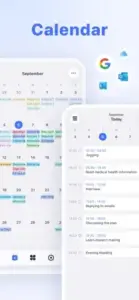
Yearly, monthly, weekly, daily, agenda, multi day, multi week and grid formats give users options for how they see their time. Calendar subscriptions pull in Google, Outlook, iCloud and other external events. Time blocking becomes possible when tasks and appointments live in the same view. Overloaded days become visible before they happen.

Recent updates improved recurring event handling with options to edit only the current event or apply changes to future instances.

Reminders That Actually Fire

Multiple reminders per task. Premium supports up to five. Location reminders trigger tasks based on where you are. Constant habit reminders keep recurring routines visible. Natural language capture reduces task entry friction.

This layer prevents the gap between planning and follow through. A task without a reminder is a task you will probably forget.

Habits, Countdowns and Long Term Tracking

The habit tracker supports streaks, goals and statistics. The countdown tool tracks birthdays, anniversaries, deadlines, and important dates. Free users get up to five habits and five countdowns. Premium removes those limits. Habit widgets show tracking without opening the app.

This is where TickTick moves beyond a simple to do list into routine building territory. It tracks not just what you need to do but who you are trying to become.

Focus Timer and the Eisenhower Matrix

The Pomodoro timer runs 25-minute or customized focus sessions. Focus time can sync to Apple Health through HealthKit integration. The Eisenhower Matrix sorts tasks by urgency and importance. The Matrix helps users focus on what matters rather than what is loudest.

This combination separates TickTick from task apps that stop at checkboxes. It does not just store tasks. It helps you decide which ones deserve your attention.

AI Features and Capture Tools

AI Assistant creates tasks, breaks down projects and organizes lists from a single instruction. AI voice task creation turns spoken requests into structured tasks. Audio summary transcribes and summarizes audio attachments. Siri AI integration lets users create and find tasks hands free.

Users should verify dates, priorities and generated steps before acting on AI output. AI assists the planning process. It does not replace judgment.

Collaboration and Sharing

Shared lists let households, teams and event planners coordinate. Free users get one shared member. Premium allows up to 29. Assign tasks, add comments, attach files and track shared responsibilities. SharePlay support enables collaborative planning through FaceTime or Messages. Email-to-task and Telegram integration extend capture beyond the app.

Widgets, Live Activities and Apple Integration

Home screen and lock-screen widgets for calendar, daily tasks, matrix, habits and focus. Live Activities keep tasks and focus information visible on the lock screen. Extra large widgets display more tasks and schedules without opening the app. Apple Watch support for reminders and quick actions. StandBy and landscape mode support arrived in recent updates.

Free Versus Premium

The free plan covers basic personal productivity. Premium unlocks up to 299 lists, 999 tasks per list, 199 subtasks per task, five reminders per task, more habits and countdowns, custom Smart Lists, grid calendar view, calendar subscriptions and expanded sharing.

App Store listings show TickTick Premium at $4.99 per month** or **$49.99 annually. Heavy planners will hit free tier limits quickly. Casual users may not.

Design Strengths

Highly customizable visual layout with colors, tags, lists and views. Strong widget design praised by reviewers. Light and dark mode support. Multiple task views including list, calendar, agenda, Kanban, grid, Matrix, focus and habit. Apple device integration through Siri, Live Activities, StandBy, Apple Watch and SharePlay. Editor improvements with formatting, highlighting, collapsible headings and smaller font options.

Design Limitations

Feature overload for beginners. The app includes tasks, reminders, calendar, habits, focus, countdowns, Smart Lists, Matrix, AI, collaboration and integrations. New users may need time to find the right workflow.

Cloud first concern. One reviewer wanted easier local or offline only use without repeated login prompts. Accessibility disclosure is incomplete. Appest Limited has not indicated supported Apple accessibility features. Premium boundaries can feel arbitrary when basic planning features sit behind a paywall.

TickTick User Reviews

Positive themes include the all in one productivity system, high quality widgets, batch import, simple but powerful interface, personalization, habit gamification, affordable Premium and frequent updates. One reviewer called it “THE ONE,” citing a focus timer, Eisenhower matrix, task management, habit tracker, mood tracker, customizable reminders, notes management and calendar in a single app. 

Negative themes include repeated sign-in requests, complexity for minimalist users, premium feature gates, and AI caution. One reviewer said: “The only thing that needs to be changed is when they ask you to login every time you refresh.”
TickTick Tips for Capture and Organization

Use the Inbox as a mental capture zone. Add everything quickly, then organize later in a short daily review. The Inbox exists so you do not have to decide where a task belongs the moment it appears. Capture first. Sort second. That order keeps you moving.

Use batch import for existing lists. Paste a long list from Notes, email or a meeting agenda and let TickTick split it into individual tasks. One reviewer specifically praised this feature: “You can just copy and paste and it recognizes that they are individual tasks.” It saves real time when you are migrating from another system.

Use tags for context, not projects. Tags like @phone, @computer, @errands or @home describe situations. Lists describe projects. Mixing them creates confusion. When you have ten minutes and a phone, the @phone tag shows you what fits that moment.

Use four priority levels consistently. Overusing urgent flags makes the Matrix and Today view less useful. If everything is urgent, nothing is. Reserve the highest priority for work that truly has consequences if delayed.

Break large tasks into subtasks. Instead of “Launch blog,” use subtasks like “Research keywords,” “Write outline,” “Draft intro,” and “Publish.” Premium supports up to 199 subtasks per task. Smaller steps are easier to start, and starting is usually the hard part.

TickTick Tips for Calendar and Focus

Time block important work. Put focused tasks into calendar blocks rather than relying only on a long to-do list. A task without a time slot is a wish. A task with a calendar block is a commitment.

Use the Eisenhower Matrix once a day. Move tasks into urgent and important categories so urgency does not masquerade as importance. The Matrix takes two minutes and saves hours of misdirected effort.

Use Pomodoro for task initiation. Start with a 25 minute timer for difficult work. Commit only to the first session, then decide whether to continue. The goal is to break inertia, not to finish everything in one sitting.

Add habits to widgets. Use Today Habits, Weekly Habits, Habit Heat Map, and Today Focus widgets so tracking stays visible. Habits you cannot see are habits you forget. Widgets keep the routine in front of you without opening the app.

Enable constant habit reminders selectively. Use them for genuinely important routines, not every habit. Persistent reminders for water, medication, or exercise make sense. Persistent reminders for checking social media do not.

TickTick Tips for AI and Integrations

Use AI Assistant for project breakdowns. Give specific requests like “Create a 10-step plan for publishing a blog review this week” rather than vague prompts. Vague input produces vague output. Specific instructions produce usable task lists.

Use voice task creation for fast capture. Dictate a request such as “Remind me to call the dentist Thursday at 2 PM and buy toothpaste after work,” then verify dates, priorities and separate tasks were interpreted correctly. AI voice capture saves time, but verification prevents small errors from becoming missed deadlines.

Turn recordings into action items. Attach an audio note from a meeting, then use AI transcription and summary to turn key points into tasks. Review the summary before relying on it. AI summarizes quickly, but it does not know which details matter most.

Subscribe to calendars instead of duplicating events. Connect Google, Outlook, iCloud or other calendars so appointments appear automatically. Manual entry creates errors and doubles the work.

Use Siri AI for hands free planning. Create tasks or check your schedule through Siri compatible actions. This is especially useful while driving, cooking, or walking between meetings.

TickTick Tips for Collaboration and Maintenance

Share lists for household logistics. A shared grocery, chores, travel or event list reduces repeated messages. Free users can share with one member. Premium users can add up to 29. For families and small teams, this feature alone justifies the upgrade.

Use comments instead of separate chats for task context. Keep decisions, files and questions attached to the task they concern. When conversation lives in the task, nobody has to search a chat history to remember what was decided.

Review recurring tasks monthly. Edit only the current instance for one off changes, or update future instances if the routine itself changed. This distinction prevents small schedule adjustments from permanently altering a routine.

Set up a weekly review. Clear the Inbox, reschedule unfinished work, delete irrelevant tasks, adjust recurring rules and choose next week’s priorities. The review is where planning becomes useful instead of aspirational.

Protect sensitive task data. Tasks may contain customer details, health reminders or financial deadlines. Review privacy settings and limit shared list access. Not every task belongs in a shared list.

TickTick Similar Apps Worth Knowing

App Best For Main Difference from TickTick
Todoist Clean cross platform task management and natural language entry More streamlined; TickTick includes Pomodoro, habits, Eisenhower Matrix and fuller calendar views
Things 3 Apple users who want polished design and a one time purchase Apple only and subscription free; TickTick has broader cross platform access, habits and collaboration
Microsoft To Do Microsoft 365 and Outlook users Free and integrated with Microsoft services; fewer advanced productivity modules
Apple Reminders Apple users who need simple, free list management Deep Apple integration and low complexity; lacks TickTick’s Pomodoro, habits, Matrix and custom views
Structured Visual daily timeline planning More focused on visual daily schedule; TickTick offers stronger task hierarchies and productivity modules
Any.do Daily planning, reminders, and shared task lists Simpler all in one planner; TickTick typically offers more advanced views and modules
Notion Flexible databases, docs and team knowledge systems More customizable for databases and docs; less immediate for quick capture and focus timing
Sunsama Intentional daily planning for professionals More guided daily planning; TickTick offers more personal productivity features at a lower entry cost


If you want a similar app with a different focus, Todoist is worth a look. It offers clean cross platform task management and natural language entry, and it runs on the same platforms as TickTick.

TickTick’s clearest differentiator is its combination of tasks, calendar views, habits, Pomodoro timer, Eisenhower Matrix, collaboration, reminders, countdowns and AI capture in one product. No single competitor matches all of those at once. Todoist wins on simplicity. Things 3 wins on polish. Notion wins on database flexibility. But if you want one app that handles personal productivity, focus, habits and light collaboration together, TickTick occupies a space few others attempt.

Conclusion

If you have been juggling five apps to manage your day, TickTick might replace all of them. If you only need a grocery list, Apple Reminders is free and simpler.

Download it. Build one list. Start one Pomodoro session. Check the Matrix. The depth is there. The question is whether you want one app to do everything or five apps to do one thing each.

Frequently Asked Questions About TickTick

Where can I find the official TickTick download for my device?

TickTick is available as a free download on App Store, Android, macOS, Windows and the web. The app is free to install, and Premium features require a subscription.

Is there a TickTick wiki or documentation page I can reference?

TickTick does not maintain a community wiki. The official website at ticktick.com hosts a help center with setup guides, feature explanations and troubleshooting articles. For background on the company and its product history, the Wikipedia entry on Appest Limited covers the developer’s origins.

What devices and operating systems does TickTick support?

TickTick runs on iPhone, iPad, Apple Watch and Apple Vision with iOS 14.0 or later. It also works on Android, macOS, Windows and through any modern web browser. The app weighs around 328 MB on iOS and carries a 4+ age rating. Accessibility features supported by the developer are not fully disclosed in the App Store listing, so users with specific needs should test the app before committing to Premium.

Leave a Comment

Exit mobile version