
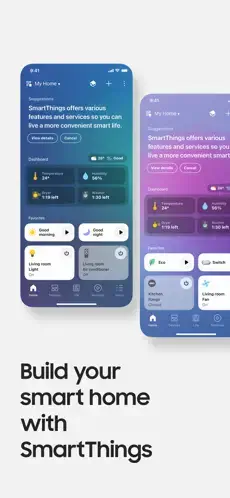
SmartThings solve your smart home app problem.

You have smart home devices scattered around your house. A smart light bulb in the living room from Philips Hue. A smart lock on your front door from Yale. A Samsung smart TV in the entertainment center. But you have three different apps to control them all, switching back and forth constantly.
SmartThings promises to fix that mess with one unified app. One app to rule them all. Samsung devices work natively. Third party brands like Ring, Nest, and Philips Hue integrate seamlessly. All in one place on your phone. The question is whether it actually makes your smart home easier to manage or just adds another app to the pile that you still have to open.
Google Home focused on voice control and Nest products, great for Google fans. Apple HomeKit prioritized privacy and security, perfect for Apple device owners. Amazon Alexa emphasized voice shopping and skills, useful for Prime members. SmartThings aimed to be the universal hub for everything regardless of brand. No matter what devices you bought, SmartThings wanted to control them.
SmartThings is not just for Samsung owners who have Galaxy phones and Samsung TVs. It works with Ring doorbells, Nest thermostats, Philips Hue lights, and many other brands across the smart home spectrum. You create automations that run without you thinking. You set scenes that trigger multiple devices with one tap. You monitor security cameras and sensors from the same dashboard. Understanding the features helps you turn your collection of random smart gadgets into a real smart home that actually works together.
The app holds a 4.6 star rating on the App Store based on over 753,000 reviews. Size sits around 200 MB depending on cached data. Age range stretches from young tech enthusiasts setting up their first smart home to older adults who want convenience and security. If you prefer a smart home app focused purely on Google’s ecosystem, Google Home offers a different approach.
What Is SmartThings? The Universal Smart Home Control Center
Samsung’s smart home control app that connects everything together. Connect, monitor, and automate compatible devices from one central place. Central dashboard for lights, TVs, appliances, sensors, routines, and home security. One app for all your smart devices.
Who This App Is For
Samsung device owners who want unified control of their ecosystem. Smart home enthusiasts with mixed brand devices from different manufacturers. Anyone tired of switching between multiple apps for different devices. People who want automation without complex programming or coding.
The Hub
SmartThings works with a physical hub or directly with Wi-Fi devices. Samsung TVs and appliances connect natively without extra hardware. Third party brands integrate through the hub or cloud.
Free to Use
The app is completely free to download and use. No subscription required for basic features. Some advanced features may require the SmartThings hub.
SmartThings 2026: What’s Included in the App
Device Control
Control Samsung devices and many third party brands from one interface. Lights, locks, cameras, sensors, thermostats, TVs, speakers, appliances.
Automations and Scenes
Scheduled or event based actions that run automatically. Lights turn on at sunset without you thinking. Doors lock at bedtime. Create scenes for movie night or away mode.
Home Monitoring
Dashboards and device views show everything at a glance. See status of all devices in your home. Check if doors are locked remotely. See if lights were left on.
Room Management
Group devices by room for logical organization. Living room devices together. Bedroom devices together. Kitchen devices together. Each room has its own view.
Smart Home Monitor
Security alerts for motion, fire, water leaks, and intrusion. Get notifications instantly when something is wrong.
Map View
3D layout tools on supported setups. See devices mapped to your home floor plan visually.
Multi User Access
Share home access with family members easily. Everyone in the household controls the same devices.
Quick Access Panels
Available on supported Samsung Galaxy devices. Control from your phone without opening the full app.
SmartThings Device Compatibility
Samsung Devices
Smart TVs across recent models. Family Hub refrigerators with screens. Washers and dryers that notify when done. Air conditioners and robot vacuums. Samsung soundbars for audio.
Lights and Switches
Philips Hue is fully supported. LIFX works well. TP-Link Kasa integrates. Sengled and many other brands.
Locks and Security
Yale smart locks work. Schlage integrates. August locks are compatible. Kwikset and SmartThings compatible locks.
Sensors
Motion sensors for detecting movement. Contact sensors for doors and windows. Water leak sensors for under sinks and appliances. Smoke and CO detectors. Temperature and humidity sensors.
Cameras
Ring doorbells and cameras work. Arlo cameras integrate. Nest cameras have limited support. Not all camera brands are supported.
Thermostats
Ecobee thermostats work well. Honeywell integrates. Nest thermostat has limited support.
Speakers and Voice
Sonos speakers work. Bose integrates. Google Assistant and Amazon Alexa integration for voice control.
SmartThings Automation and Routines
What Are Routines
Automated actions triggered by specific conditions. Time based routines run at set times. Device based routines react to device status. Sensor based routines respond to environmental changes.
Time Based Routines
Lights turn on at sunset automatically. Thermostat lowers at bedtime. Coffee maker starts at 7 AM each morning.
Device Based Routines
When door unlocks, lights turn on automatically. When TV turns on, lights dim for better viewing. When washer finishes, phone gets notification.
Sensor Based Routines
When motion detected, light turns on in that room. When door opens, security camera records. When leak detected, water valve shuts off.
Scenes
Manual triggers for multiple devices at once. “Movie Night” dims lights, lowers shades, turns on TV. “Good Night” locks doors, turns off lights, sets security alarm.
Location Based
Arrive home triggers when you return. Leave home triggers when you depart. Uses your phone location.
Voice Integration
Works with Google Assistant and Amazon Alexa. Control your home with voice commands.
SmartThings Graphics and Design
Visual Style
Clean, utility first design that helps users manage many devices without confusion. Emphasizes clarity over decoration. No flashy graphics that distract from the task of controlling your home.
Dashboard
Shows all your devices at a glance when you open the app. Favorites appear at the top for quick access. Status indicators show if lights are on, doors locked, or sensors triggered.
Rooms View
Devices grouped by room for logical organization. Tap a living room to see only living room devices. Tap a bedroom for bedroom devices. Makes finding specific devices easy.
Device Controls
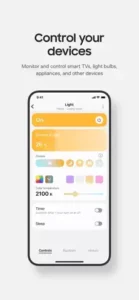
Simple controls for each device type that are intuitive. Lights have brightness sliders and color pickers. Thermostats have temperature controls. Locks have lock and unlock buttons.
Map View
3D layout tools available on supported setups. See devices mapped to your actual home floor plan. Makes troubleshooting device locations easier.
Quick Access
Widgets and quick panels on Samsung Galaxy phones. Control devices without opening the full app. Turn lights on and off from your home screen.
Performance
Runs on most iPhones from iPhone 8 and newer. Responsive controls with no lag. Fast loading between screens.
SmartThings Similar Apps
| App | Main Similarity |
|---|---|
| Google Home | Central smart home control and automation |
| Apple Home | Device grouping and home automation |
| Amazon Alexa | Voice driven smart home management |
| Home Assistant | Advanced automation and device integration |
| Hubitat | Local control smart home hub |
The Differentiation
Google Home focuses on voice control and Nest products. Works well with Google services and Chromecast. Apple Home prioritizes privacy and works best with Apple devices and HomeKit. Amazon Alexa emphasizes voice shopping and thousands of skills. Home Assistant is for advanced users who want total control with complex setups. Hubitat offers local processing without cloud dependency.
SmartThings stands out for its broad device compatibility across many brands and deep Samsung integration for Galaxy phone owners.
If you search SmartThings similar apps, these five appear most often. Each does something differently. SmartThings does broad compatibility and Samsung integration better than most.
SmartThings Smart Home Monitor and Security
What It Monitors
Motion sensors detect movement in your home. Contact sensors for doors and windows opening. Water leak sensors for floods under sinks. Smoke and CO detectors for safety. Cameras for video monitoring.
Modes
Armed Away when nobody is home, all sensors active. Armed Stay when home but sleeping, perimeter sensors active. Disarmed when actively moving around, no alerts.
Notifications
Get alerts instantly when something happens. Door opens while you are away. Motion detected while armed. Leak detected anywhere.
Activity History
See events over time in a log. Who unlocked the front door. When motion was detected. What time the garage door opened.
Emergency Response
Can notify emergency contacts you set up. No direct 911 calling from the app. Call emergency services yourself.
Integration
Works with security cameras from compatible brands. See video feed when an alarm triggers.
Setting Up Your Smart Home
Start Simple
Begin with just a few devices to learn the system. Lights in one room only. Add more devices over time as you get comfortable.
Group by Room
Put devices in rooms as you add them to the app. Keeps your dashboard organized from day one. Avoids having to reorganize later.
Create Basic Routines
Sunset lights that turn on automatically. Bedtime locks that secure doors. Morning coffee that starts brewing.
Test Automations
Make sure triggers actually work as expected. Adjust timing as needed. Test each routine after creating it.
Add Hubs if Needed
Some devices require a physical SmartThings hub to work. Some work over Wi Fi directly without extra hardware.
Share with Family
Invite household members to control the same devices. Everyone can lock doors and turn on lights.
Use Scenes
Create scenes for common situations in your home. Movie night dims lights. Dinner time sets the mood. Good morning opens blinds.
SmartThings Tips and Tricks for 2026
Group Devices by Room as Soon as You Add Them
Put each device in the correct room immediately when pairing. Keeps your dashboard organized from the very start. Saves time later.
Start with Simple Routines
Turn on lights at sunset. Lock doors at bedtime. Start simple, then add complexity as you learn.
Use Smart Home Monitor for Entry Points, Leaks, and Safety Sensitive Devices
Set up alerts for all exterior doors and windows. Add water leak sensors under sinks and near appliances. Get notified immediately when something goes wrong.
Check Compatibility before Buying New Devices
Not all brands work with SmartThings. Check the official SmartThings compatibility list before purchasing anything new.
Use Notifications and Activity History to Troubleshoot Odd Device Behavior
See exactly when devices triggered. Identify patterns in strange behavior. Fix issues by understanding what happened.
Build Scenes for Common Situations Like Movie Night or Away Mode
One tap for multiple actions at once. Dim lights, lower shades, turn on TV for movie night. Lock doors, turn off lights, set alarm for away mode.
If Supported on Your Device, Try Map View for Easier Troubleshooting
See where each device is physically located in your home. Makes finding problem devices much easier.
Share Home Access Carefully with Family Members
Invite only trusted people to your home. Remove access when people no longer live there.
Use Location Based Automations
Arrive home, lights turn on automatically. Leave home, everything turns off. Uses your phone location.
Integrate with Voice Assistants
Connect to Google Assistant or Amazon Alexa. Control your home with voice commands.
SmartThings Common Issues and Fixes
Device Not Connecting
Check compatibility list first. Reset the device to factory settings. Reboot the SmartThings hub. Reinstall the app.
Routine Not Running
Check trigger conditions are correct. Check time settings are right. Ensure the device is online.
Slow Response
Check Wi Fi signal strength. Move hub closer to problem devices. Reduce distance between hub and devices.
Device Shows Offline
Power cycle the device by unplugging and plugging back in. Check hub connection status. Re pair the device.
Multiple Users Not Seeing Same Devices
Ensure everyone uses the same SmartThings account. Or use the home sharing feature correctly.
App Crashes
Update to the latest version from the App Store. Restart your phone. Reinstall the app.
Hub Not Detecting
Check power and internet connection. Reboot the hub. Factory reset as last resort.
Conclusion
if you have multiple smart home devices from different brands in your home. SmartThings brings them all together in one app instead of five. Samsung device owners get extra benefits like quick access panels. The app is completely free to use. The automation features are powerful for a free app. The learning curve is manageable for most people. It beats using five separate brand apps that do not talk to each other.
What works: Controls multiple brands in one unified app. Automations and routines that run automatically. Scenes for one tap multiple actions. Room organization for logical layout. Smart Home Monitor for security alerts. Map view for visual layout. Free with no subscription required.
What does not: Setup can be complex for beginners. Device compatibility varies by brand. Some brands are not supported at all. May need the physical hub for some devices. Occasional reliability issues reported.
What do you want from a smart home app? If you want one place to control many different devices and create automations across brands, SmartThings delivers. If you are all in on Apple devices with HomeKit or Google with Nest, their ecosystems may fit your needs better.
Frequently Asked Questions About SmartThings
Is SmartThings free to use?
Yes. The SmartThings app is completely free to download and use. No subscription required. You can control devices, create automations, set up routines, and monitor your home without paying. Some advanced features may require a physical SmartThings hub, but the app itself costs nothing. You can start your SmartThings download from the Official App Store.
What devices work with SmartThings?
SmartThings works with Samsung TVs, appliances, and phones. It also supports many third party brands including Philips Hue lights, Ring doorbells, Nest thermostats, Yale and Schlage locks, Arlo cameras, Ecobee thermostats, and Sonos speakers. Check the official compatibility list before buying new devices.
Do I need a SmartThings hub to use the app?
Some devices work directly over Wi Fi without a hub. Samsung TVs and appliances connect directly. Many third party devices require the SmartThings hub. The hub acts as a bridge between the app and devices that use different wireless protocols like Zigbee and Z Wave.
What is the difference between a routine and a scene in SmartThings?
A routine runs automatically when a trigger condition is met. Time based routines run at sunset or a specific hour. Device based routines run when a sensor detects motion or a door opens. A scene is manual. You tap one button to trigger multiple actions at once, like movie night dimming lights and turning on the TV.
Where can I find official information and get support if I have issues?
The official Samsung SmartThings website has information about features and compatible devices. The SmartThings Help Center answers common questions about setup and troubleshooting. For account issues or technical problems, contact Samsung support through their website. Official website: https://smartthings.samsung.com