
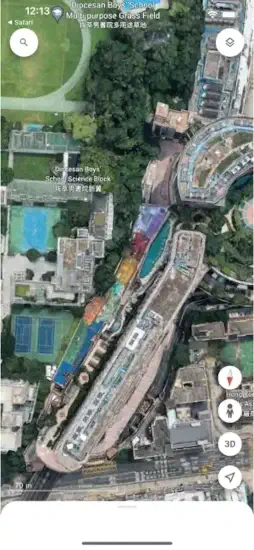
Google Earth is different from Google Maps. You have Google Maps for directions, for finding the nearest coffee shop, for getting from home to work.

Google Earth is something else entirely. You zoom from space down to your street. You see mountains in 3D with realistic elevation. You walk through cities in Street View at ground level. You explore the world without leaving your couch. The question is whether it is a useful tool for travel planning and education or just a toy you will open once, say “cool,” and forget about forever.
Virtual globe apps exploded after Google Earth proved people love exploring the world from above. Apple Maps added flyovers in select cities with 3D views. Bing Maps offered satellite views with decent resolution. Earth3D provided similar exploration with less detail. Google Earth stayed the most detailed and feature-rich option, with better imagery and more 3D cities than any competitor.
Google Earth in 2026 is not just a map. It is an exploration platform. You search for places anywhere on Earth. You zoom in for incredible detail. You measure distances between points. You create custom map projects with markers and lines. You travel the world virtually from your phone. Understanding the features helps you use it for travel planning, geography education, or pure curiosity.
Google Earth app holds a 4.0 star rating on the App Store based on over46,000 reviews. Size sits around 156 MB depending on cached imagery. Age range stretches from students learning geography to travelers planning trips to curious adults exploring the world. If you need turn by turn navigation instead of exploration, Google Maps offers driving directions
What Is Google Earth ?
A virtual globe that lets you explore the entire planet. High-resolution satellite imagery shows you what the world looks like from above. 3D terrain shows mountains and valleys. Street View puts you on the ground at street level. Zoom from a global view down to specific streets and landmarks. Explore cities, mountains, oceans, and remote places you will never visit in person. More than a map. An interactive exploration platform.
Who It Is For
Travelers planning trips who want to see destinations before they visit. Students and teachers studying geography and world cultures. Researchers analyzing terrain, land use, and locations. Anyone curious about the world who wants to explore from home without buying plane tickets.
The Difference from Google Maps
Google Maps is for navigation and driving directions. Google Earth is for exploration and visualization. Maps gets you from point A to point B with turn by turn instructions. Earth shows you what the world actually looks like from above and at street level.
Free to Use
Completely free to download and use. No subscription required. No ads interrupting your exploration. Google Earth is part of Google’s free services.
Google Earth Core Features:
Satellite Imagery
High resolution images taken from satellites in orbit. Zoom in to see individual buildings and cars. Zoom out for the global view. The imagery is updated regularly, though frequency varies by location.
3D Terrain
Mountains, valleys, canyons, and ocean floors in 3D. Tilt the view to see elevation changes. Understand topography and why cities are built where they are.
3D Buildings
Hundreds of cities have detailed 3D building models. See skyscrapers and landmarks from any angle. Fly through cityscapes. The 3D models are generated from aerial photography.
Street View
Drop the yellow pegman onto the map. Enter street-level 360-degree views. Walk through neighborhoods using on-screen arrows. Look around in any direction by dragging the screen.
Historical Imagery
Slide through time with a simple slider. See satellite images from different years. Watch change over months, years, or decades. The historical data goes back to the 1980s in some areas.
Voyager
Guided tours created by Google and partners like National Geographic. Explore curated collections of interesting places. Natural wonders. Historic sites. Cultural landmarks. Each tour includes photos, text, and map locations.
Search
Search for any place on Earth. Cities. Landmarks. Coordinates. Business names. The app flies you there instantly from anywhere on the globe.
How to Navigate in Google Earth
Zoom In and Out
Pinch with two fingers to zoom out. Spread two fingers apart to zoom in. Or use the plus and minus buttons on screen. Zoom from space view down to street level seamlessly.
Rotate the Globe
Drag with one finger to rotate the globe. See the world from different angles. Spin the Earth to see the other side.
Tilt the View
Use two fingers to tilt the view. See terrain elevation. See buildings from the side instead of straight down. Understand the shape of the land.
Search
Tap the search icon. Type a place name, address, or coordinates. The app flies you there with a smooth animation.
Pegman
Drag the yellow pegman icon from the corner to any location. Drop him to enter Street View where available. Blue outlines show where Street View exists.
Compass
Tap the compass icon to reset north. Orient yourself when you get turned around.
Google Earth Layers and Overlays
Borders and Labels
Country borders shown as lines. City names displayed. Landmark labels for famous places. Turn them on or off depending on what you need.
Roads
Road network overlay. Highways, streets, and local roads. Good for understanding connectivity between places.
Photos
Geotagged photos from Google Maps users. See what places look like from ground level. The photos are not Street View, but user-submitted images.
Weather
Cloud cover and weather data overlay. See current cloud patterns across the globe. Watch storms move.
Volcanoes and Earthquakes
Natural disaster layers. Recent earthquakes shown as dots. Volcano locations marked. Good for geography and earth science.
Turn Layers On and Off
Avoid screen clutter. Turn off layers you do not need for your current exploration. Focus only on what interests you.
Google Earth Graphics and Design
Visual Style
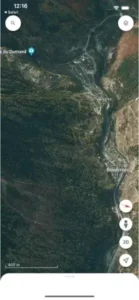
Centered around a 3D globe that feels like you are holding the Earth in your hands. Smooth zooming animations that never stutter. Layered geographic detail that reveals more as you zoom in. The interface is clean and map-first, prioritizing the imagery over buttons and menus.
Globe View
The Earth rotates naturally as you drag your finger. Seamless zoom from space view down to ground level without loading screens. The experience feels immersive, like you are actually flying over the planet.
Controls
Controls stay out of the way until you need them. Buttons for zoom, search, layers, and Street View are there when you look for them. Easy to access without cluttering the screen.
Performance
Runs on most iPhones from iPhone 7 and newer. The 3D graphics are demanding on the processor. Older devices may struggle with smooth zooming and may experience lag. Newer devices handle it effortlessly.
Dark Sky
Night mode available for a different perspective. See city lights from space at night. The dark sky view is beautiful and shows human settlement patterns clearly.
Google Earth Similar Apps
| App | Main Similarity |
|---|---|
| Google Maps | Location search, Street View, and navigation |
| Apple Maps | Map exploration and place discovery |
| Bing Maps | Satellite and map based geographic browsing |
| Earth3D | Virtual globe exploration |
| ArcGIS Explorer | Geographic layers and map analysis |
The Differentiation
Google Maps focuses on navigation and driving directions, not exploration. Apple Maps has flyovers in select cities but less global coverage and fewer 3D buildings. Bing Maps has satellite views but significantly fewer 3D cities. Earth3D is simpler with less detail and lower resolution imagery. ArcGIS Explorer is for professional geographic analysis, not casual exploration.
Google Earth stands out for its combination of satellite imagery, 3D terrain, 3D buildings, and Street View. No other app offers the same level of detail and global coverage in one package.
If you search Google Earth similar apps, these five appear most often. Each does something well. Google Earth does virtual exploration better than anyone.
Google Earth Tips and Tricks for 2026
Use Search to Jump Quickly to Landmarks, Cities, or Coordinates
Type “Eiffel Tower” or “Grand Canyon” into search. The app flies you there instantly. Type latitude and longitude coordinates for remote locations that do not have names.
Turn on 3D Terrain to Make Elevation and City Shapes Easier to Understand
Tilt the view to see mountains and valleys. Understand why cities are built where they are. See how rivers cut through landscapes.
Explore Historical Imagery to Compare How an Area Has Changed Over Time
Slide the time bar back and forth. Watch cities grow over decades. Watch forests get cut down. Watch glaciers retreat year by year.
Use Street View for Street-Level Context Before Travel or Research
Drop the pegman on any blue outlined road. Walk through neighborhoods using the arrows. See what a hotel, restaurant, or landmark actually looks like before you visit.
Add Markers and Lines if You Are Building a Custom Map Project
Drop pins on important locations. Draw lines for planned routes. Add shapes for areas of interest. Share your project with others.
Zoom and Tilt the Globe to Get Better Spatial Perspective
See how continents relate to each other. Understand distances between countries. See why some regions are isolated by mountains or oceans.
Switch Layers on and Off to Avoid Clutter When Studying Geography
Turn off roads and labels. See only the terrain and satellite imagery. Focus on the land itself without distractions.
Try Voyager Guided Tours for a More Structured Exploration Experience
Open the Voyager menu. Choose a topic like natural wonders or historic sites. Follow the tour. Learn something new with each tour.
Measure Distances Between Points
Use the measurement tool. Click on two points. See the distance in miles or kilometers. Good for trip planning or geography studies.
Save Locations for Later
Star places you want to remember. Build a collection of favorites. Return to them easily without searching again.
Google Earth Custom Map Projects
Creating Projects
Tap the projects icon in the menu. Create a new project. Add a title and description. The project saves to your Google Drive automatically.
Adding Places
Search for locations from within the project. Add them to your project. Drop pins on specific spots, not just general areas.
Drawing Lines and Shapes
Draw lines for planned routes or boundaries. Draw shapes for areas of interest. Customize colors and line styles. The drawing tools are simple but effective.
Adding Photos and Videos
Add your own photos to specific locations. Embed YouTube videos for context. Tell a story with media attached to places on the map.
Sharing Projects
Share projects with others via link. Collaborate on the same project with multiple editors. Good for group work, classroom assignments, or family trip planning.
Exporting Projects
Export projects to Google Drive. Share as a link. Present to others on a larger screen.
Google Earth Common Issues and Fixes
Slow Performance
3D graphics are demanding on processors. Close other running apps. Restart your device. Lower graphics settings if available in the options.
Outdated Imagery
Some areas have older satellite images. Not all places are updated regularly. Remote areas may have lower resolution or older photos. Urban areas are updated more frequently.
Missing 3D Buildings
Only hundreds of cities have 3D building models. Smaller towns and rural areas may not have them. The feature is growing over time as Google captures more aerial data.
Street View Not Available
Street View is not everywhere on Earth. Only roads and areas that Google has physically mapped. Remote areas, rural roads, and many countries have limited coverage.
App Crashes
Update to the latest version from the App Store. Clear the app cache in settings. Reinstall the app if crashes persist.
Conclusion:
Google Earth is one of the most impressive free apps available on any platform. You can explore the entire planet from your phone without leaving your house. The satellite imagery is stunning and constantly improving. The 3D terrain and buildings are immersive. Street View lets you walk through cities at ground level. It is useful for travel planning, geography education, and pure curiosity.
What works: Stunning satellite imagery of the entire planet. 3D terrain and buildings that make landscapes real. Street View integration for ground-level exploration. Historical imagery to see changes over time. Voyager guided tours for structured learning. Custom map projects for collaboration. Free with no ads and no subscription.
What does not: Performance can be slow on older devices with weaker processors. Imagery is outdated in some remote areas. 3D buildings only available in major cities, not everywhere. Street View is not available everywhere on Earth.
What do you want from a mapping app? If you want to explore the world, plan trips, or study geography, Google Earth delivers. If you need turn by turn navigation to get from place to place, Google Maps might fit better.
Video by KnowledgeBase

Frequently Asked Questions About Google Earth
Is Google Earth free to use?
Yes. Google Earth is completely free to download and use. No subscription. No ads. No hidden costs. You get full access to satellite imagery, 3D terrain, 3D buildings, Street View, historical imagery, Voyager tours, and custom map projects. You can Download Google Earth from the Official App Store.
What is the difference between Google Earth and Google Maps?
Google Maps is for navigation and getting directions from one place to another. Google Earth is for exploration and visualization. Maps shows you the route. Earth shows you what the world actually looks like from above and at street level. Earth has 3D terrain, 3D buildings, historical imagery, and a global view that Maps does not have.
Does Google Earth work without internet?
You need an internet connection to stream satellite imagery and 3D data. The app does not have full offline mode. However, you can cache imagery for specific areas if you pan around them while online. The cached imagery remains available offline for a limited time.
Can I see my house on Google Earth?
Yes. Most residential areas in developed countries have high-resolution satellite imagery. Zoom in on your address. You should see your house, yard, and neighborhood. In major cities, you may also see 3D buildings. In some rural or remote areas, the imagery may be lower resolution.
Where can I find official information and get support if I have issues?
The official Google Earth Help Center has documentation, video tutorials, and troubleshooting guides. The Google Earth community forum offers peer-to-peer support. For technical problems, visit the Google Help page. Official website: https://earth.google.com