
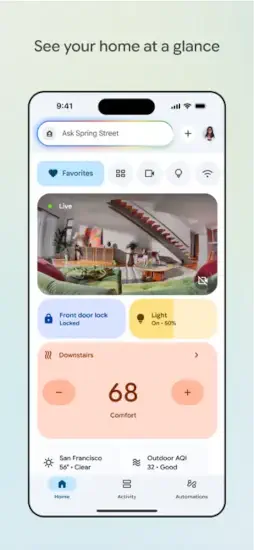
Google Home is Google’s smart home control app that lets you set up, manage, and control compatible Nest, Chromecast, and other smart devices from one place.

You have smart lights, a thermostat, a camera, and a speaker. But they all live in different apps. That is the problem Google Home solves.
What Exactly Is Google Home?
This is a smart home control app, not a game. You do not collect points or level up. You manage devices that make your home more convenient.
Central dashboard for all compatible devices
The app acts as a central dashboard for all compatible devices. Open it, and every connected device appears in one place.
Manages Nest, Chromecast, lights, thermostats, cameras, and speakers
Google Home manages Nest, Chromecast, lights, thermostats, cameras, and speakers. If a device has the “Works with Google Home” badge, it belongs here.
One app replaces multiple device-specific apps
One app replaces multiple device specific apps. No more opening Philips Hue for lights, Nest for thermostat, and Ring for cameras. Everything lives inside Google Home.
For anyone searching Google Home app review, the main takeaway is consolidation. One app. One dashboard. One place to control your connected home.
How Google Home App Works
The workflow is simple. Open, view, tap, control.
Check your home status
Open the app to see your home status. Which lights are on? What is the temperature? Are any cameras detecting motion? All visible at a glance.
View all connected devices in one dashboard
View all connected devices in one dashboard. Scrolling through rooms shows every device. Your kitchen lights. Your living room speaker. Your bedroom thermostat.
Tap a device to control it
Tap a device to control it. Turn a light on or off. Change the thermostat temperature. Play music on a speaker. Adjust camera settings.
Check camera feeds and activity history
Check camera feeds and activity history. See who walked past the front door. Review when the garage opened. Watch recorded clips.
Create automations for recurring routines
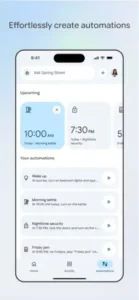
Create automations for recurring routines. Lights turn on at sunset. Thermostat adjusts when you leave. Cameras arm at night. Set it once. The app handles the rest.
Google Home Core Features
Here is what actually makes Google Home useful.
Device setup and management
Set up and manage Google Nest and compatible smart devices. The setup wizard guides you through adding each device. Most take less than two minutes.
Control cameras, lights, thermostats, smart plugs, speakers, and displays. The app covers most smart-home categories. Not just Google devices. Third-party devices work too.
Quick access and activity tracking
Favorites for quick access to frequently used devices and automations. Pin your most-used devices to the top. No scrolling. No searching.
Activity history including camera events, voice interactions, and device states. See what happened while you were away. Every event is time-stamped and searchable.
Wi-Fi management and search
Speed tests and Wi-Fi management for Google/Nest Wi-Fi devices. Check network performance. Troubleshoot connection issues. All from inside the app.
Ask Home / search to find devices or access AI features. Type or say what you need. The app finds the device or setting. No menus to navigate.
Automations and camera features
Automations and routines from inside the app. Create custom routines. “Good morning” turns on lights and plays news. “Good night” locks doors and arms cameras.
Camera live feeds and history in a streamlined interface. Watch live feeds from any camera. Scroll through history. Save clips.
Broad ecosystem and Matter device support. The app works with thousands of devices through Matter and Google’s compatibility program.
For users looking at Google Home setup guide, the app handles most of the work. Scan a QR code. Wait for pairing. Name the device. Done.
Google Home Graphics and Design
The app prioritizes function over flash.
Clean interface
Clean, utility-first interface. No animations. No decorative elements. Every pixel serves a purpose.
Dashboard layout
Dashboard layout with Favorites, Activity, and device access. Those three sections cover everything you need.
Practical and minimalist design
Practical and minimalist design. Information density is high. Visual noise is low. You find what you need quickly.
Redesigned for speed
Redesigned for faster control and easier navigation. Earlier versions were clunkier. The current layout reduces taps.
Function focused
Focused on function, not flashy visuals. Google Home is not a showpiece. It is a tool.
Google Home Tips
You can download the Google Home app right now and connect your devices in minutes. But a few smart habits separate people who set it up once and forget it from people who use it daily to simplify their routines.
Organize your devices
Pin most-used devices to Favorites for faster access. The Favorites section sits at the top of the app. Add your front door lock, living room lights, and thermostat. Remove devices you rarely touch. One tap access changes how often you use the app.
Group devices into dashboards or rooms for organization. Create rooms like “Kitchen,” “Living Room,” and “Bedroom.” The app follows your organization. When you want to turn off all kitchen lights, you select the room instead of each individual bulb.
Master activity tracking
Use the Activity tab to review camera events and home history quickly. The Activity tab is underused. It shows every event in chronological order. Camera motion. Thermostat changes. Door locks. Voice commands. Check it daily to see what happened while you were away.
Build automations that save time
Try automations for recurring routines like lighting changes. One automation can control multiple devices. “Good morning” turns on five lights and adjusts the thermostat. “Good night” locks doors and arms cameras. Set each routine once. The app handles the rest.
Find settings faster
Use Ask Home or search when you cannot find a device setting. Scrolling through menus wastes time. Type what you want. “Living room temperature.” “Front camera history.” “Speed test.” The app finds the setting directly.
Check compatibility first
Check compatibility before buying smart devices, especially for Matter support. Not every smart device works with Google Home. Some require additional hubs. Some only work through third-party apps. Check the compatibility list before purchasing. That saves returns and frustration.
For users searching Google Home tips specifically, the number one piece of community advice is to name devices clearly. “Lamp” is vague. “Living Room Floor Lamp” is specific. Voice commands work better with clear names.
And no, there are no Google Home codes for free devices or premium features. The app is free. Device discounts come through Google Store promotions, not in-app codes. Ignore third-party sites claiming otherwise.
Google Home Similar Apps
Not every smart home platform works the same way. Here is how Google Home compares to the competition for users searching Google Home similar apps.
| App | Main Similarity |
|---|---|
| Amazon Alexa | Smart home control with voice and app. Larger skill ecosystem. Better for voice first households. |
| Apple Home | Centralized control for HomeKit devices. More privacy focused. Best for Apple ecosystem users. |
| Samsung SmartThings | Smart device management and automation. Stronger for advanced users and custom automations. |
| Hubitat | Advanced home automation platform. No cloud dependency. Local processing. Higher learning curve. |
| Home Assistant | Open source smart home control. Highest flexibility. Steep learning curve. Requires technical knowledge. |
Which one should you pick?
Start with Amazon Alexa if you already own Echo devices and want the widest range of compatible products. Start with Apple Home if you are fully in the Apple ecosystem and value privacy. Start with SmartThings if you want more advanced automations than Google Home offers.
Stay with Google Home if you own Nest devices, Chromecast, or Android phones. The integration is seamless. Google Assistant voice commands work natively.
Google Home app comparison reviews consistently rank it best for ease of setup and clean interface. The tradeoff is less advanced automation compared to SmartThings or Home Assistant.
Who Should Use Google Home App?
Good fit for
People with multiple Google Nest or compatible smart devices. If you own two or more smart devices from Google or compatible brands, this app helps.
Anyone tired of switching between device specific apps. The primary value is consolidation. One app replaces five. That reduction in friction changes how often you use smart features.
Users who want to automate home routines. Automations save time every day. Lights adjust automatically. Thermostats respond to presence. Cameras arm at night.
Not a good fit for
People with no smart home devices. You need devices to manage. The app itself does nothing without compatible hardware. Install it after you buy your first device, not before.
Users who prefer separate apps for each device. Some people like dedicated apps. They offer more advanced settings. Google Home simplifies, but sometimes too much. Power users may feel limited.
Privacy conscious users. Google Home sends data to Google’s servers. Camera footage, voice commands, and device states are processed remotely. Users who want local-only control should consider Hubitat or Home Assistant.
What Users Say about Google Home
The app has millions of users and a wide range of opinions.
What works well
Positive: Easier scrolling and event review. Users appreciate the redesigned Activity tab. Finding past events is now straightforward.
Positive: Convenience of controlling everything from one place. That is the app’s primary value. Users consistently praise the consolidation.
What frustrates people
Negative: Glitches and freezing reported by some users. The app can be slow to load. Some commands fail to execute on the first try.
Negative: Occasional responsiveness issues. Tap a button. Wait. Tap again. That delay frustrates power users.
The bottom line
Overall: Appreciated for convenience. Reliability is the main pain point. Most users live with the occasional glitch because the convenience outweighs the frustration.
Google Home app problems are a common topic in user reviews. Slow loading. Failed commands. Device not found. These issues happen, but not consistently enough to drive users away.
Conclusion
Let us call this what it is. A convenient, slightly glitchy, essential app for Google smart-home owners.
FAQ
Where do I get Google Home download, and is it really free to use?
Yes, the app costs nothing to install. You can start controlling your smart devices from one place today. Download Google Home from the Official Apps Store.